
NASBOOST Documentation
M13-N Motherboard User Manual
Mini-ITX NAS motherboard with 6 SATA3.0 ports, dual Intel i226-V 2.5G networking and -10~60°C wide-temperature operation. This manual covers hardware layout, connector pinouts, installation, BIOS settings and troubleshooting.
Safety Precautions
- Before using this product, please read the user manual carefully.
- Store any boards not yet ready for installation in an anti-static protective bag.
- Before taking a board out of the anti-static bag, place your hands on a grounded metal object for a while (e.g. 10 seconds) to discharge static electricity from your body and hands.
- When handling boards, wear anti-static gloves and get into the habit of touching only the edges.
- To avoid electric shock or product damage, always turn off the AC power before inserting, removing or reconfiguring boards.
- Before moving a board or the whole system, always turn off the AC power.
- For a complete system, always turn off the AC power before adding or removing boards.
- Before connecting or disconnecting any device, always turn off the AC power.
- To avoid unnecessary damage from frequent power cycling, wait at least 30 seconds after shutdown before powering on again.
Chapter 1 Product Introduction
1.1 Overview
The NASBOOST M13-N can be widely used in general DIY, NAS, soft router, commercial display, communication control, medical instruments, industrial control, financial equipment, cloud terminals and other fields.
The main features of the M13-N motherboard are as follows:
- Integrated Intel® Core N150 / up to 3.6GHz quad-core processor
- Supports single-channel 3200MHz DDR4/1.2V memory, up to 32GB
- Display supports DP and HDMI, with optional DP+HDMI combined display
- Supports 2 × Intel i226-V 2.5G network cards
- 1 × PCIe 3.0 x4 open-ended expansion slot
- 6 × SATA3.0/SSD connectors
- 2 × M.2 2280 NVMe slots (NVMe mode only)
- Supports up to 8 USB ports
- Supports -10~60°C wide-temperature operation
- 6-layer PCB design for more stable performance
1.2 Product Specifications
| Motherboard Size | 170mm * 170mm |
|---|---|
| CPU | Intel® Core™ N150 Processor |
| Memory | 1 × 260-Pin DDR4 SO-DIMM memory slot. Supports 1.2V DDR4 SO-DIMM memory. Single module supports up to 32GB. |
| Expansion Slots | 1 × PCIe 3.0 x4 expansion slot; 2 × M.2 slots (NVMe protocol only) |
| Rear Panel Connectors | 1 × HDMI display connector; 1 × DP display connector; 4 × USB2.0; 2 × Audio connectors (Line Out/MIC-IN); 2 × RJ45 connectors |
| Internal Connectors | 6 × SATA HDD connectors; 1 × 9-Pin front panel switch header (FPANEL); 1 × 4-Pin CPU cooling fan (CFAN1); 2 × 4-Pin System cooling fan (SFAN1/SFAN2); 1 × CMOS_SW1 clear BIOS button; 1 × FUSB30_1 front connector (can break out 2 × USB3.0 ports); 1 × USB2.0 internal port; 1 × USB2.0 front 5-pin connector; 1 × 9-Pin internal audio connector (F_AUDIO); 1 × 24-Pin + 4-pin ATX power connector |
| Display | Supports synchronous dual display DP+HDMI |
| Network | 2 × Intel I226V 2.5G network cards |
| Audio | Realtek ALC897, supports Line-Out & Line-In |
| I/O Chip | NCT5585D |
| Power Supply | 24-Pin + 4-pin ATX power socket |
| Operating System | Windows 10, Windows 11, Linux, ESXi, PVE, Synology, fnOS, etc. |
1.3 Motherboard Layout Diagram
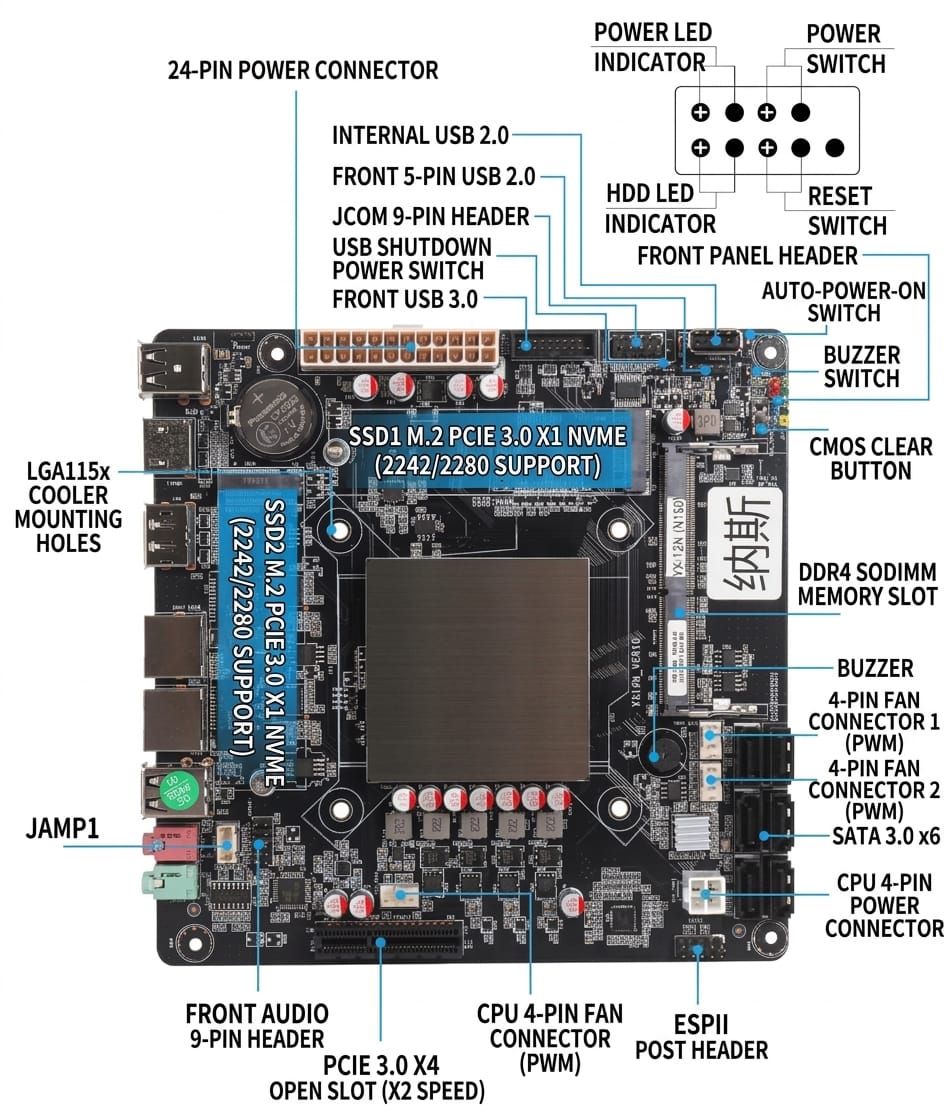
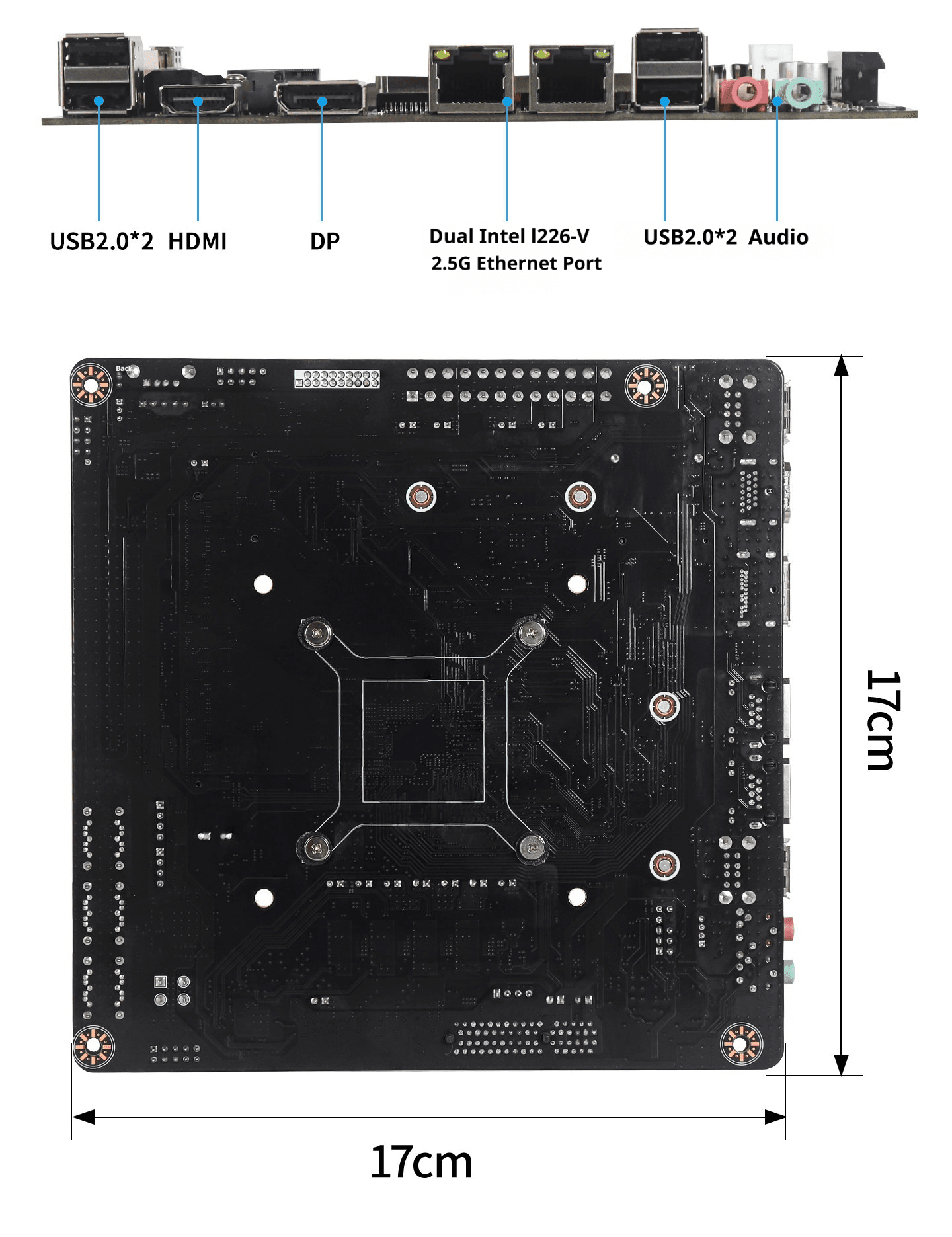
Note: The above is the M13-N Ver:1.1 identification diagram; for the specific model please refer to the actual product.
Chapter 2 Motherboard Installation
2.1 Safety Notes
- Do not tear off the serial number or dealer warranty stickers on the motherboard before installation, otherwise it may affect the determination of the product warranty period.
- Before installing or removing the motherboard and other hardware devices, be sure to turn off the power and unplug the power cord from the socket.
- When installing other hardware devices into the sockets on the motherboard, make sure the connectors and sockets are firmly connected.
- When handling the motherboard, try not to touch the metal wiring parts to avoid short circuits.
- When handling the motherboard, CPU or memory module, it is best to wear an anti-static wrist strap. If no wrist strap is available, make sure your hands are dry and touch a metal object first to discharge static electricity.
- Before installation, place the motherboard on an anti-static mat or in an anti-static bag.
- When unplugging the plug from the motherboard power socket, make sure the power supply is turned off.
- Before turning on the power, make sure the power supply voltage is set to the standard voltage of your region.
- Before turning on the power, make sure all hardware cables and power cords are correctly connected.
- Do not let screws touch the circuits or components on the motherboard to avoid damage or malfunction.
- Make sure no screws or metal objects are left on the motherboard or inside the computer case.
- Do not place the computer in an unstable location.
- Do not place the computer in an environment with excessively high temperature.
- Turning on the power during installation may cause damage to the motherboard, other devices or yourself.
- If you are unfamiliar with the installation, or encounter any technical problems while using this product, please consult a professional technician.
2.2 Installing Memory
This motherboard provides 1 × 260-Pin DDR4 SO-DIMM memory slot. Before installing memory, please note the following:
- Please first confirm that the memory you purchased matches the specifications supported by this motherboard.
- Before installing or removing memory, make sure the computer power is turned off to avoid damage.
- The memory has a foolproof design; if you insert it in the wrong direction, it cannot be inserted. In that case, immediately change the insertion direction.
- Before installing or removing memory, turn off the power and unplug the AC power cord.
- Carefully hold both ends of the memory module and do not touch the metal contacts on it.
- Align the gold fingers of the memory module with the memory slot, and make sure the notch on the gold fingers matches the key on the slot.
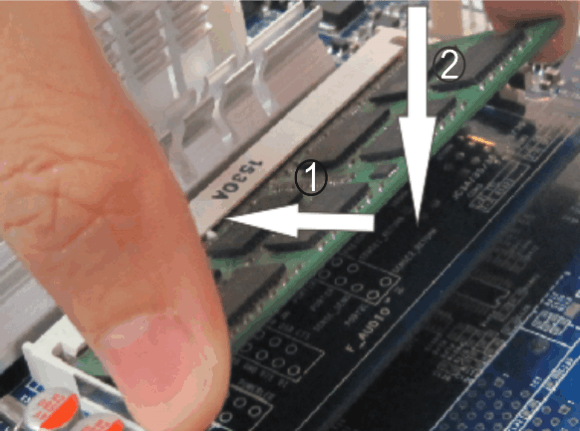
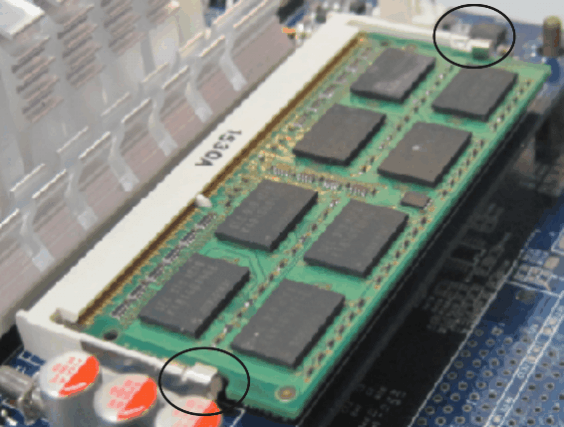
- Insert the memory module into the slot at a 30-degree angle, then press it down until you hear a click, which means the memory is installed successfully and ready to use. (Note: Do not press too hard to avoid damaging the memory.)
- To remove the memory module, push the clips at both ends of the DIMM slot outward simultaneously, then take out the memory module.
The installation diagram is for reference only:
2.3 Jumper Settings
The board uses standard pin headers for all jumper functions. The following rules apply:
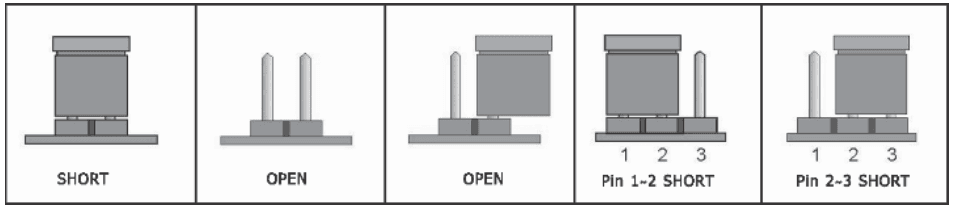
- 2-pin header: insert the jumper cap onto both pins to close (short) it.
- 3-pin header: the jumper cap can be inserted onto pins 1-2 or pins 2-3 to close (short) it.
How to identify the position of pin 1 of a jumper?
- Look carefully at the motherboard; any pin marked with 1 or with a thick white line is pin 1.
- Look at the solder pads on the back; usually the square pad is pin 1.
Chapter 3 Connector Description
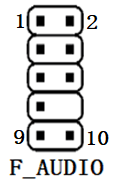
3.1 Audio Connector: F_AUDIO
The motherboard provides 1 × 2*5-Pin front audio connector (pitch: 2.54mm). The pin definitions are as follows:
| 1 | MIC2_L_S | 2 | Mic-in_R |
|---|---|---|---|
| 3 | MIC2_R_S | 4 | NC |
| 5 | LINE2_R_S | 6 | MIC-Detect |
| 7 | FRONT_IO_SENSE | 8 | NC |
| 9 | LINE2_L_S | 10 | Line-Detect |
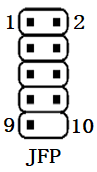
3.2 Switch Connector: JFP Definition
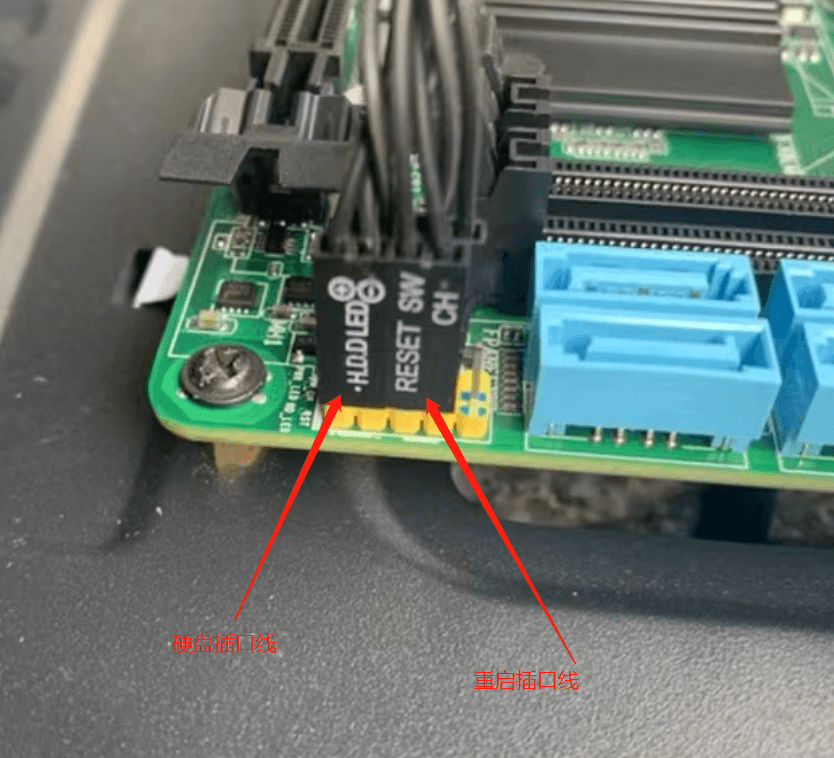
The JFP header carries the power switch, reset switch, power LED and HDD LED signals from the chassis front panel. The pin definitions are as follows:
| 1 | HDD_LED+ | 2 | PWR_LED+ |
|---|---|---|---|
| 3 | HDD_LED- | 4 | PWR_LED- |
| 5 | GND | 6 | PW_ON |
| 7 | RST | 8 | GND |
| 9 | GND | 10 | NC |
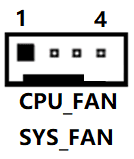
3.3 Fan Connectors: CPU FAN, SYS FAN Definition
The motherboard provides 3 × cooling fan connectors (pitch: 2.54mm): 1 × CPU cooling fan (CFAN1) and 2 × system cooling fans (SFAN1/SFAN2). The pin definitions are as follows:
| 1 | GND | 2 | +12V |
|---|---|---|---|
| 3 | TACH-IN | 4 | PWM |
3.4 USB Connectors: F_USB1, F_USB30_1 Definition
The motherboard provides 1 × 2*5-pin USB header (pitch: 2.54mm) and 1 × 2*10-pin USB3.0 header (pitch: 2.00mm). The pin definitions are as follows:
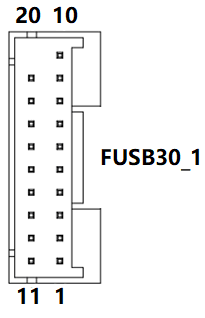
| 1 | VBUS | 11 | D+ |
|---|---|---|---|
| 2 | SSRX1- | 12 | D- |
| 3 | SSRX1+ | 13 | GND |
| 4 | GND | 14 | SSTX2+ |
| 5 | SSTX1- | 15 | SSTX2- |
| 6 | SSTX1+ | 16 | GND |
| 7 | GND | 17 | SSRX2+ |
| 8 | D- | 18 | SSRX2- |
| 9 | D+ | 19 | VBUS |
| 10 | NC | 20 | NC |
3.5 ATX_12 Power Input Connector
The motherboard provides a 4-Pin ATX_12V power input connector to meet different customer needs. The pin definitions are as follows:
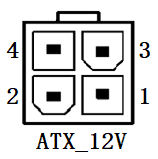
| 1 | GND | 2 | GND |
|---|---|---|---|
| 3 | 12V | 4 | 12V |
Motherboard Installation Notes
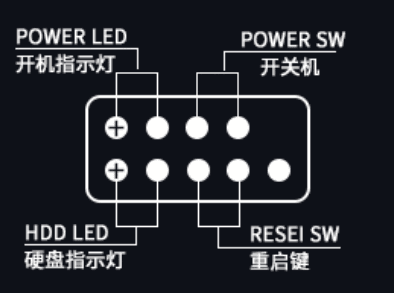
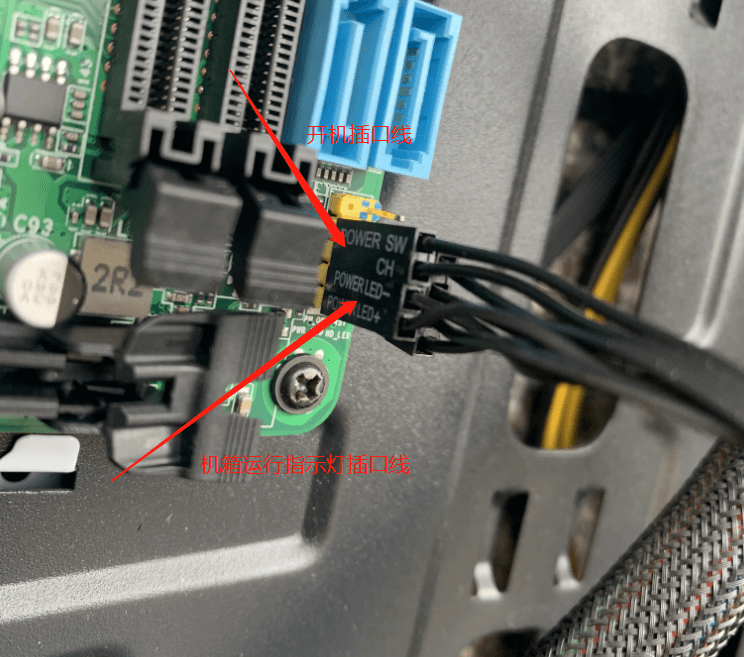
1. Power Switch Cable
For connecting the power switch cable, simply connect it as shown in the picture.
2. 4-Pin CPU Power Connection
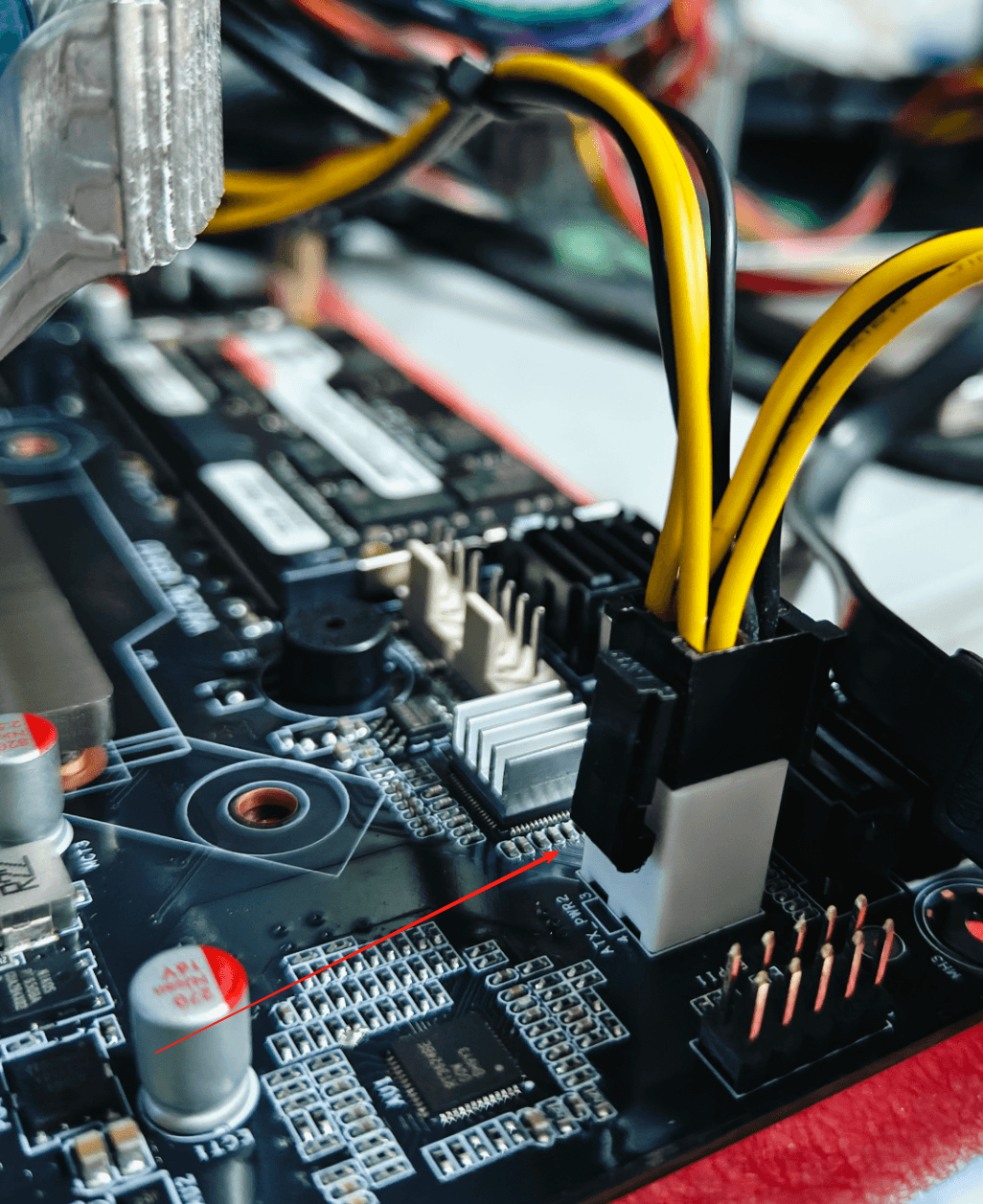
Regarding the 4-pin CPU power connection: for the 4-pin CPU power, the clip direction is the positive direction. Make sure to align the clip in this direction as shown in the figure.
3. 4+4 8-Pin CPU Power Supply
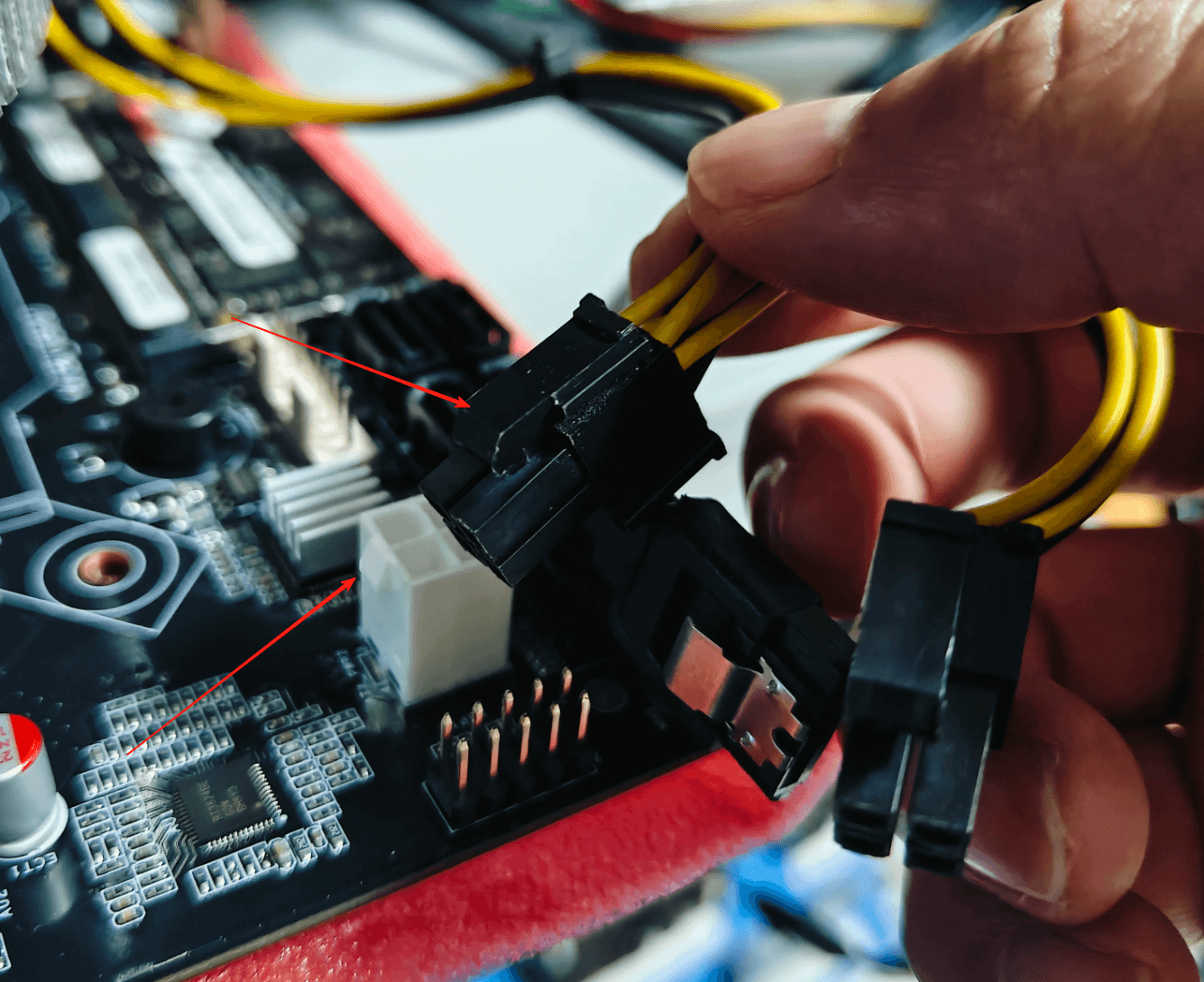
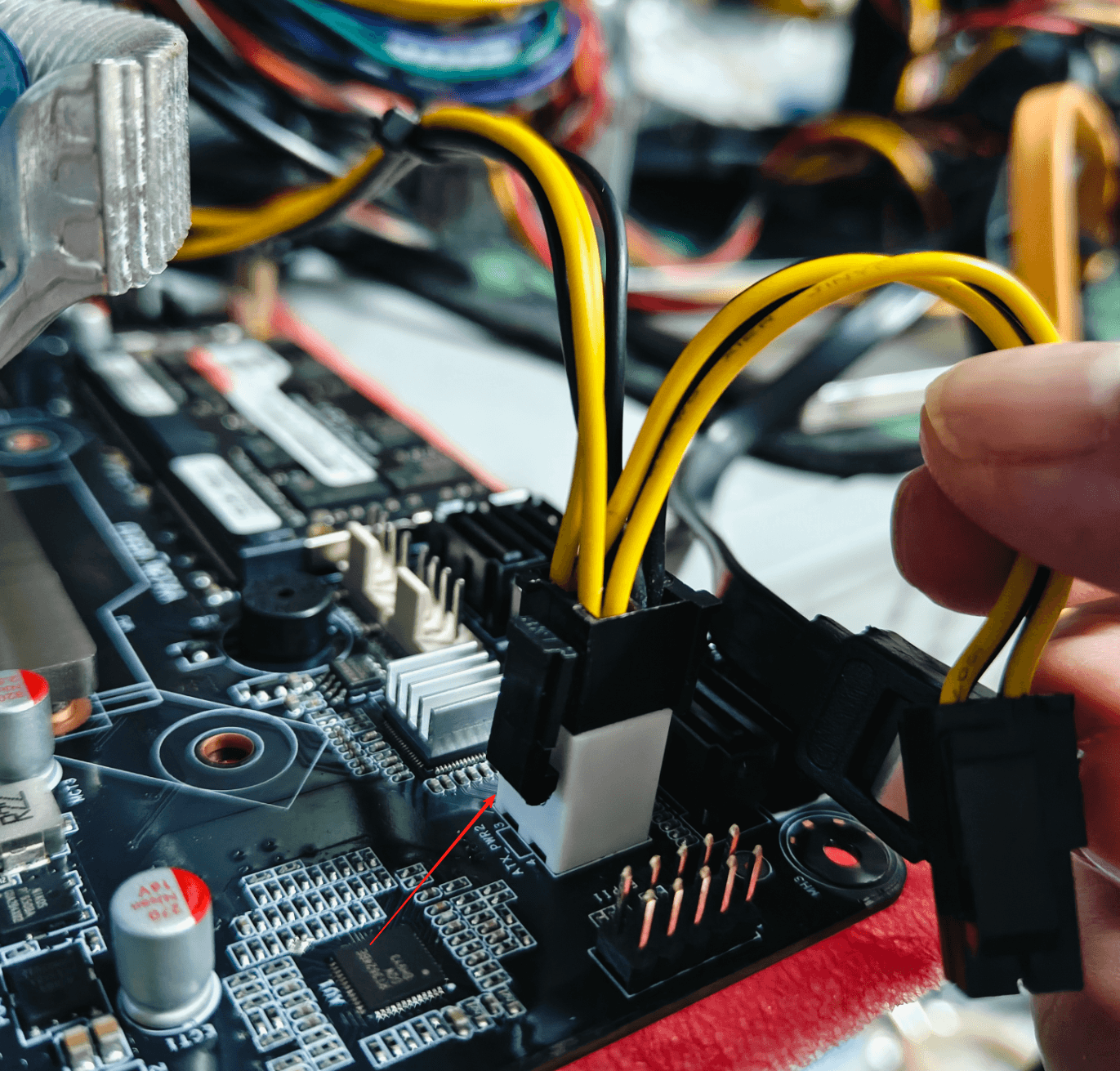
For a 4+4 8-pin CPU power supply, just split it apart as shown in the figure.
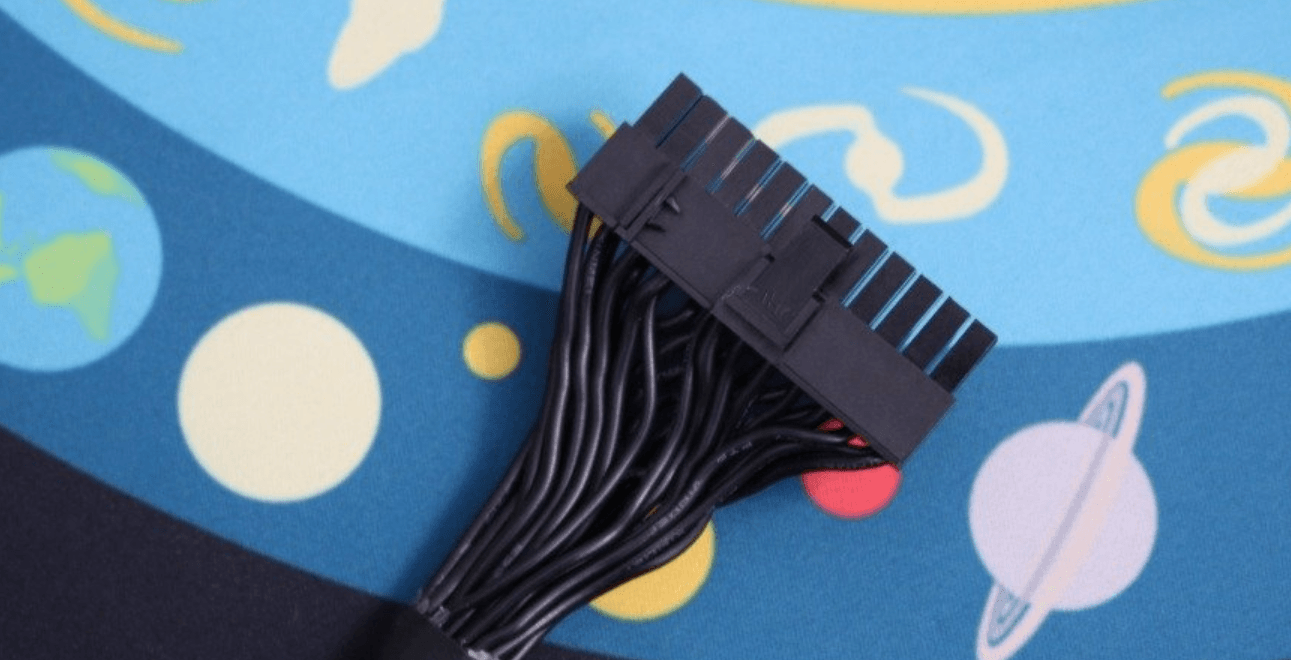
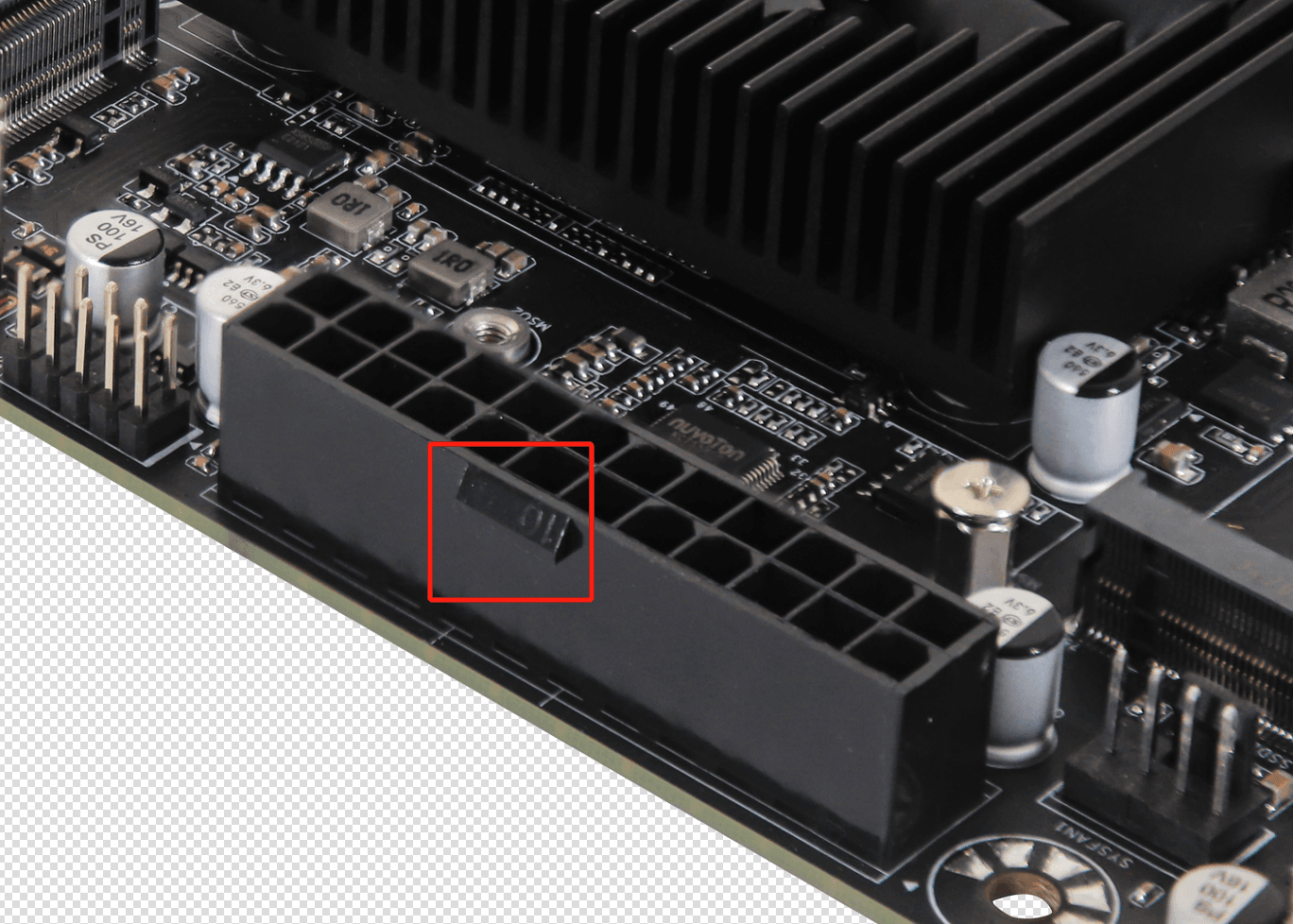
4. 24-Pin Power Connector
For the motherboard 24-pin power connector, plug in this power cable; insert the motherboard power cable facing the clip direction of the motherboard.
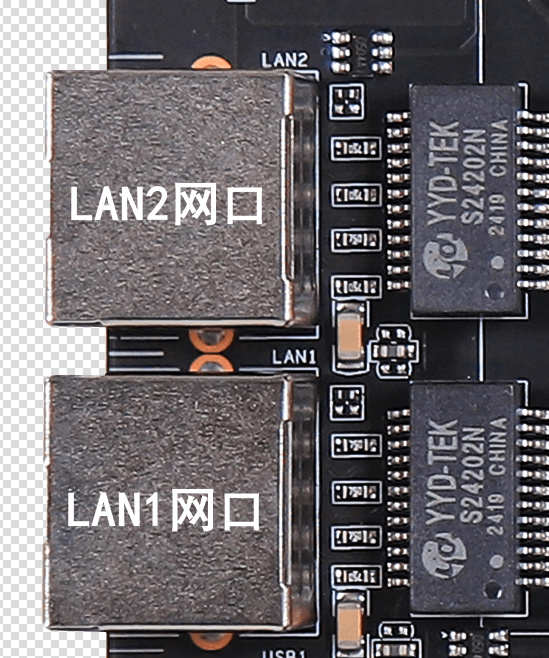
5. Motherboard Network Port Order
6. M.2 SSD Order
SSD1 is M.2 PCIe3.0 NVMe x1 speed, supporting NVMe 2242 and 2280 SSDs; SSD2 is M.2 PCIe3.0 NVMe x1 speed, supporting NVMe 2242 and 2280 SSDs (the lanes are independent and not shared).
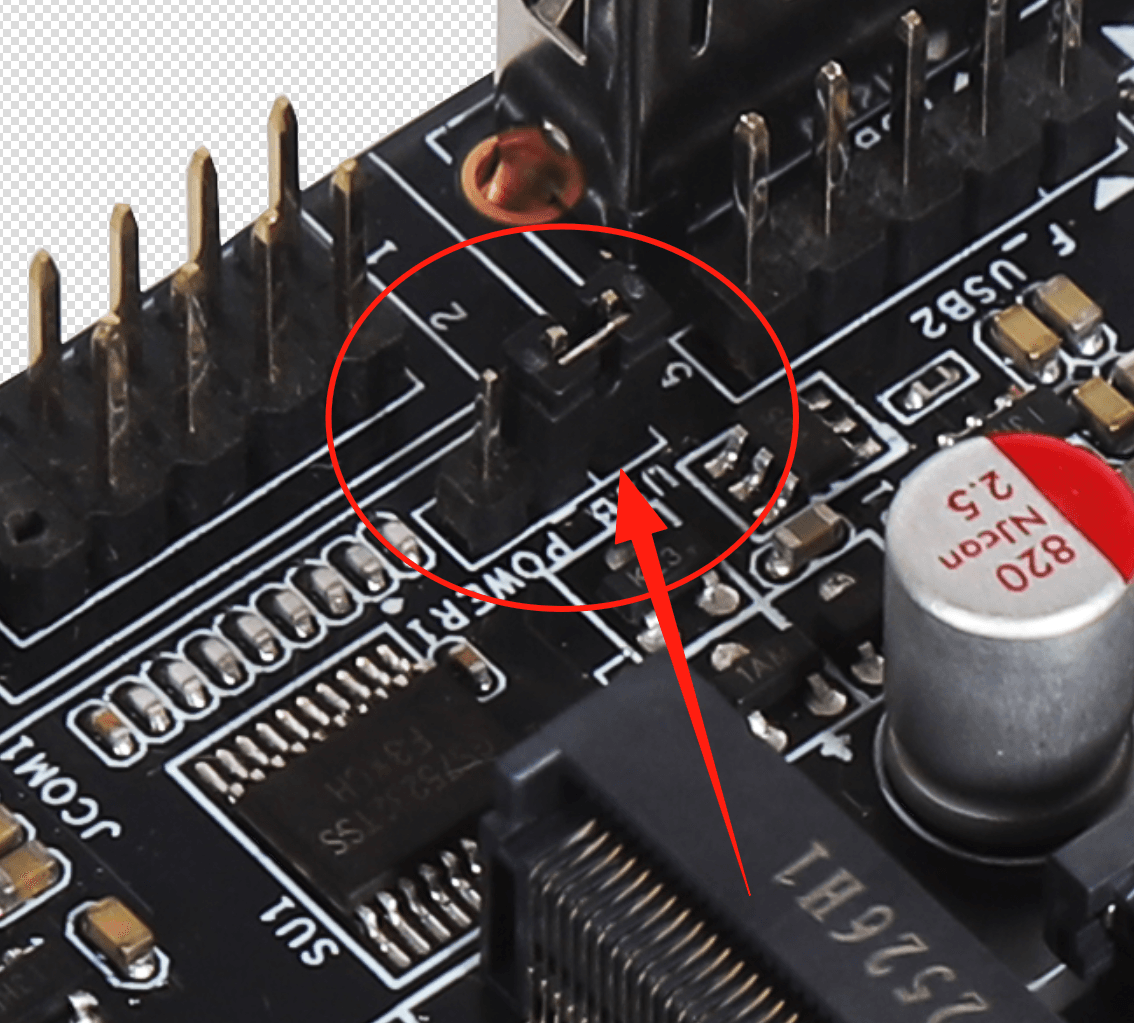
7. USB Power-On-When-Off Setting
The cap covering pins 1-2 means USB power is enabled when the system is off; the default cap covering pins 2-3 means USB power is disabled when the system is off.
8. Buzzer Switch Setting
The cap covering pins 1-2 means off; the default cap covering pins 2-3 means the buzzer is enabled.
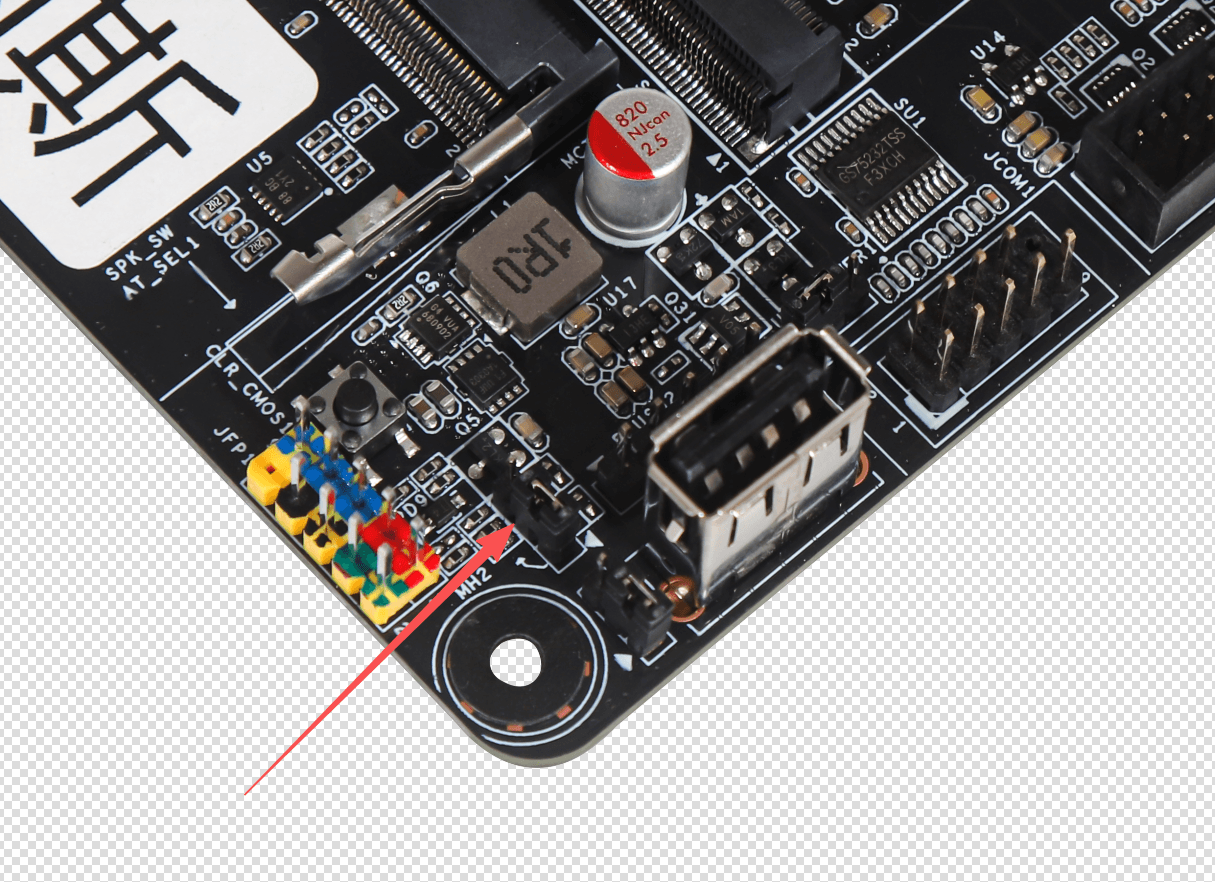
9. SATA Connector Order
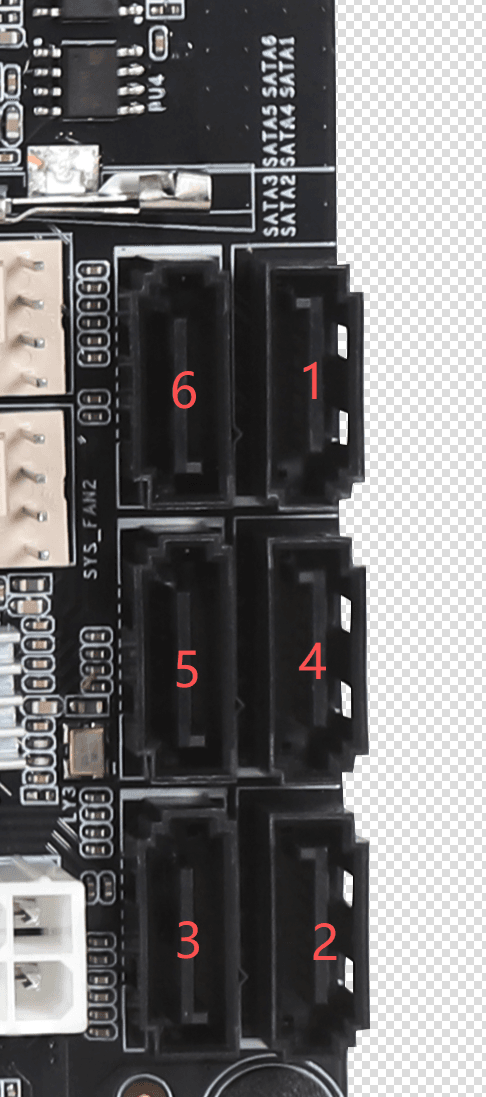
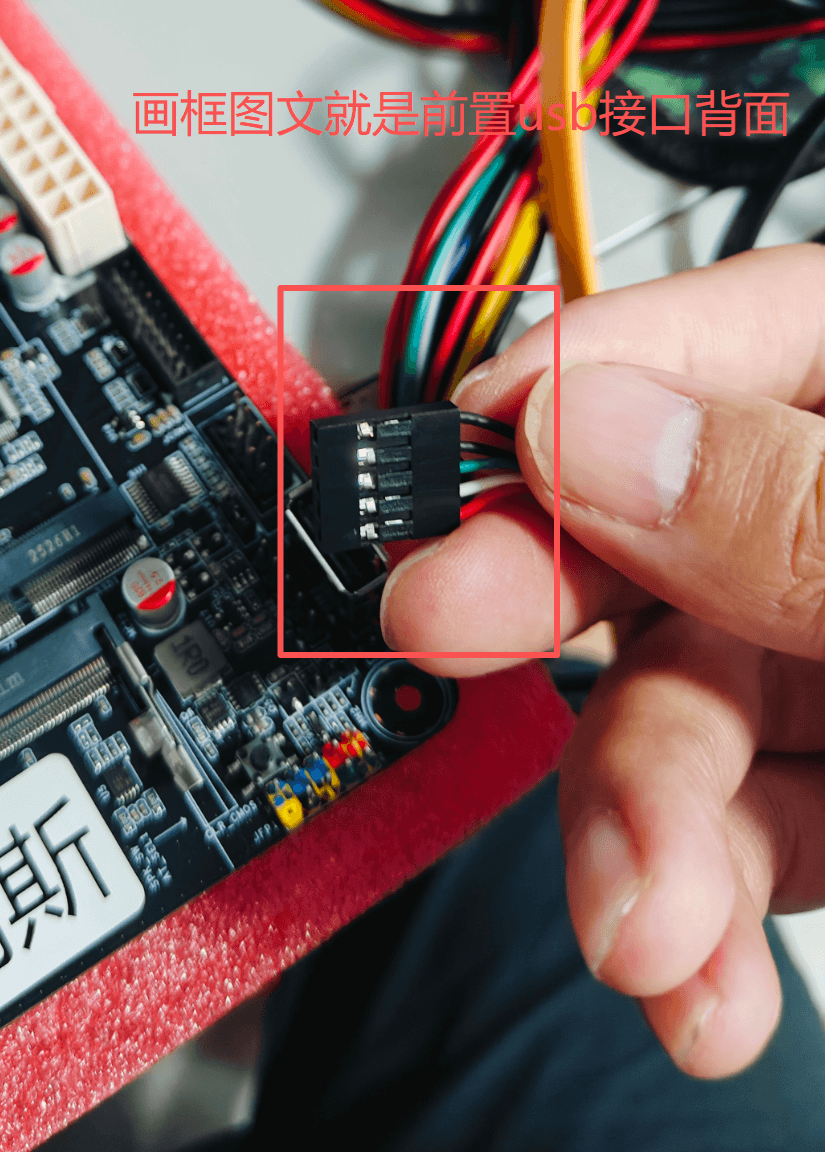
10. Front 5-Pin USB 2.0 Connector
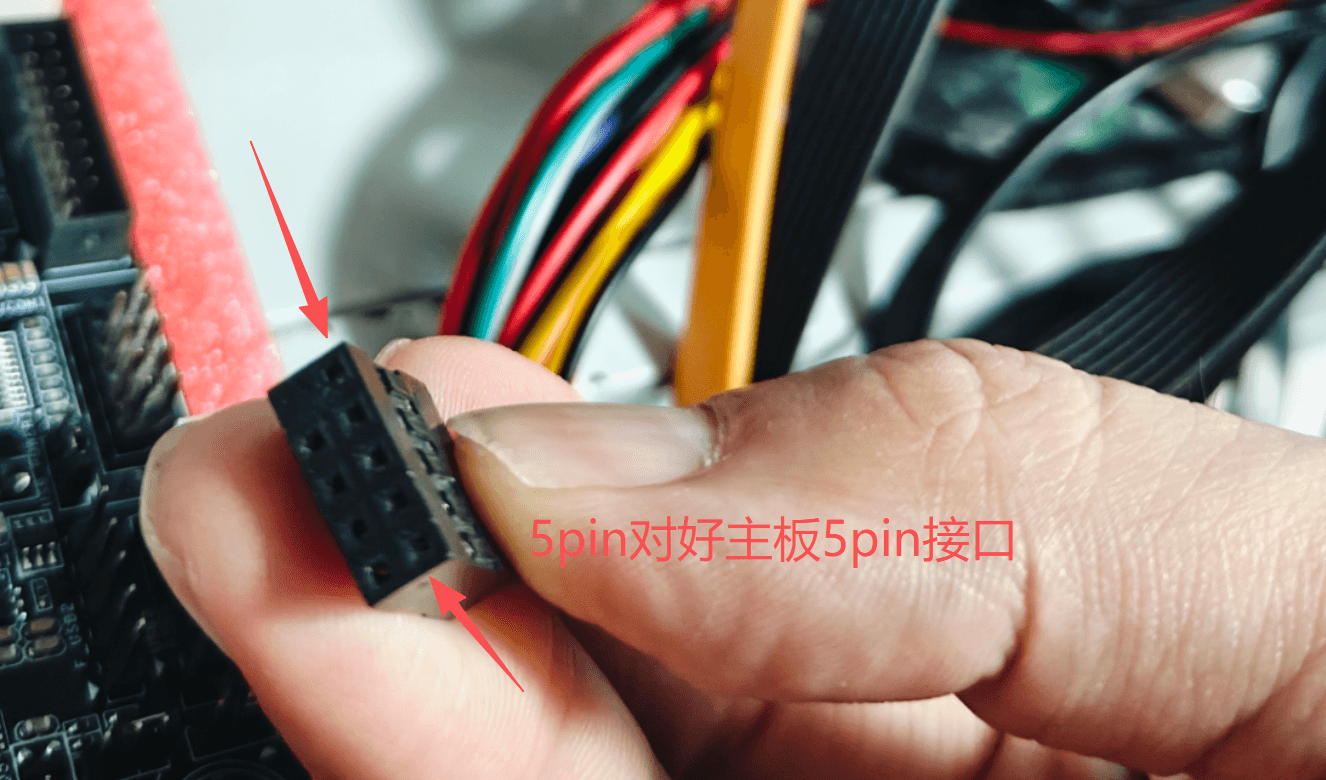
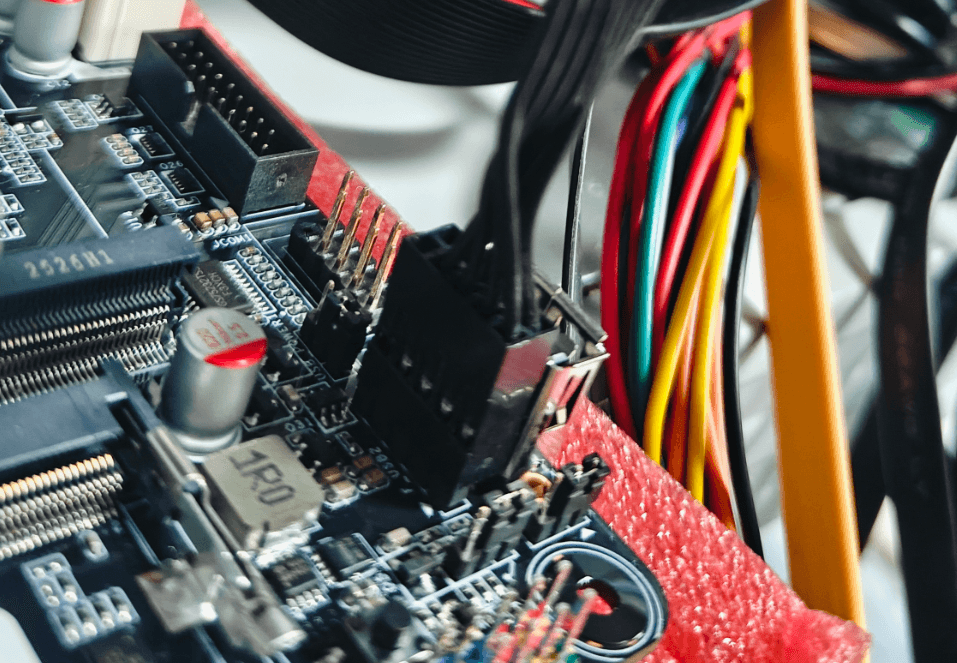
The front 2.0 connector is a single-channel dual-port USB connector; only one 2.0 port can be recognized, so when connecting USB you need to try each one to see which is recognized as the default. For a 5-pin connector, insert the end with the contact side facing the memory slot as shown in the figure.
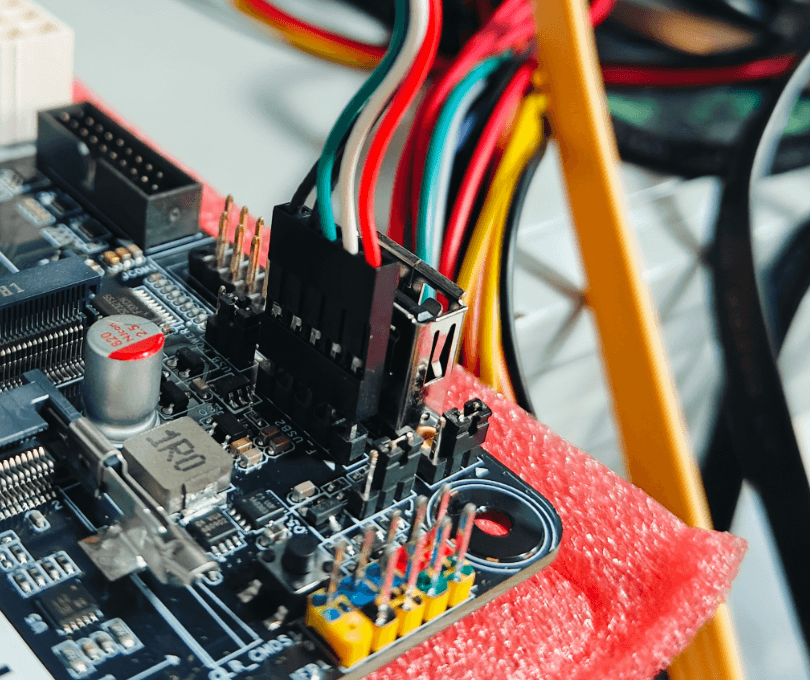
11. Front 9-Pin USB 2.0 Connector
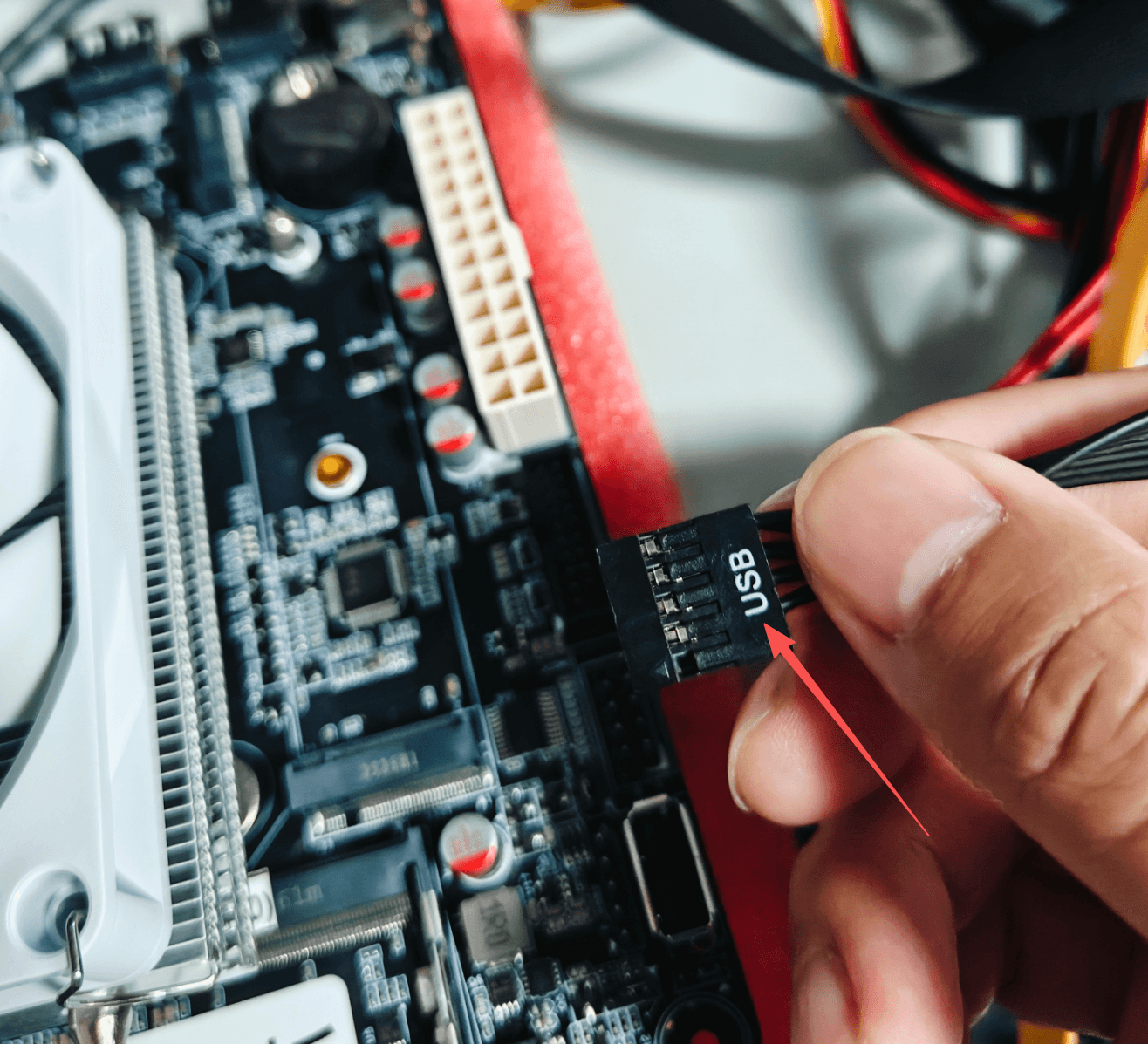
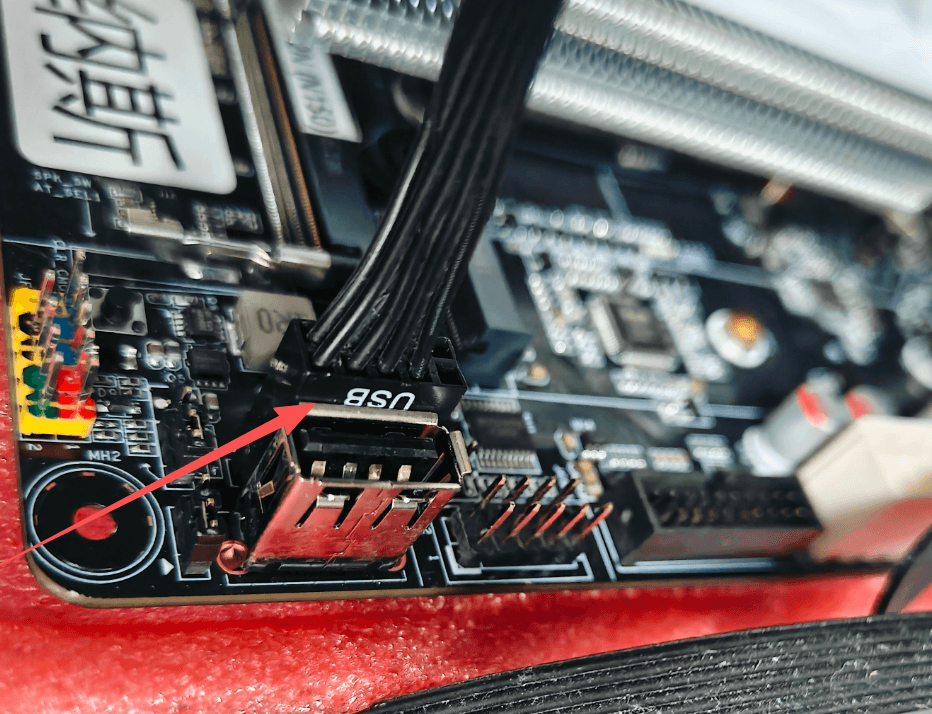
For a 9-pin connector, there is a USB label; insert it with the label facing the internal USB2.0 connector as shown in the figure.
Common Motherboard BIOS Settings
Basic BIOS Shortcuts
- To enter the motherboard BIOS, press the Delete or Esc key repeatedly during boot.
- To enter USB boot, press the F7 key repeatedly.
- To restore BIOS default settings, press F3.
- To save BIOS settings, press F4.
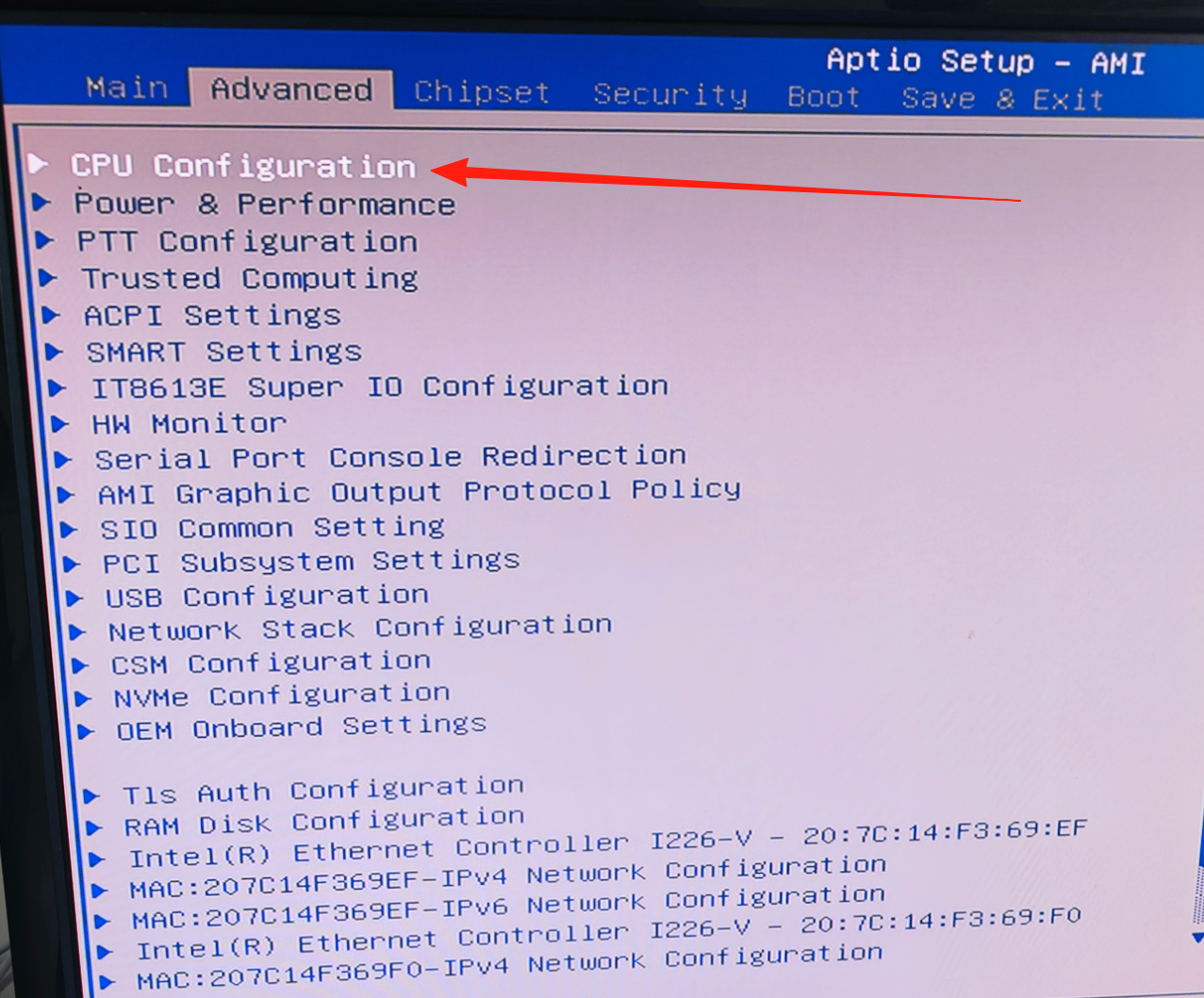
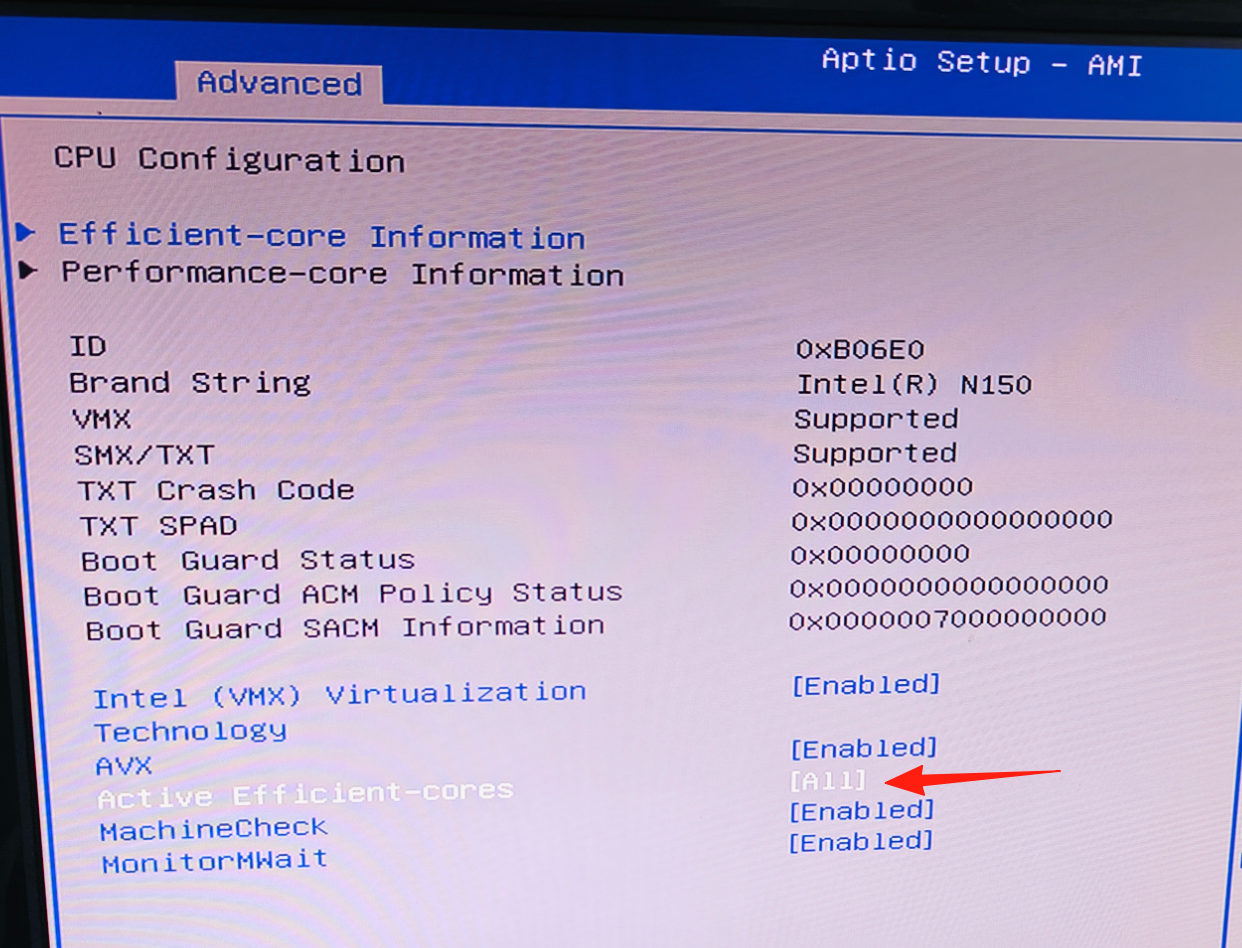
1. CPU Core Count
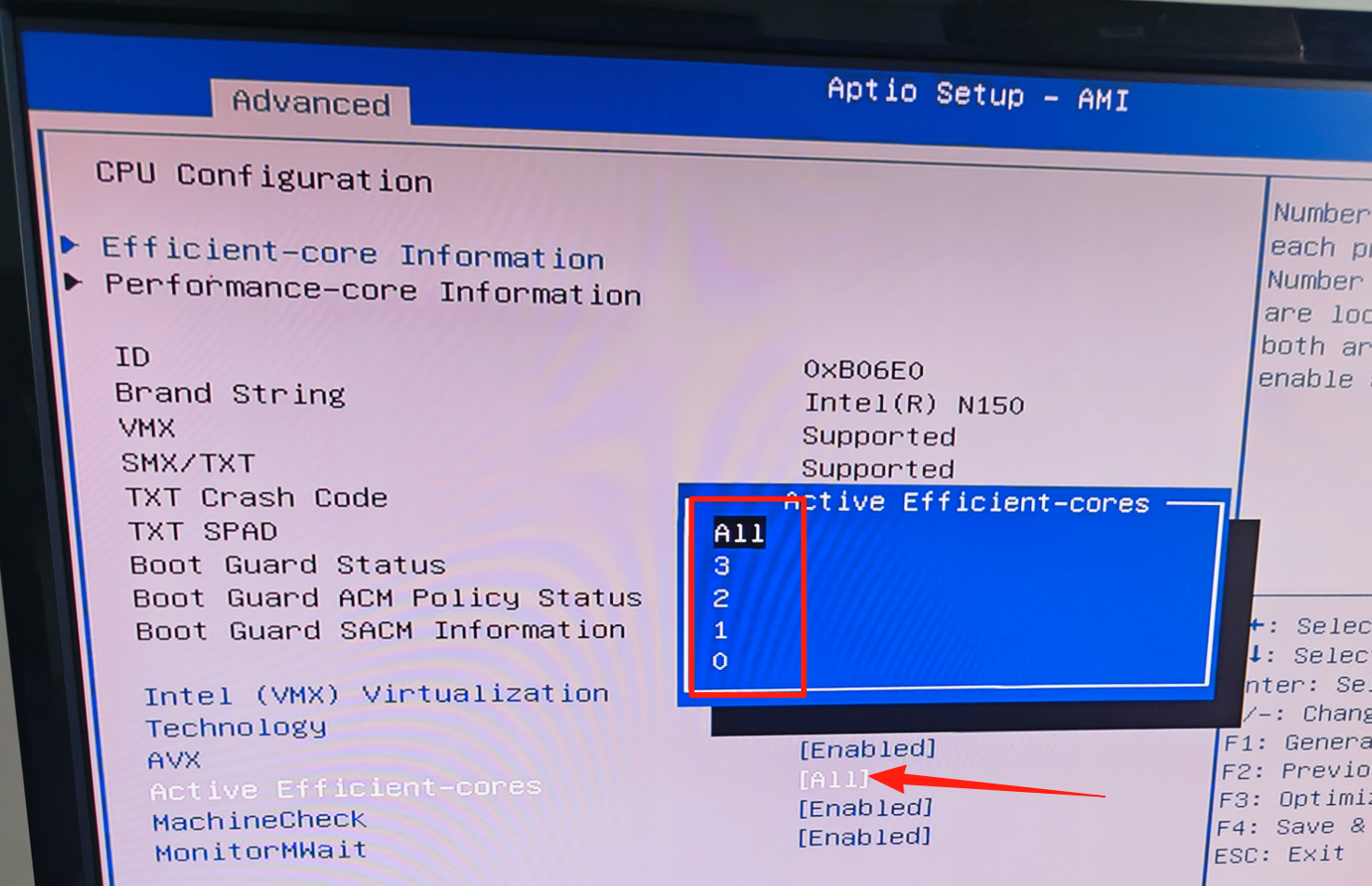
Motherboard CPU core count setting path: Enter Advanced, select CPU Configuration, select Active Efficient-cores (default is Auto/All). Set the number of cores according to your needs, and remember to press F4 to save. (Beginners are advised to keep the default settings.)
2. CPU Turbo Disable
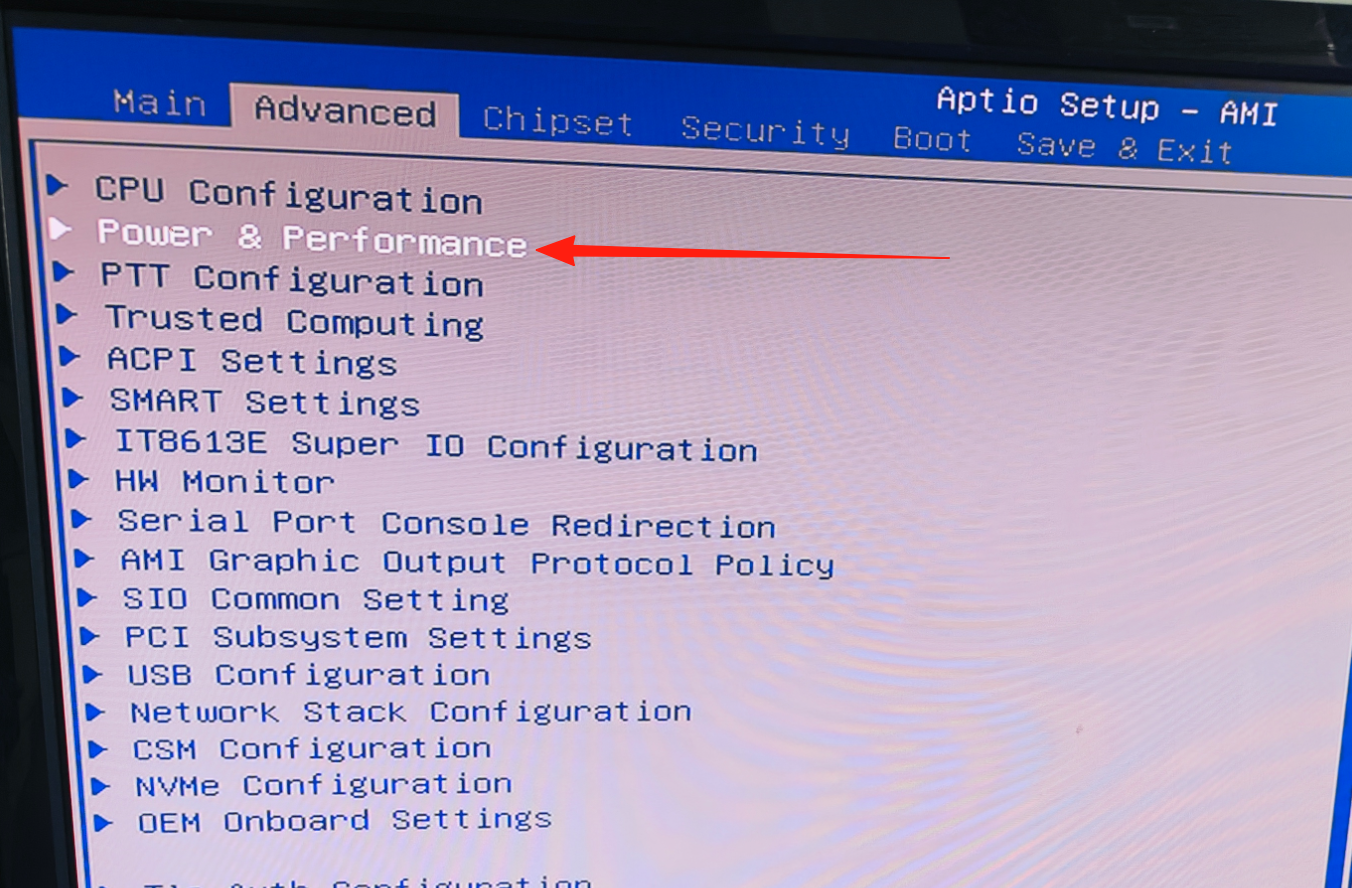
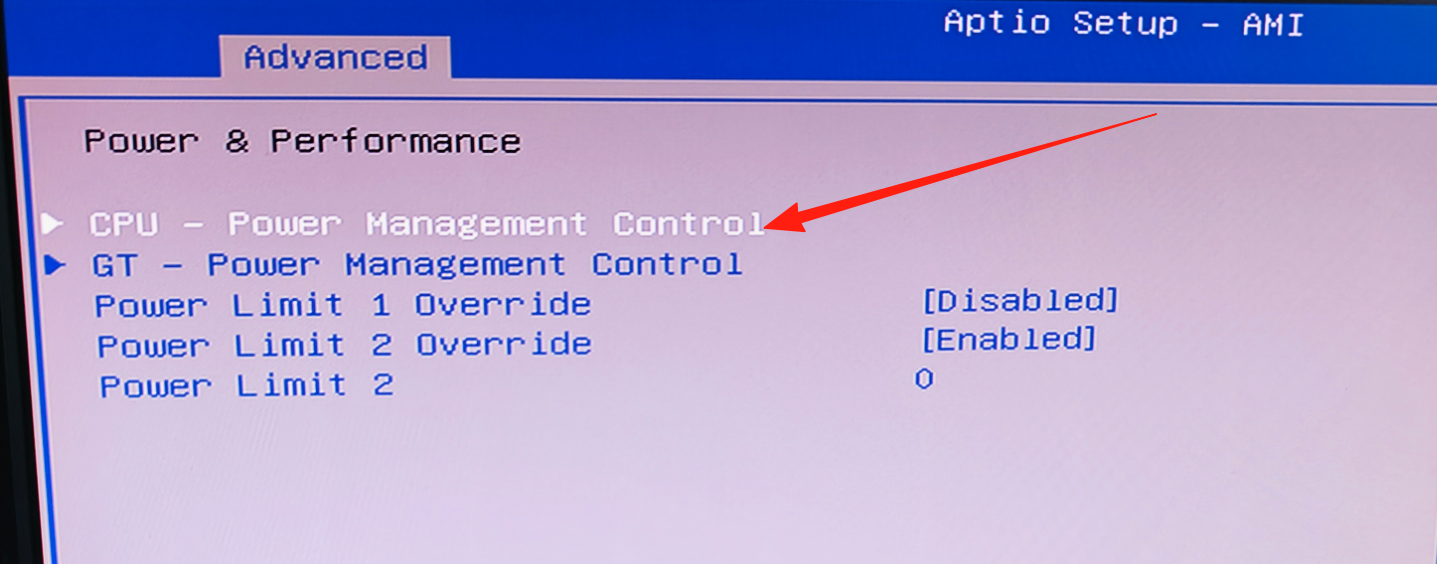
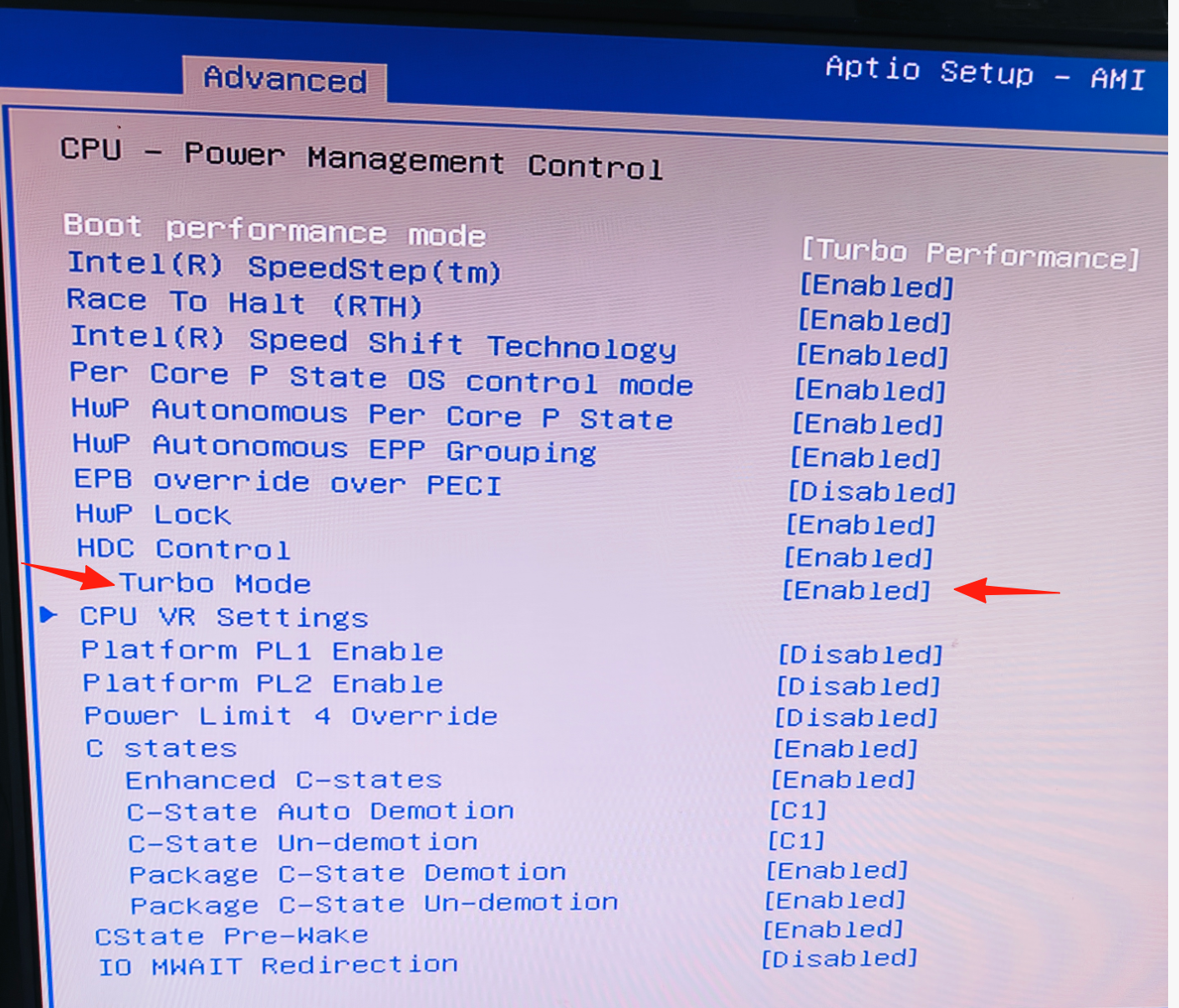
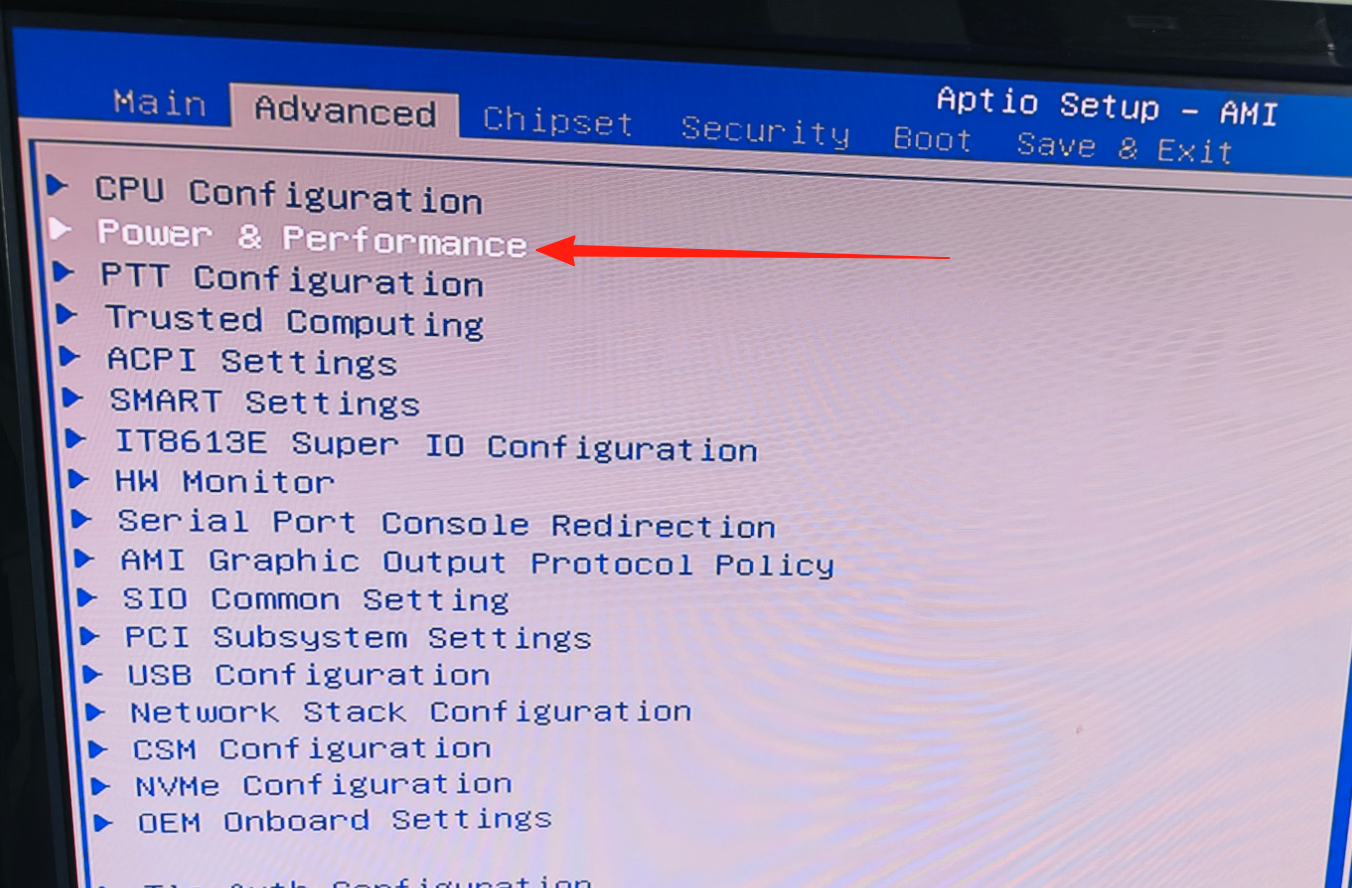
Motherboard CPU Turbo disable setting (Turbo is enabled by default): Enter Advanced, select Power & Performance, select CPU-Power Management Control, select Turbo Control and set it to Disabled. Remember to press F4 to save. (Beginners are advised to keep the default settings.)
3. CPU Power Limit
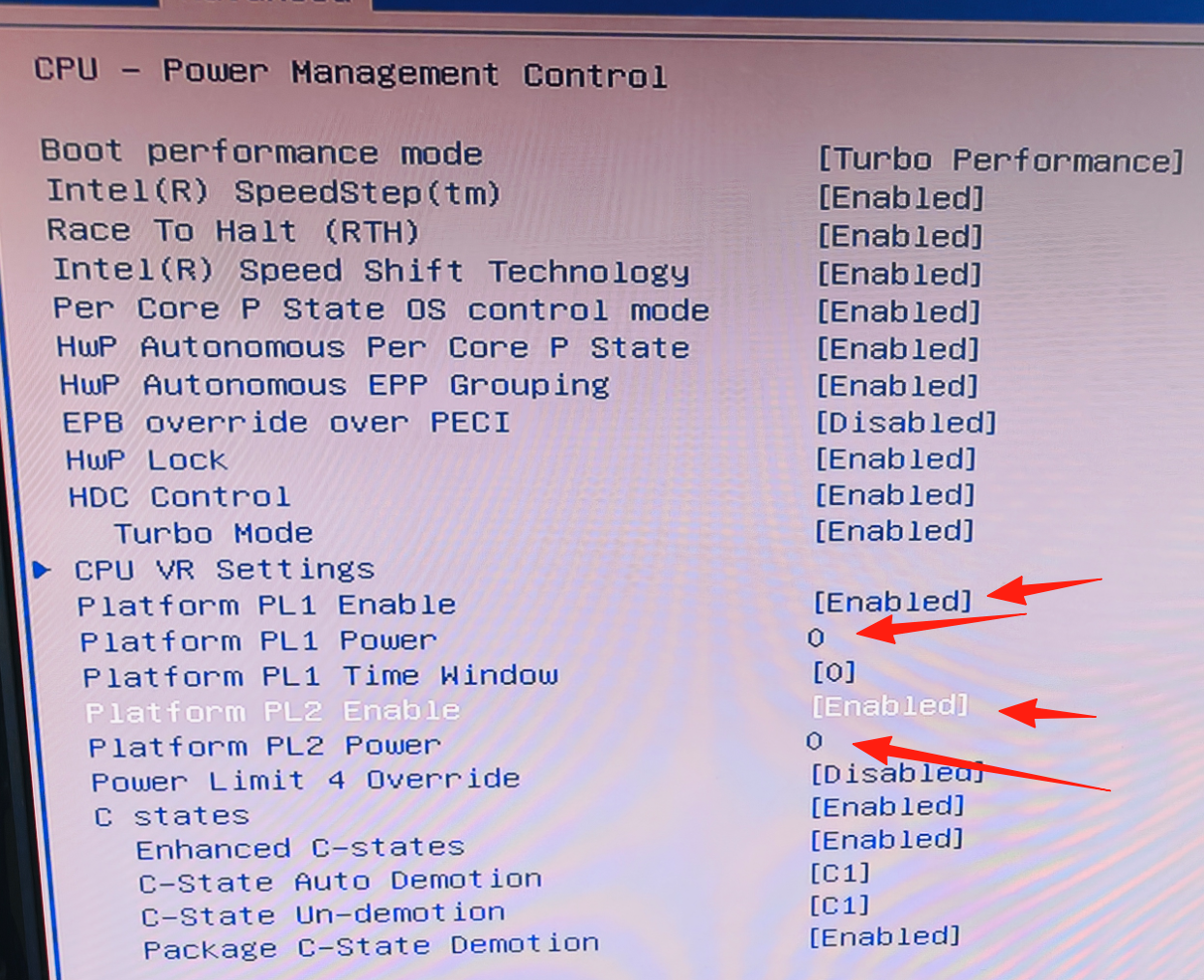
Motherboard CPU power limit setting path: Enter Advanced, select Power & Performance, select CPU-Power Management Control, set Platform PL1 Enabled and Platform PL2 Enabled to Enabled, then set the values for Platform PL1 Power and Platform PL2 Power. During tuning, simply add 000 after the value. Set values suitable for you and remember to press F4 to save. (Beginners are advised to keep the default settings.)
4. CPU Temperature and Fan Speed
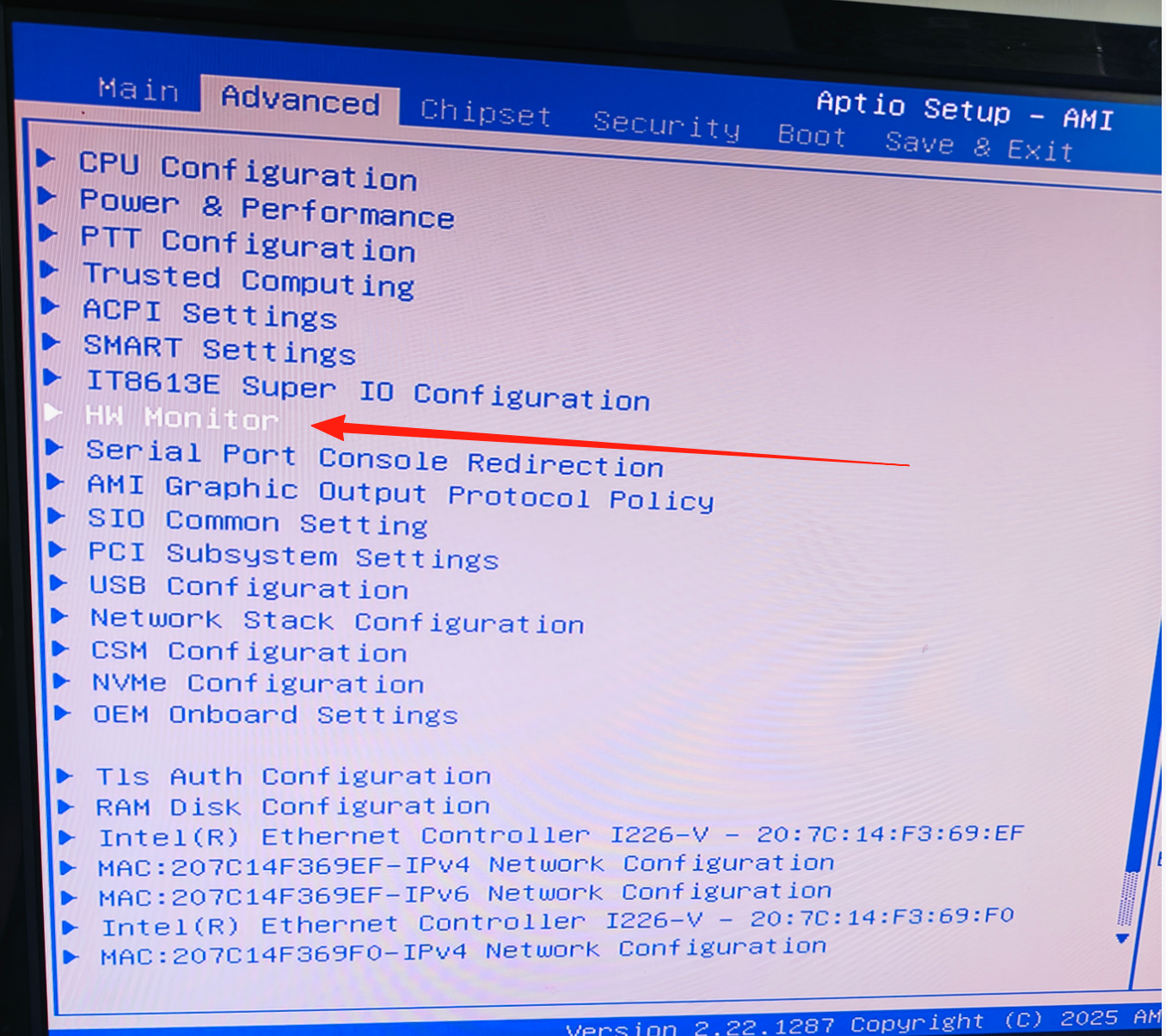
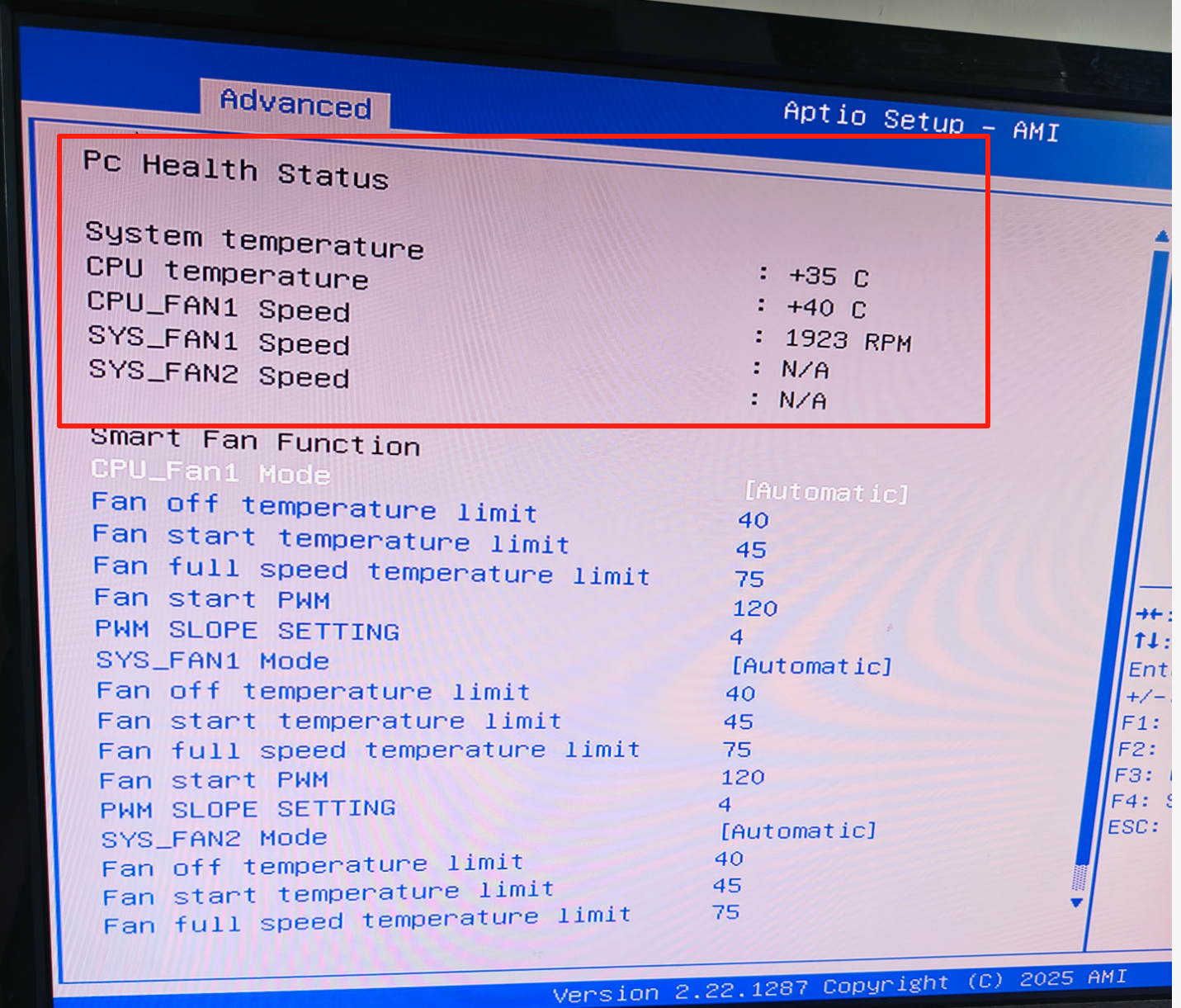
To view CPU temperature and fan speed: Enter Advanced and select Hardware Monitor.
5. Manual Fan Speed Setting
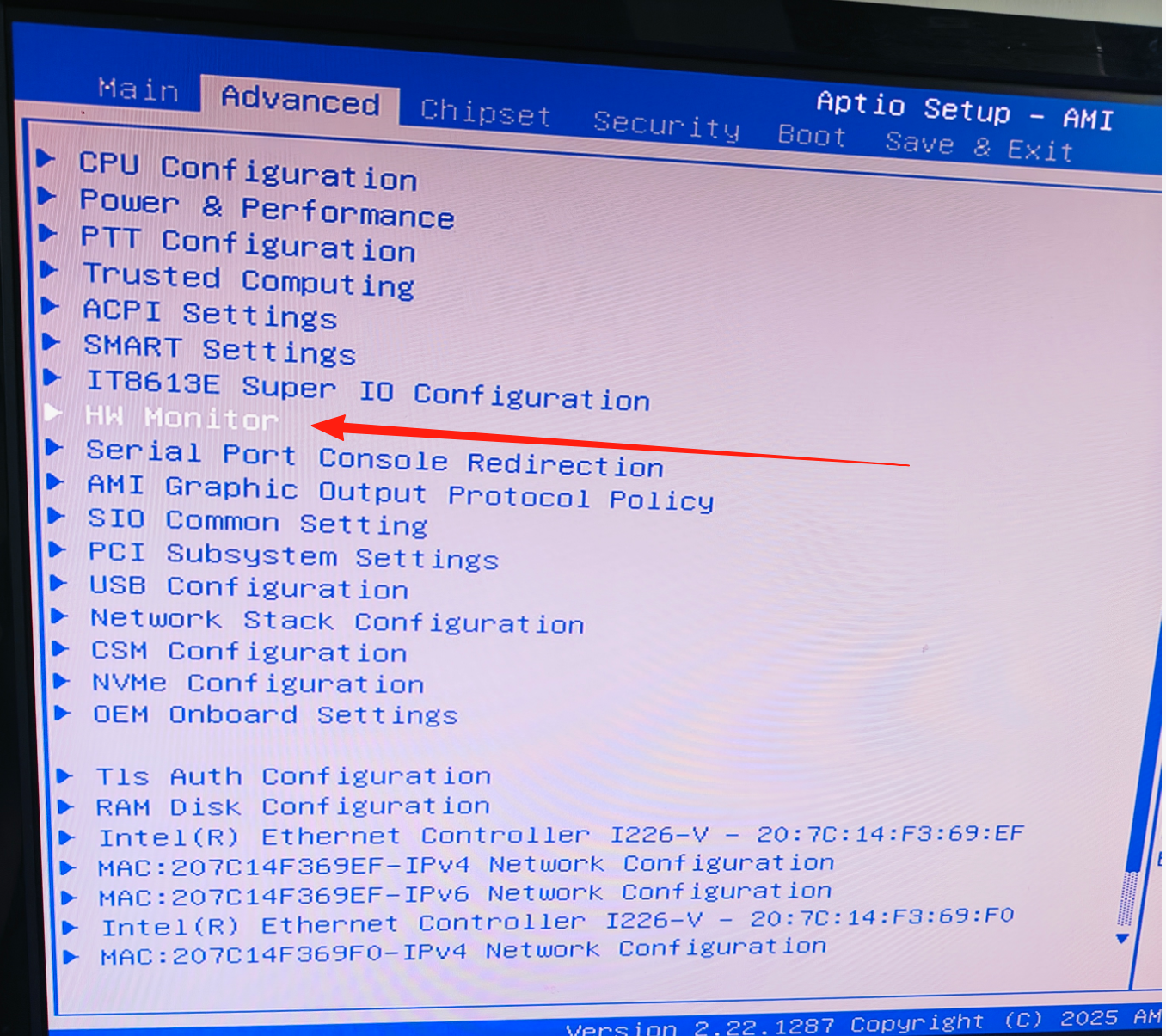
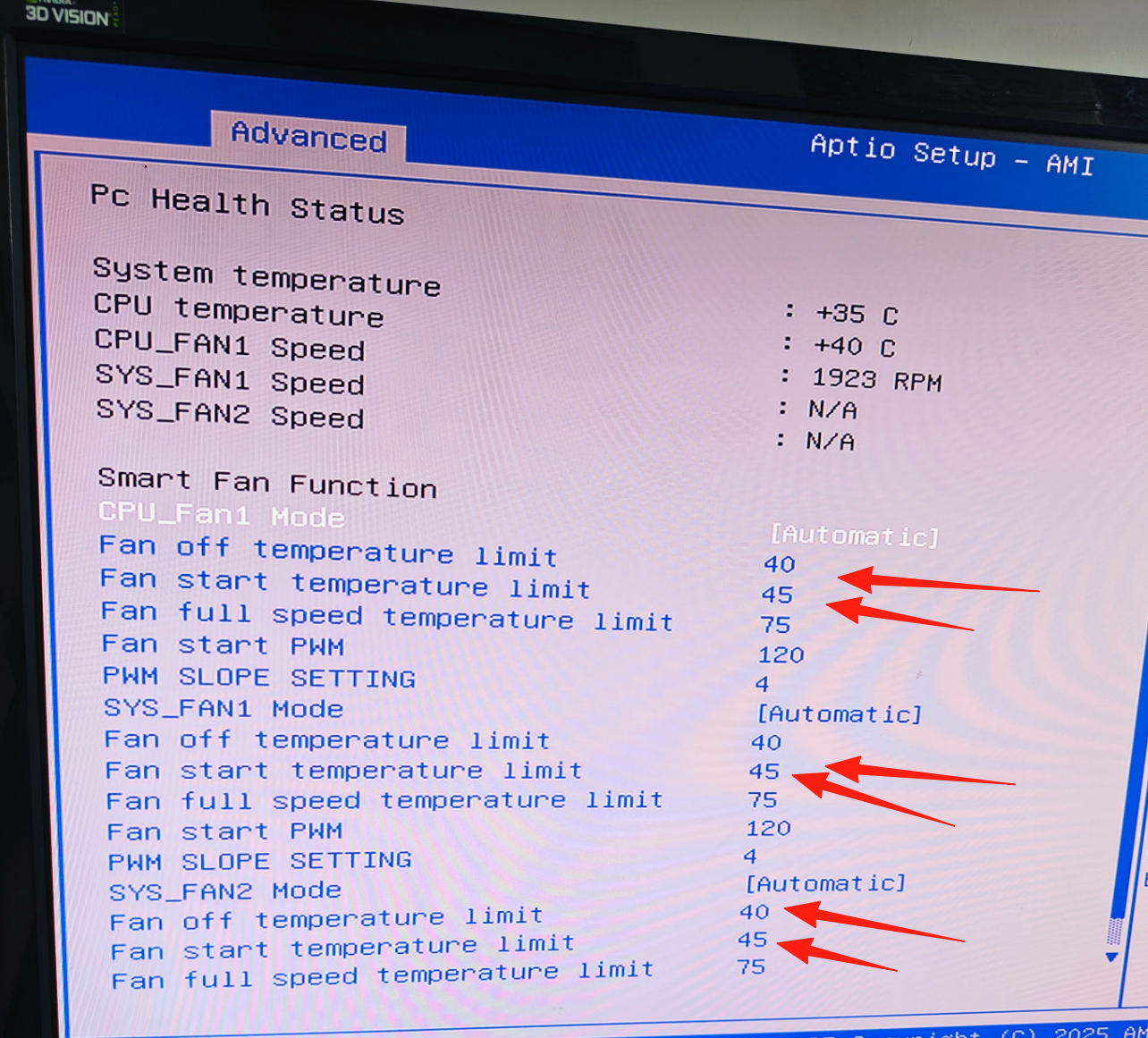
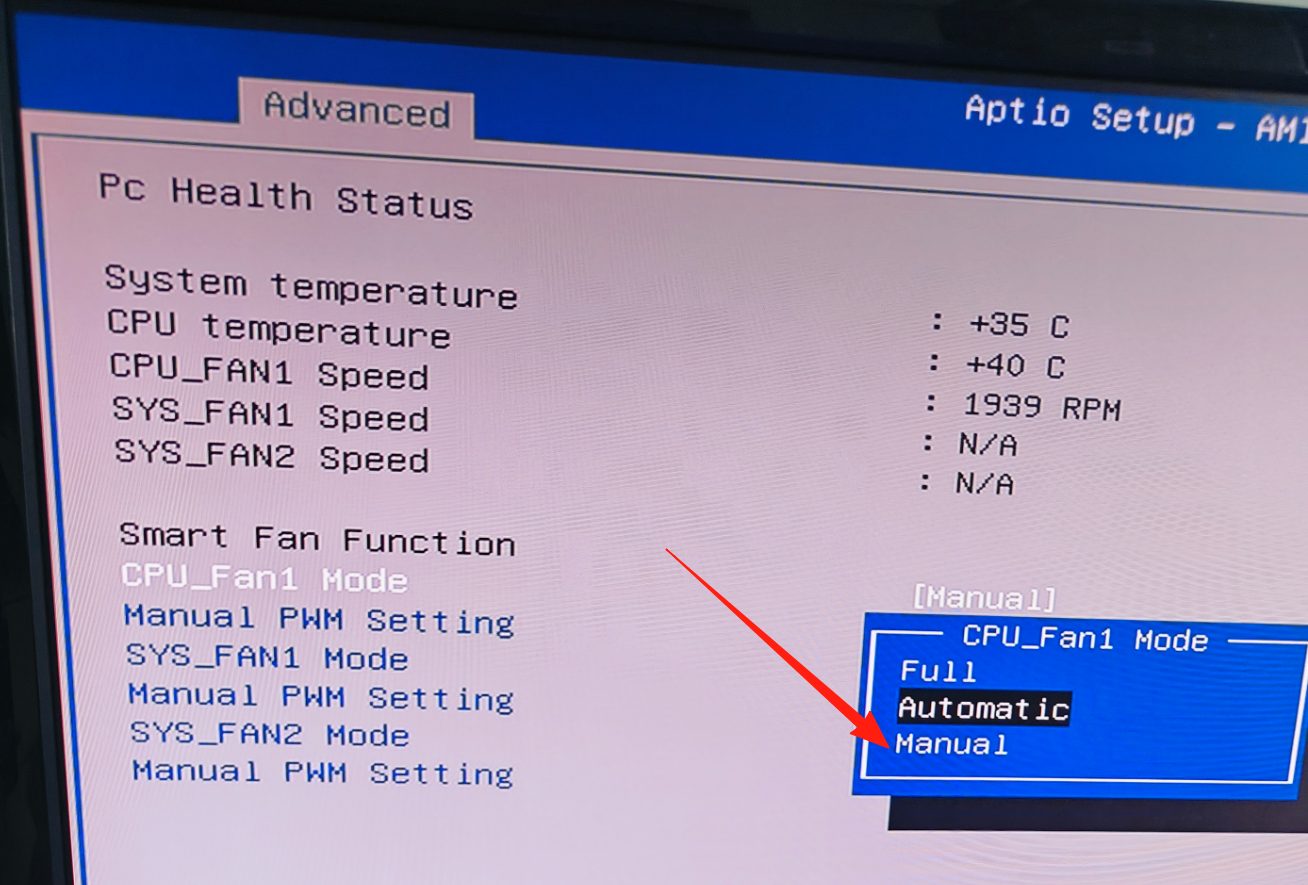
Motherboard manual fan speed setting: Enter Advanced, select HW Monitor, select CPU Fan mode (this is the CPU fan) as well as SYS_FAN1 Mode and SYS_FAN2 Mode (these two control the fan connectors on the motherboard).
For temperature control, select Fan off temperature limit (this refers to the fan cooling limit), default is 40; if the fan speed is too high, you can set it to 60, then set Fan start temperature limit (this refers to the fan start temperature limit), default is 45, you can set it to 70, and the fan temperature control will lower the speed a bit. If it feels too low, you can gradually adjust these two temperature settings as needed.
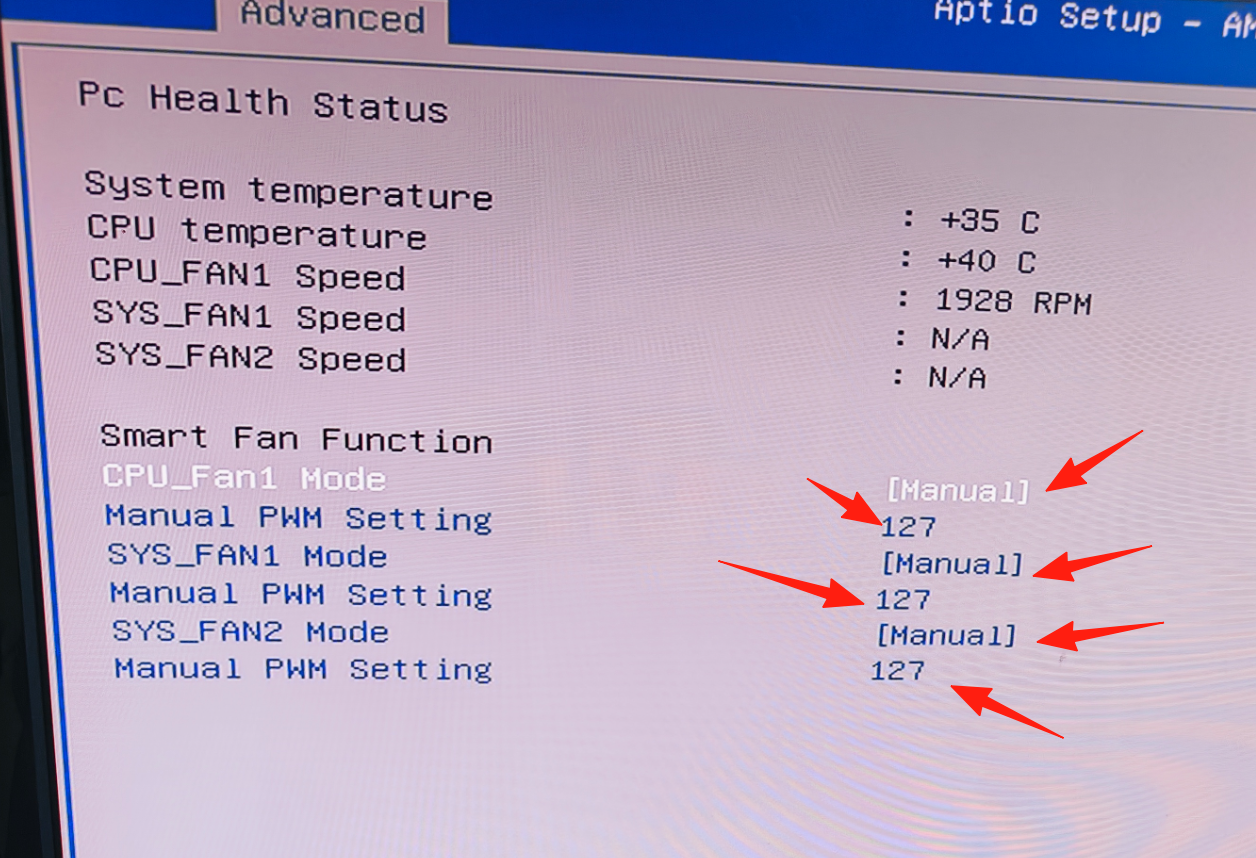
For manual fan setting, select the Manual option to manually adjust the value to control the speed (you can control the fan or keep other default settings). The default value is 127, the maximum is 255 and the minimum is 0. (Note: fan speed control is only supported for 4-pin fans connected to the motherboard; 3-pin fans have no speed control function and do not support it.) Set a speed suitable for you and remember to press F4 to save.
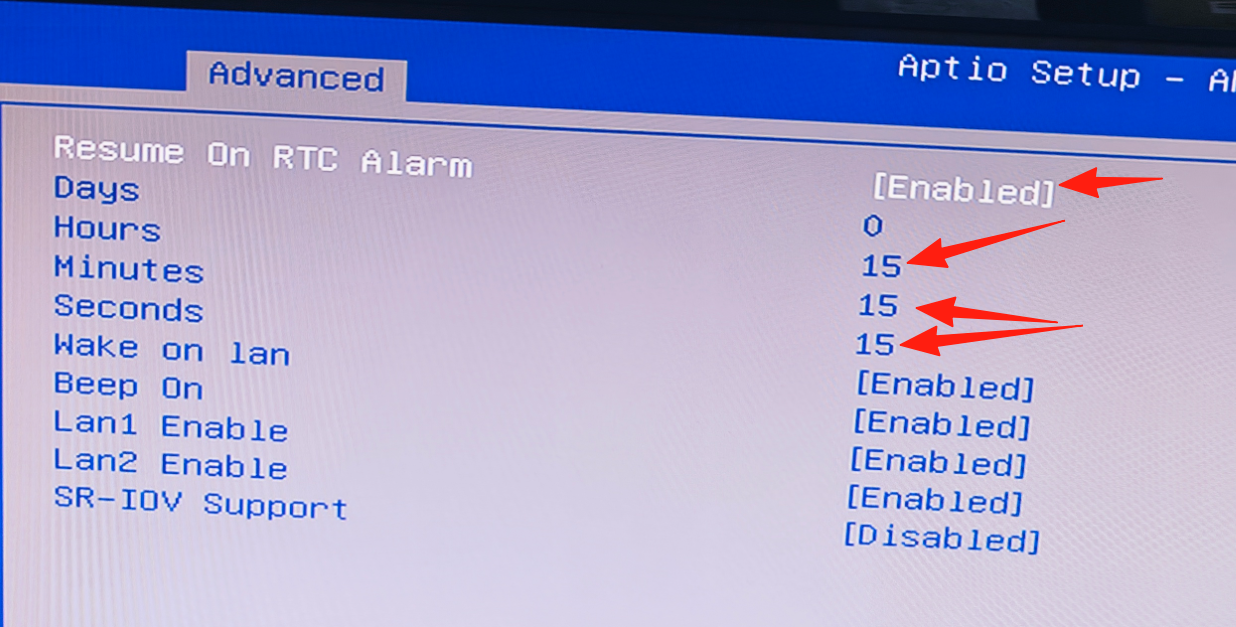
6. BIOS Auto Power-On (Resume On RTC Alarm)
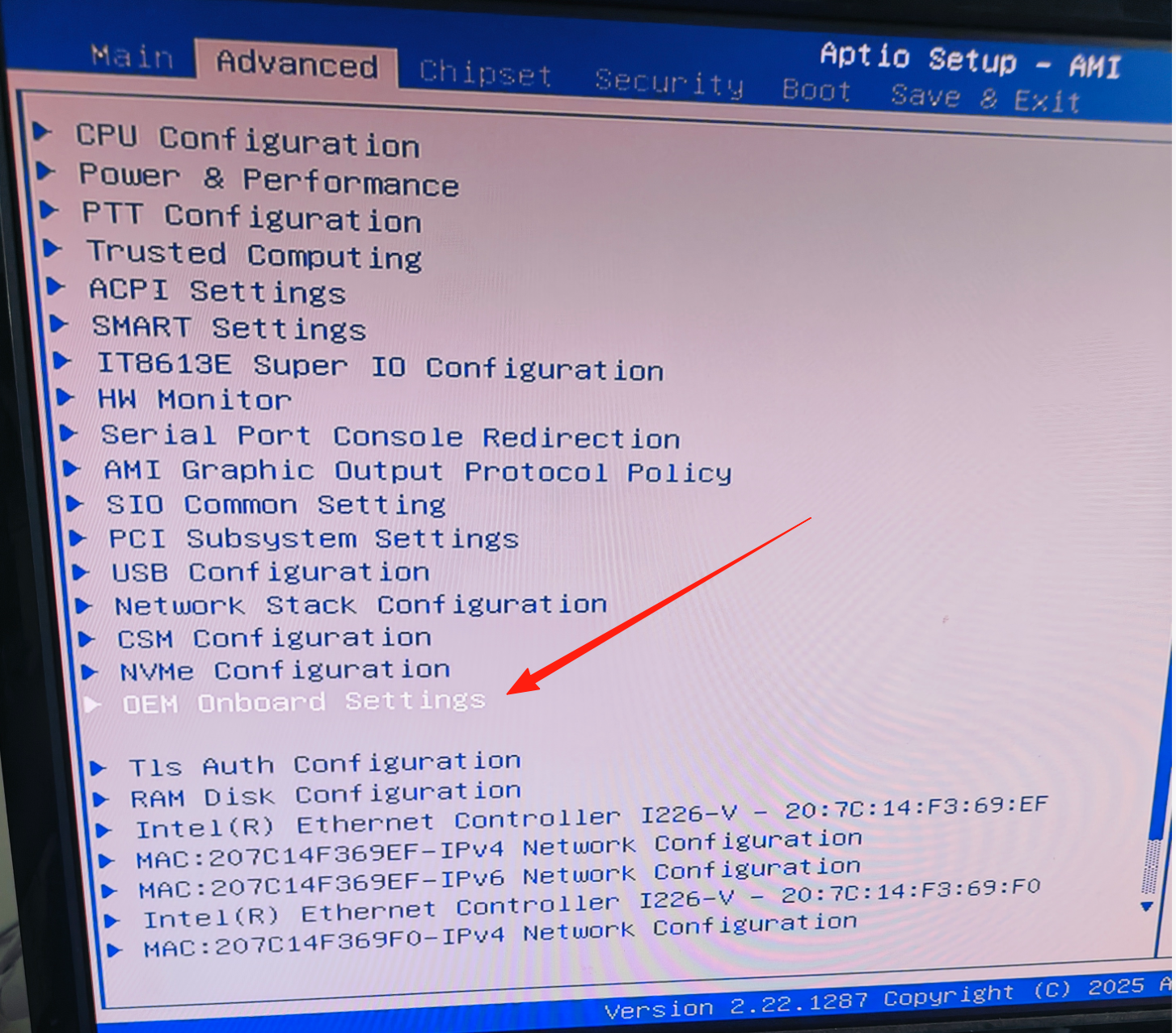
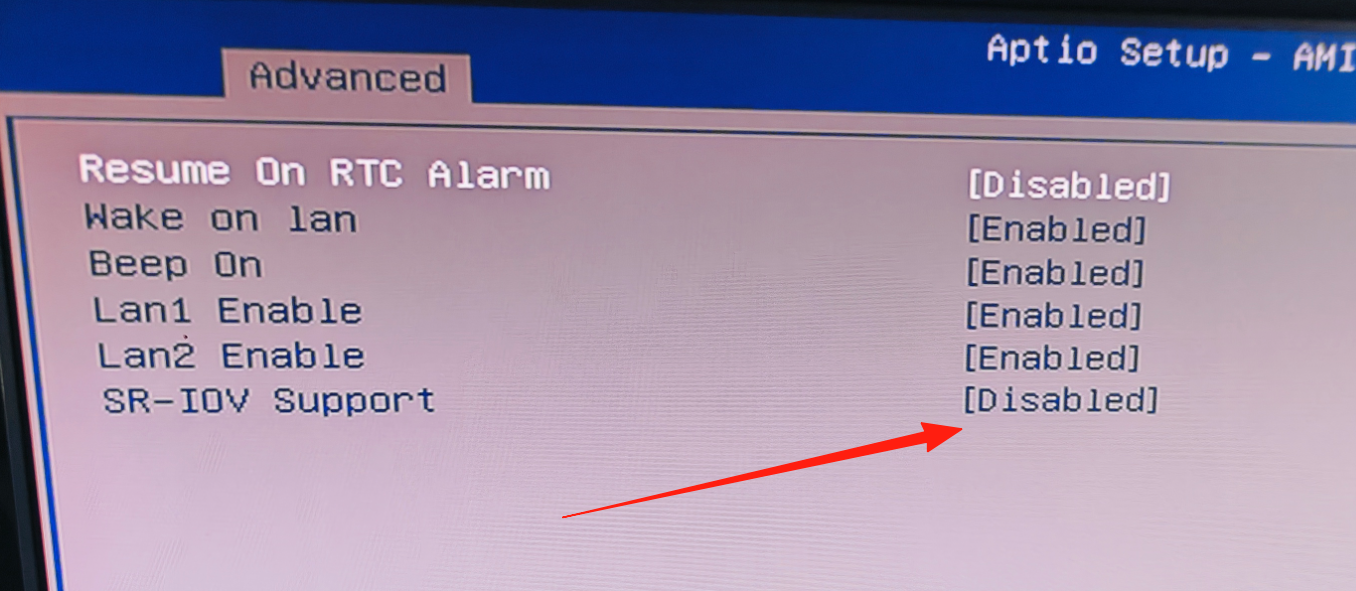
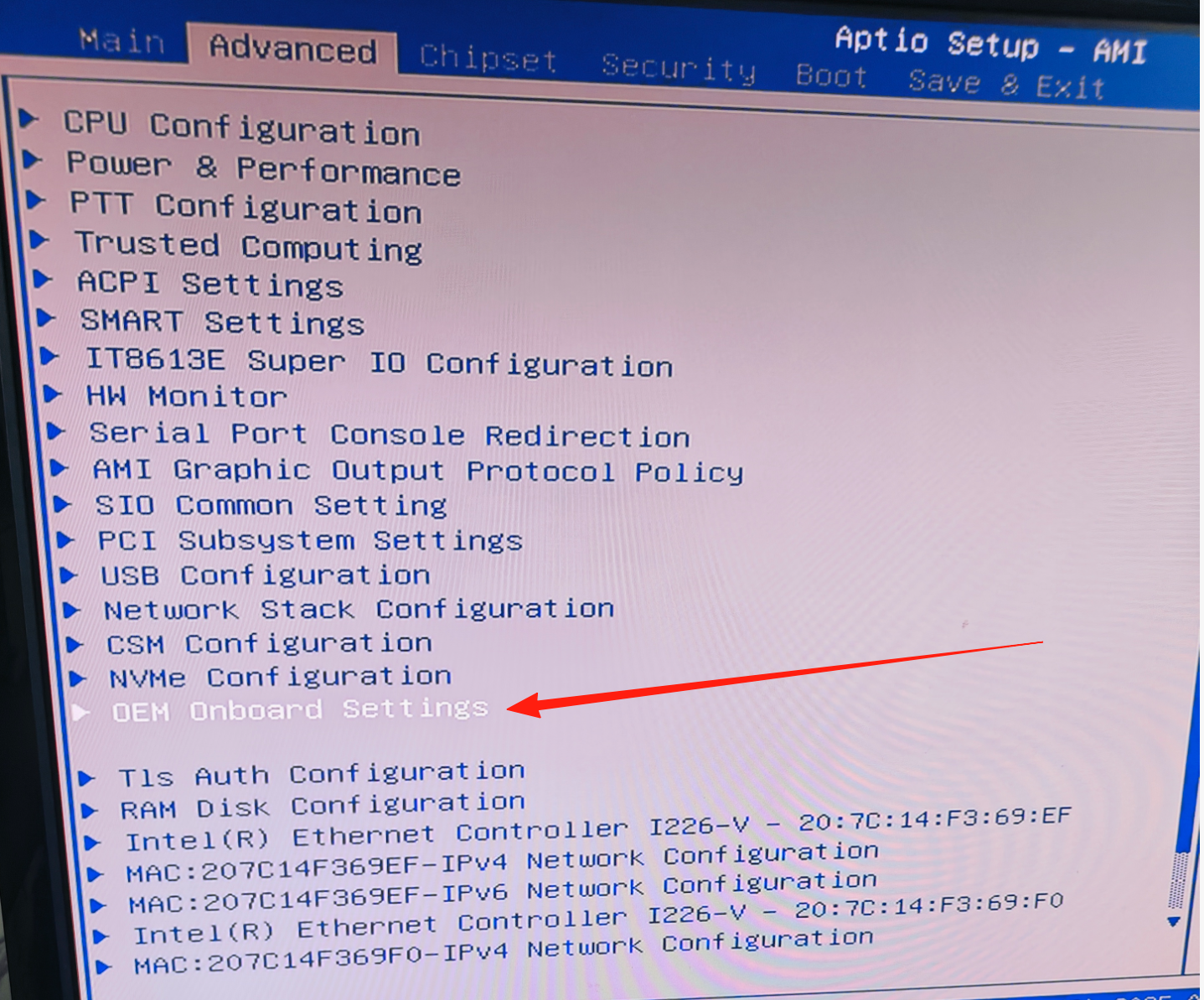
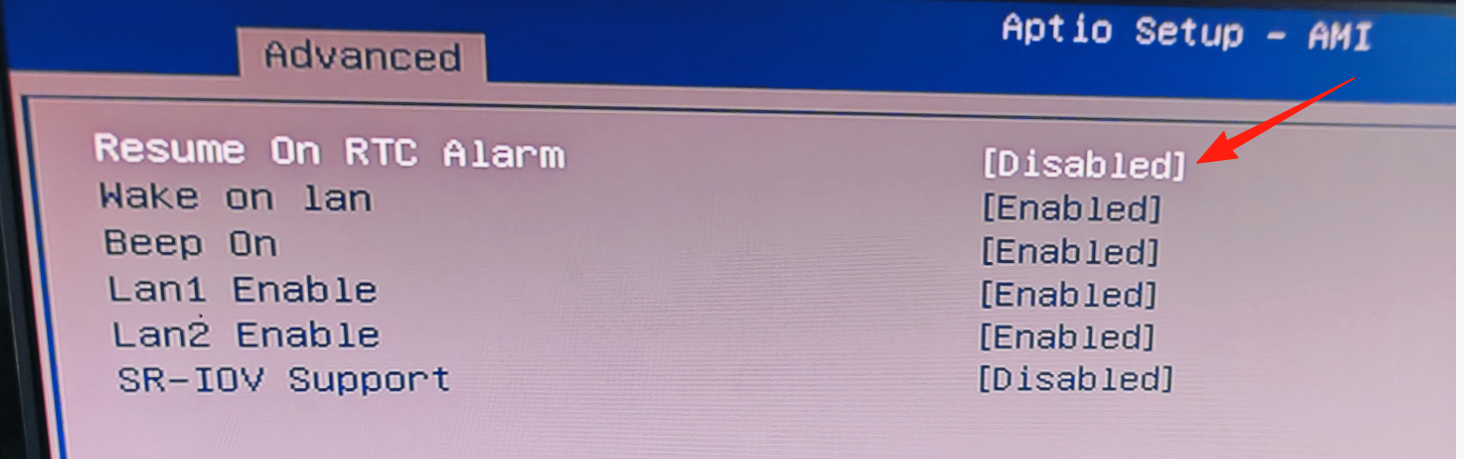
Motherboard BIOS auto power-on setting path: Enter Advanced, select 0EH onboard settings, select Resume On RTC Alarm, set Hours, Minutes and Seconds. After setting these three, the system will automatically start within 40-50 seconds at the set time. Remember to press F4 to save. (If it does not start at the set time, check whether the power supply is energized and whether the BIOS default time is correct. The motherboard auto power-on only takes effect when the system is off; it will not take effect if the system is running. BIOS time can be synchronized using time sync in Windows.)
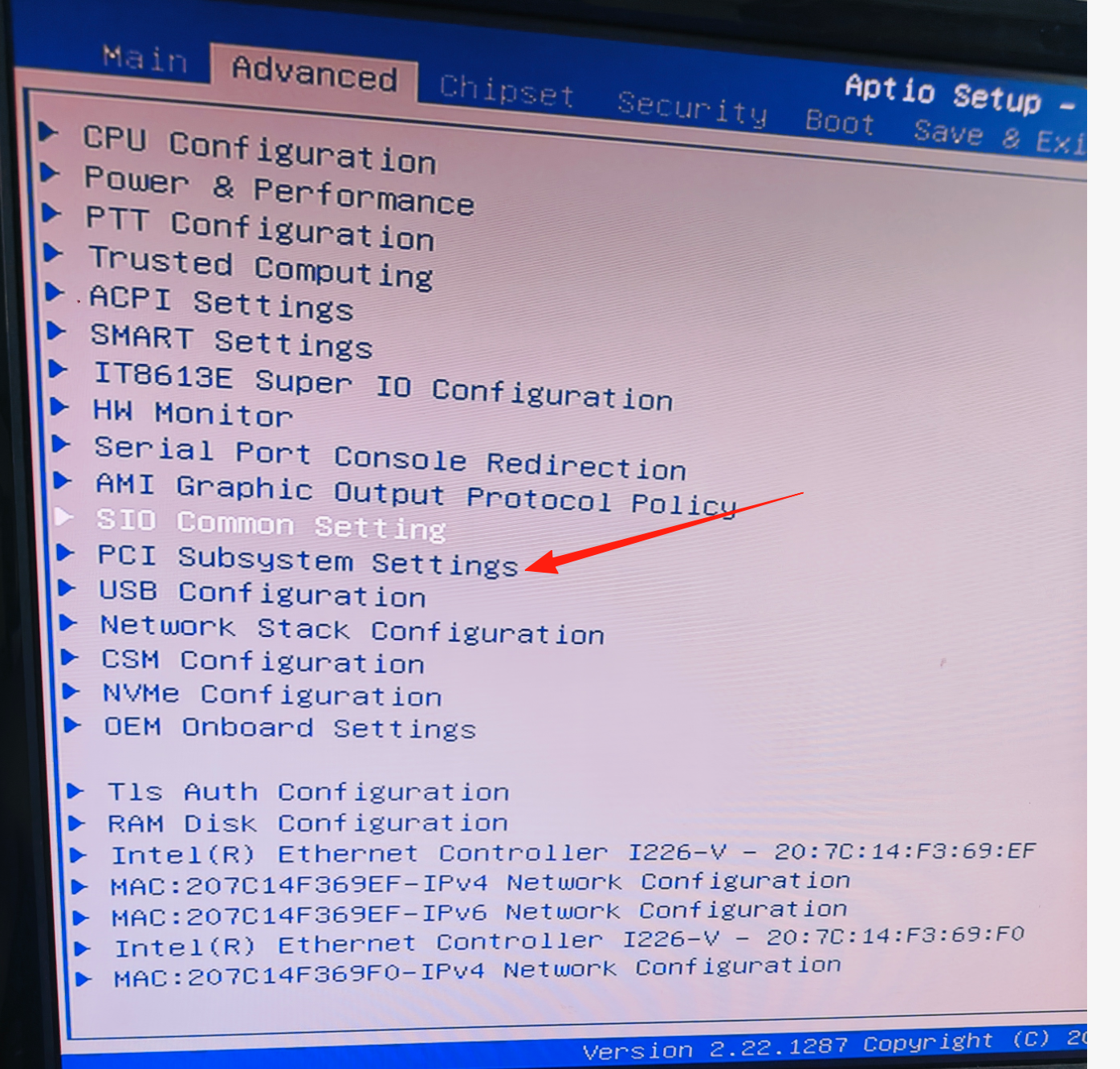
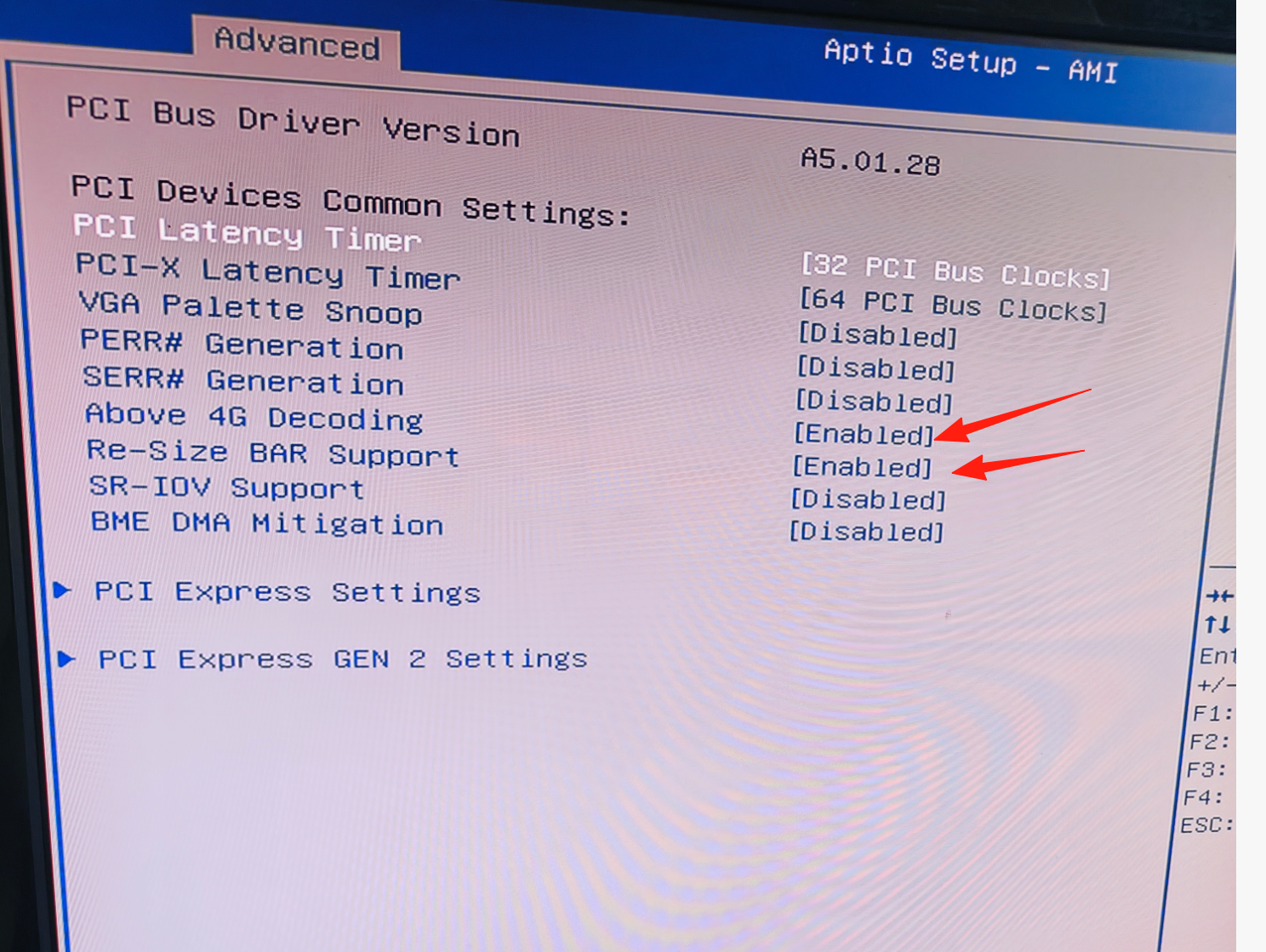
7. Re-Size BAR Support
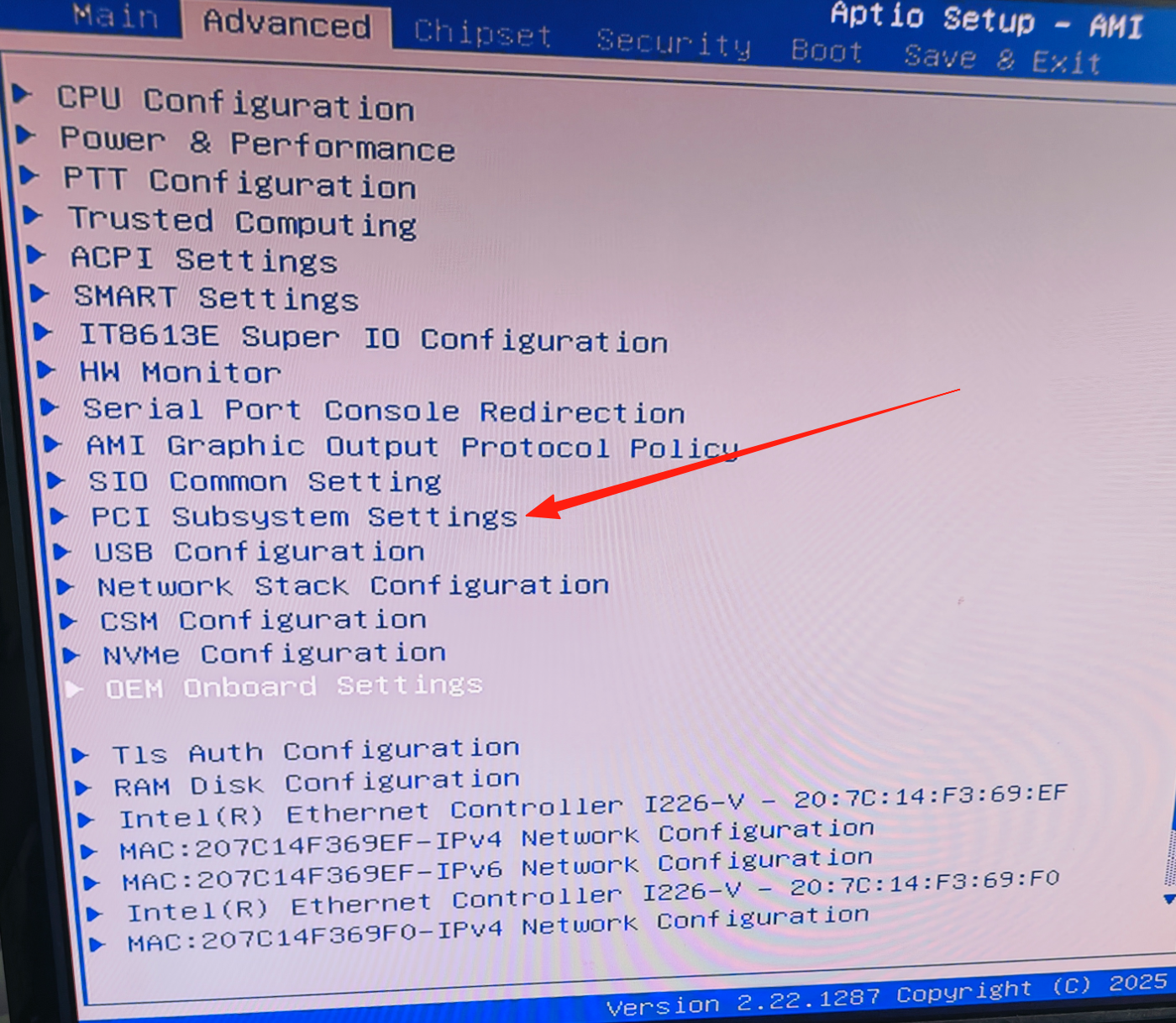
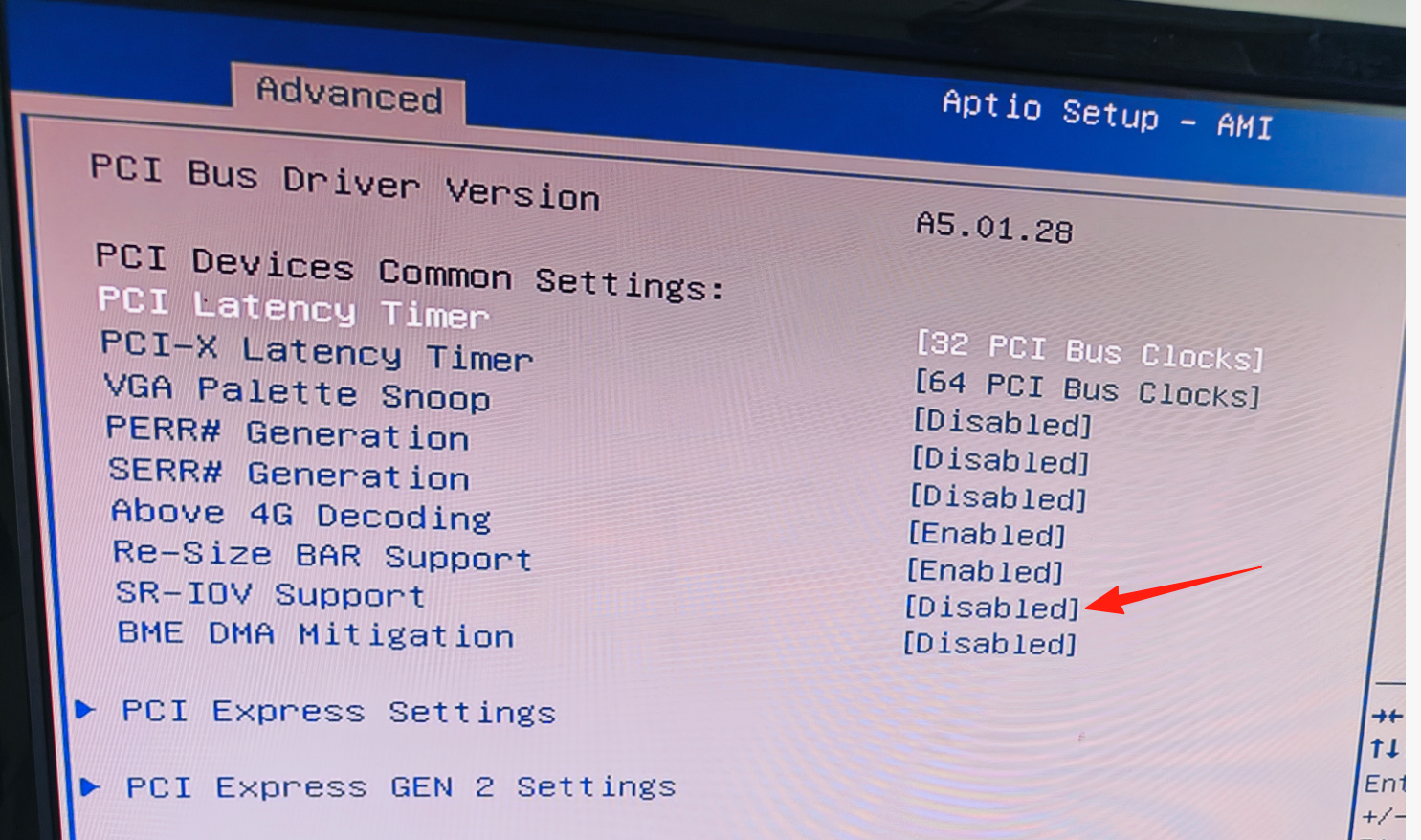
To use the Intel graphics card, you need to enable Re-Size BAR Support. Setting path: Enter Advanced, select PCI Subsystem Settings, set Re-Size BAR Support and Above 4G Decoding to Enabled. Remember to press F4 to save.
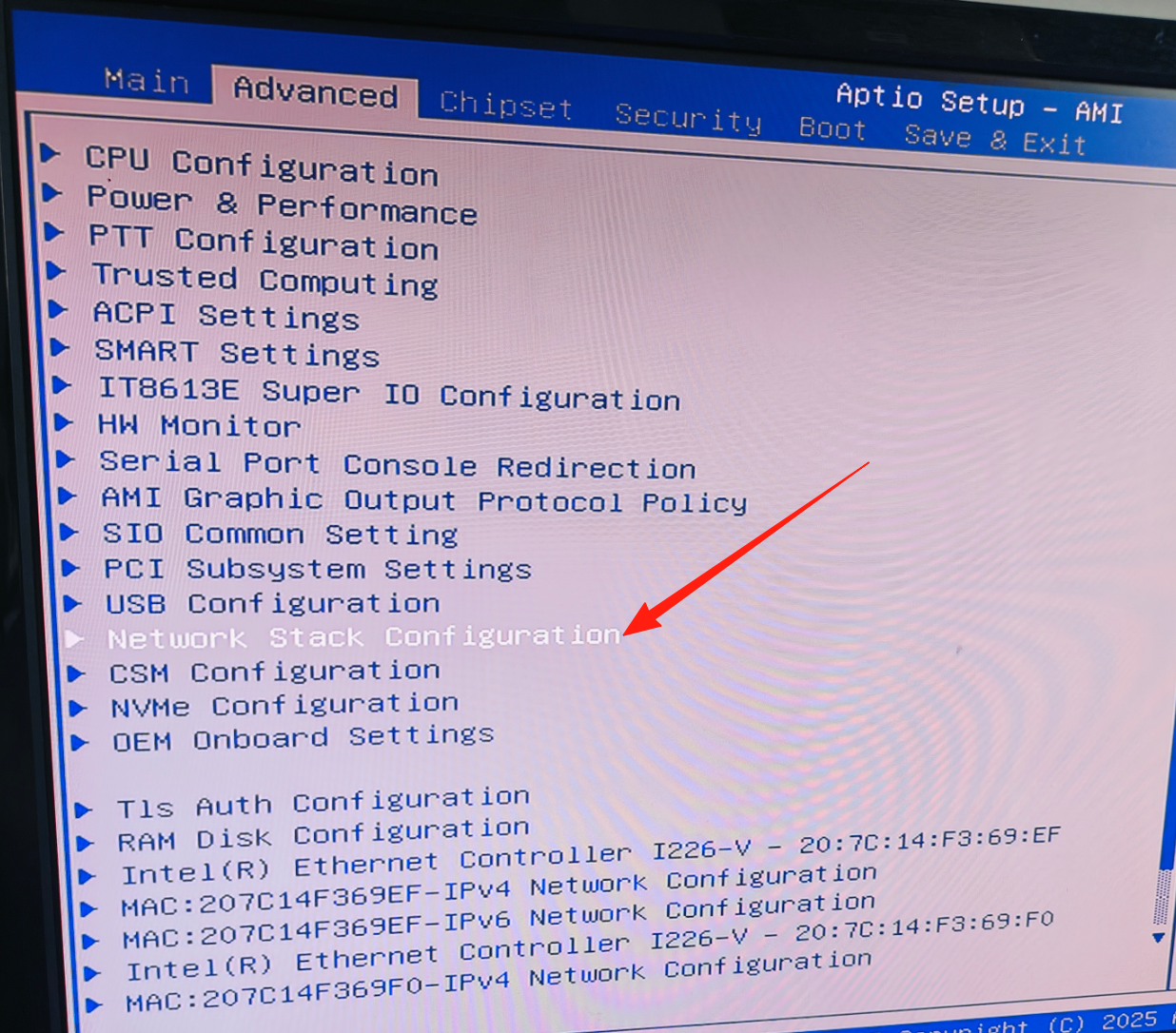
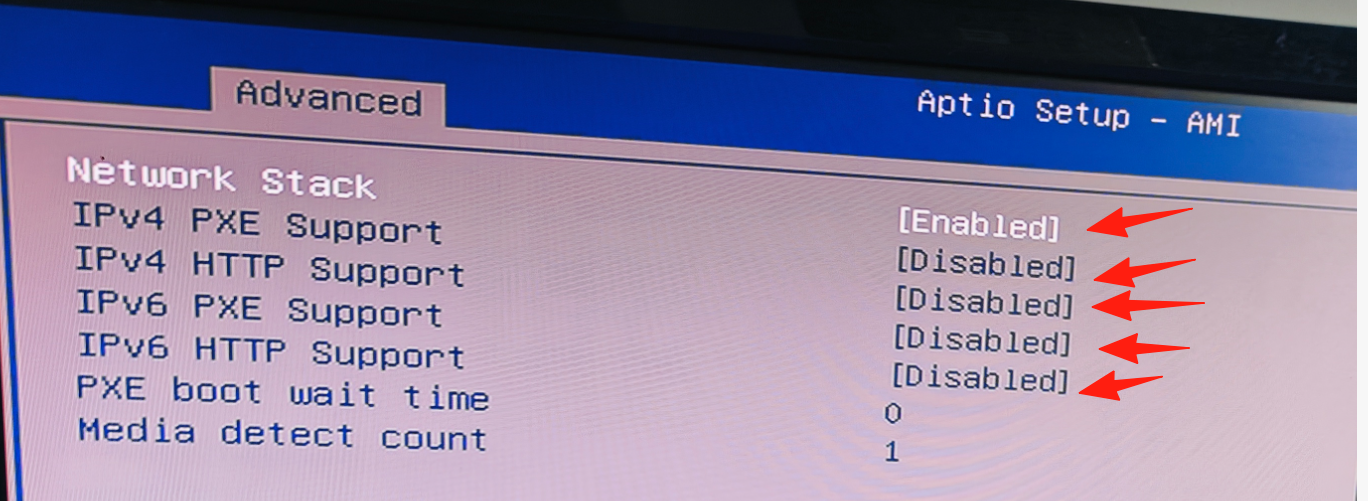
8. IPv4 and IPv6 Enable
IPv4 and IPv6 enable setting path: Enter Advanced, select Network Stack Configuration, select Network Stack and set it to Enabled, then set IPv4 PXE support, IPv4 HTTP support, IPv6 PXE support and IPv6 HTTP support all to Enabled. Remember to press F4 to save.
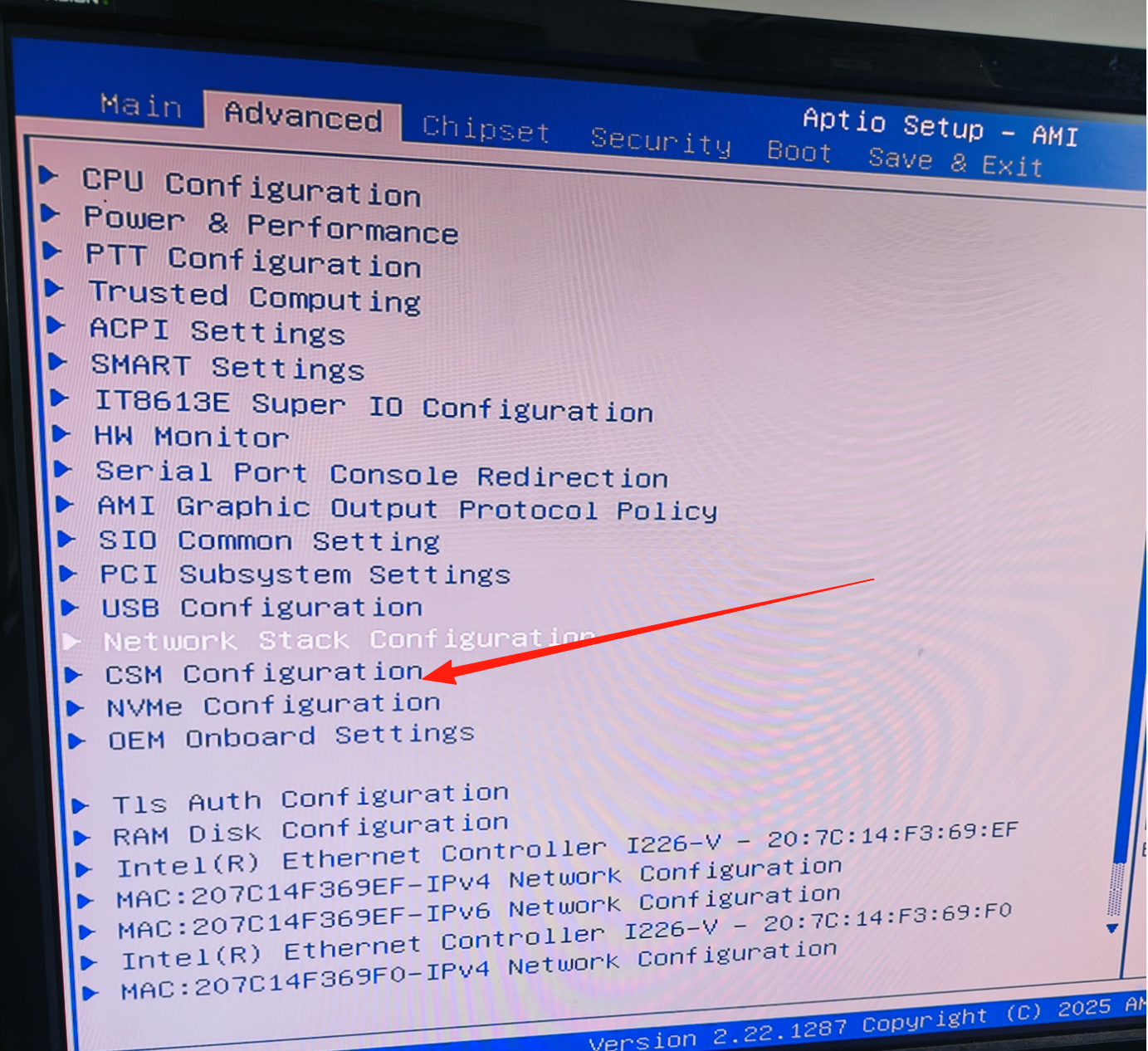
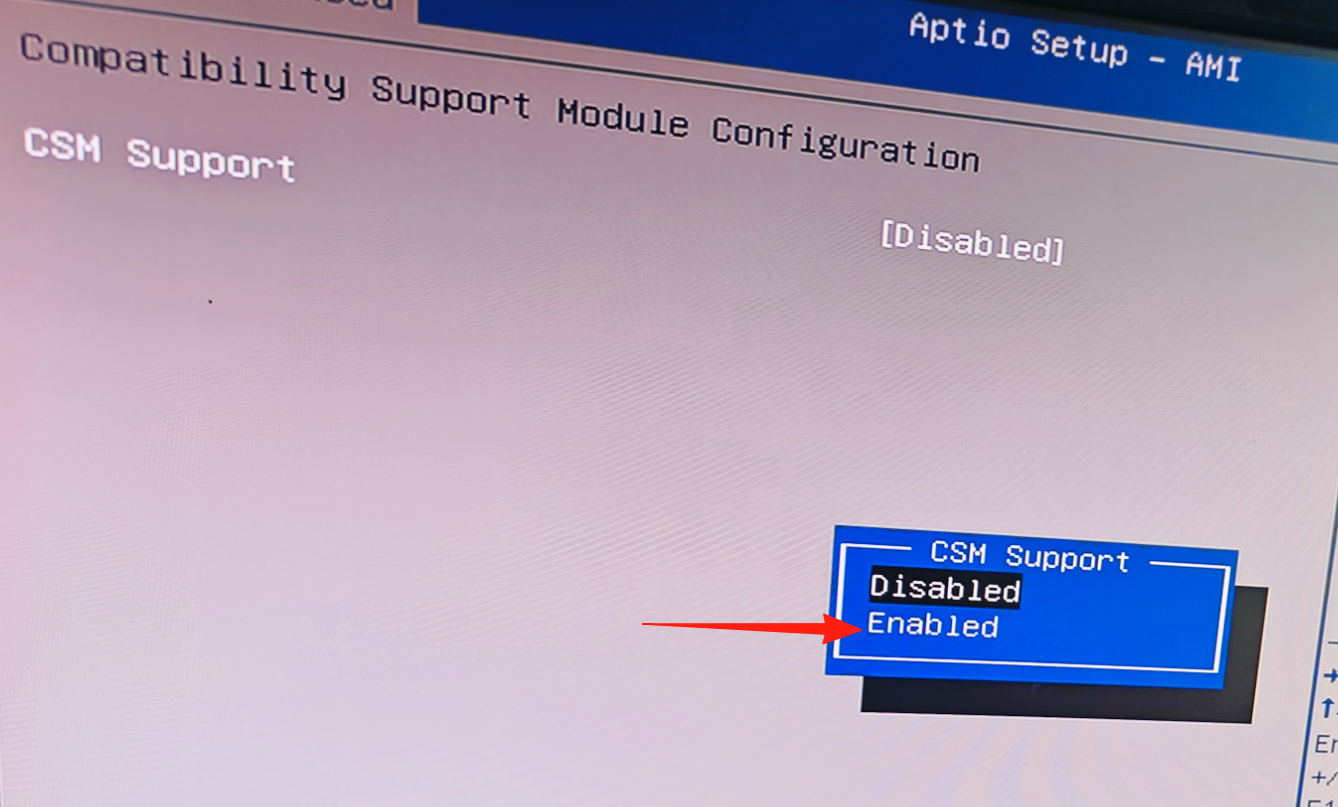
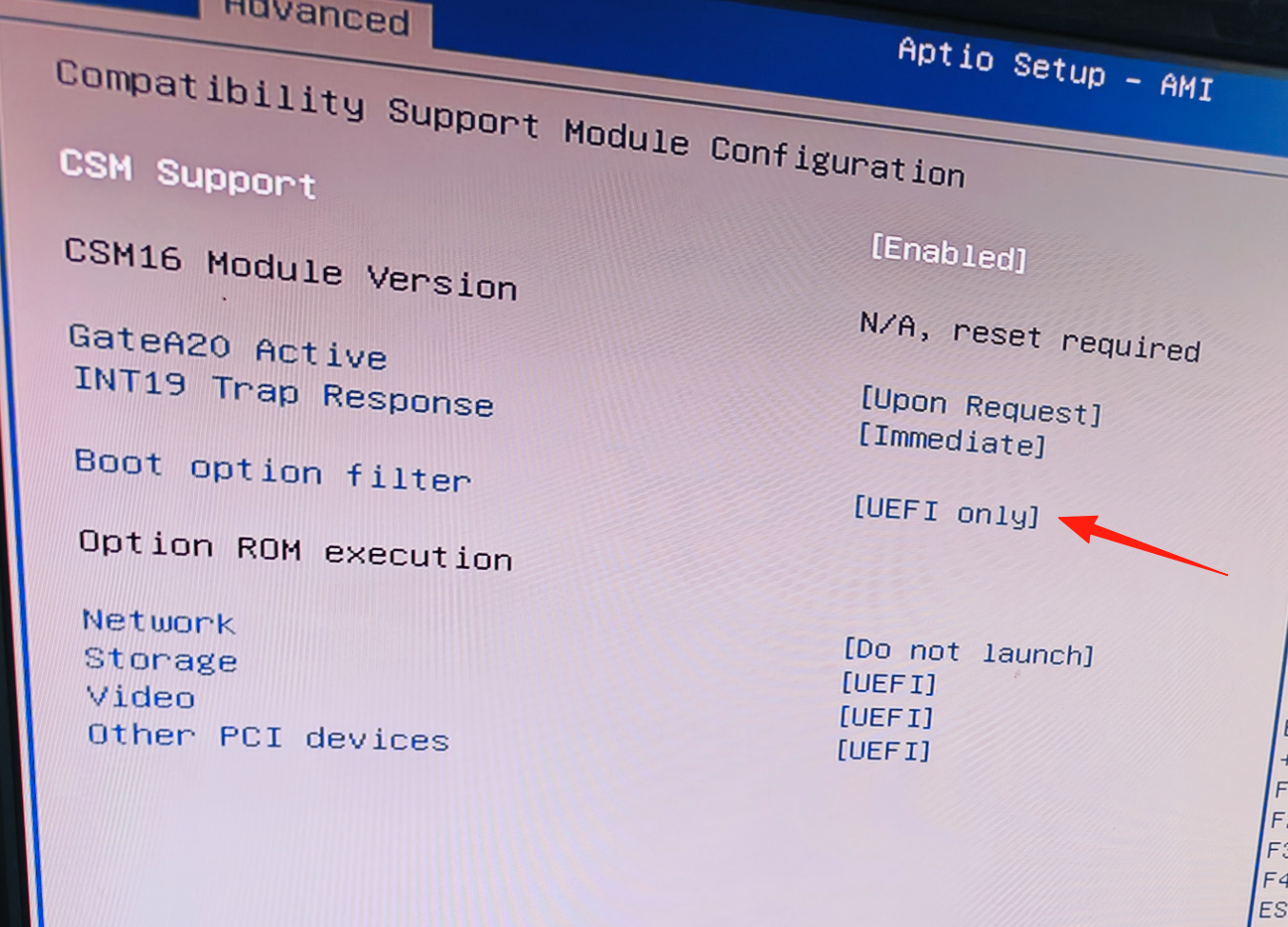
9. Hard Disk and USB Boot Mode (CSM)
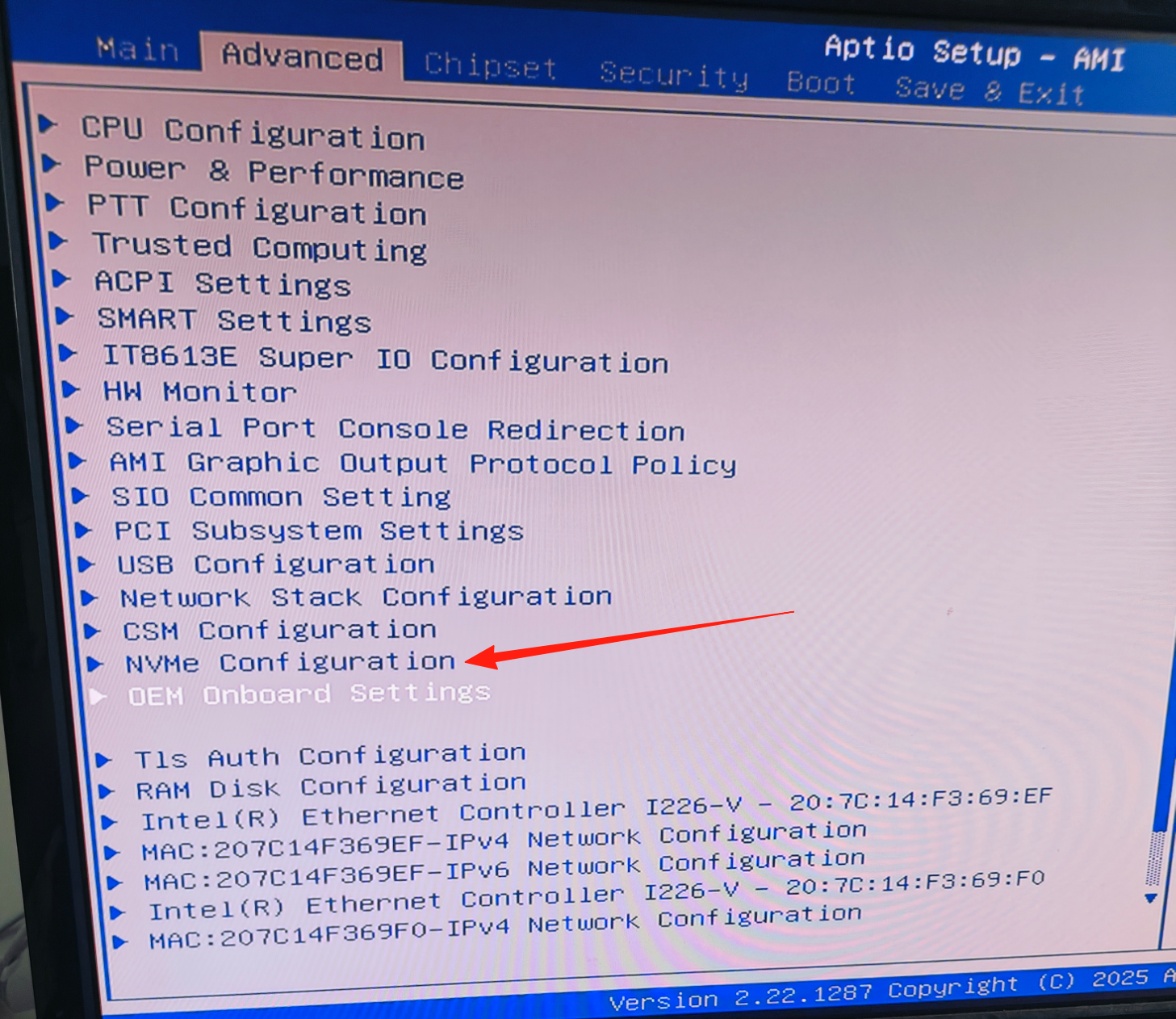
Hard disk and USB boot mode setting path: Enter Advanced, select CSM Configuration, select CSM Support and set it to Enabled, then select Boot option filter and choose the desired boot mode. (Beginners are advised to keep the default settings; the default is UEFI boot mode.) Remember to press F4 to save.
10. M.2 SSD Detection
M.2 SSD detection path (M.2 SSDs only support single-notch NVMe protocol): Enter Advanced and select NVMe Configuration to view.
11. Network Port MAC Address
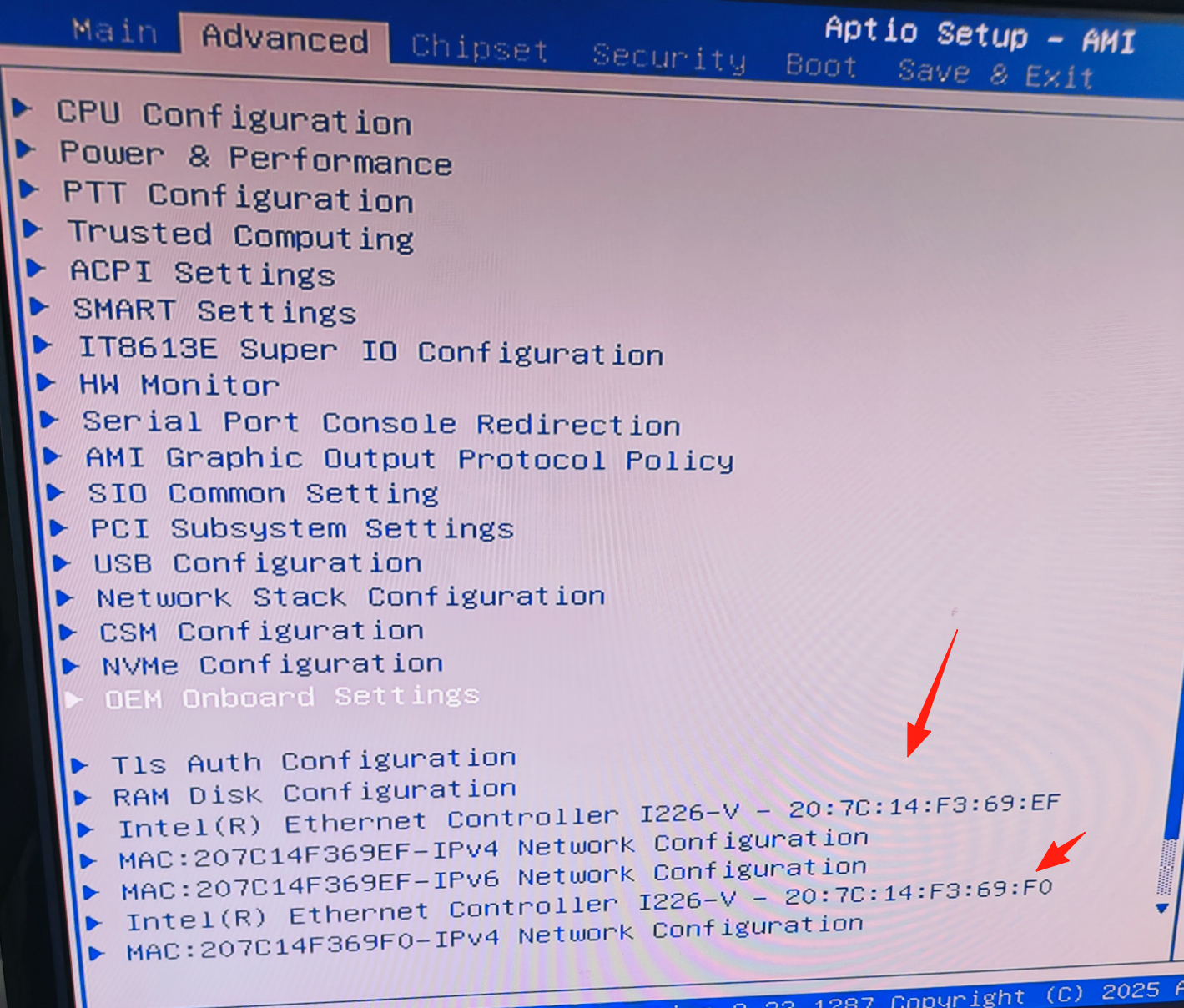
Network port MAC address viewing path: Simply enter the Advanced screen to view it.
12. SR-IOV Support
SR-IOV Support virtualization setting path: Enter Advanced, select PCI Subsystem Settings, select SR-IOV Support and set it to Enabled to enable or Disabled to disable, then also set SR-IOV Support in 0EH onboard settings to Enabled. Remember to press F4 to save.
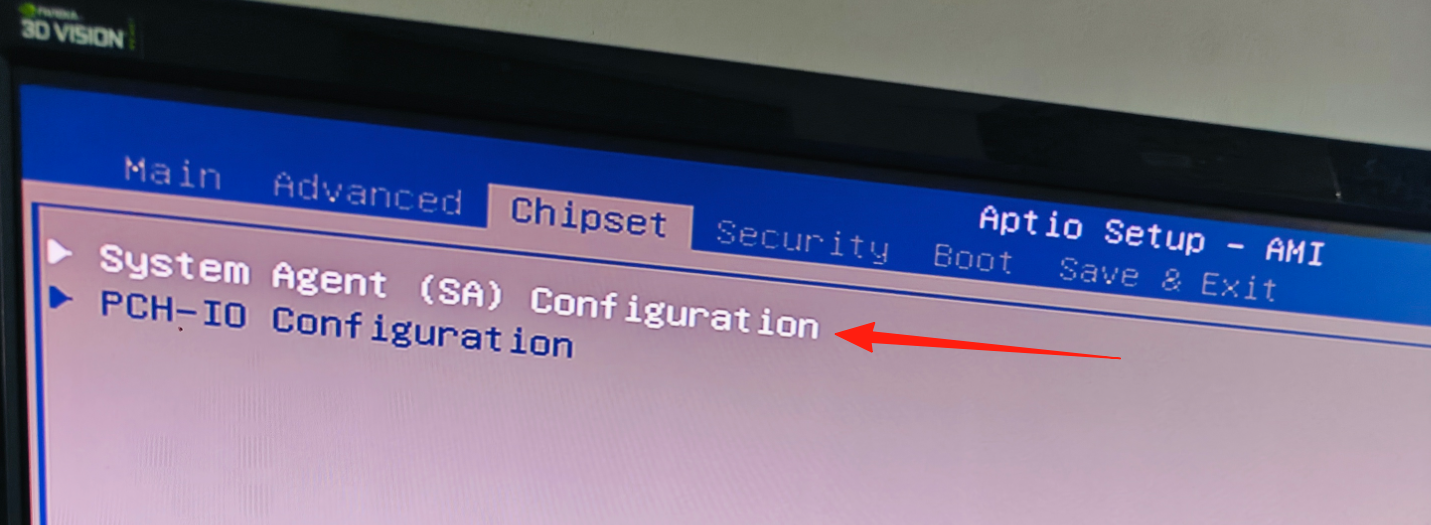
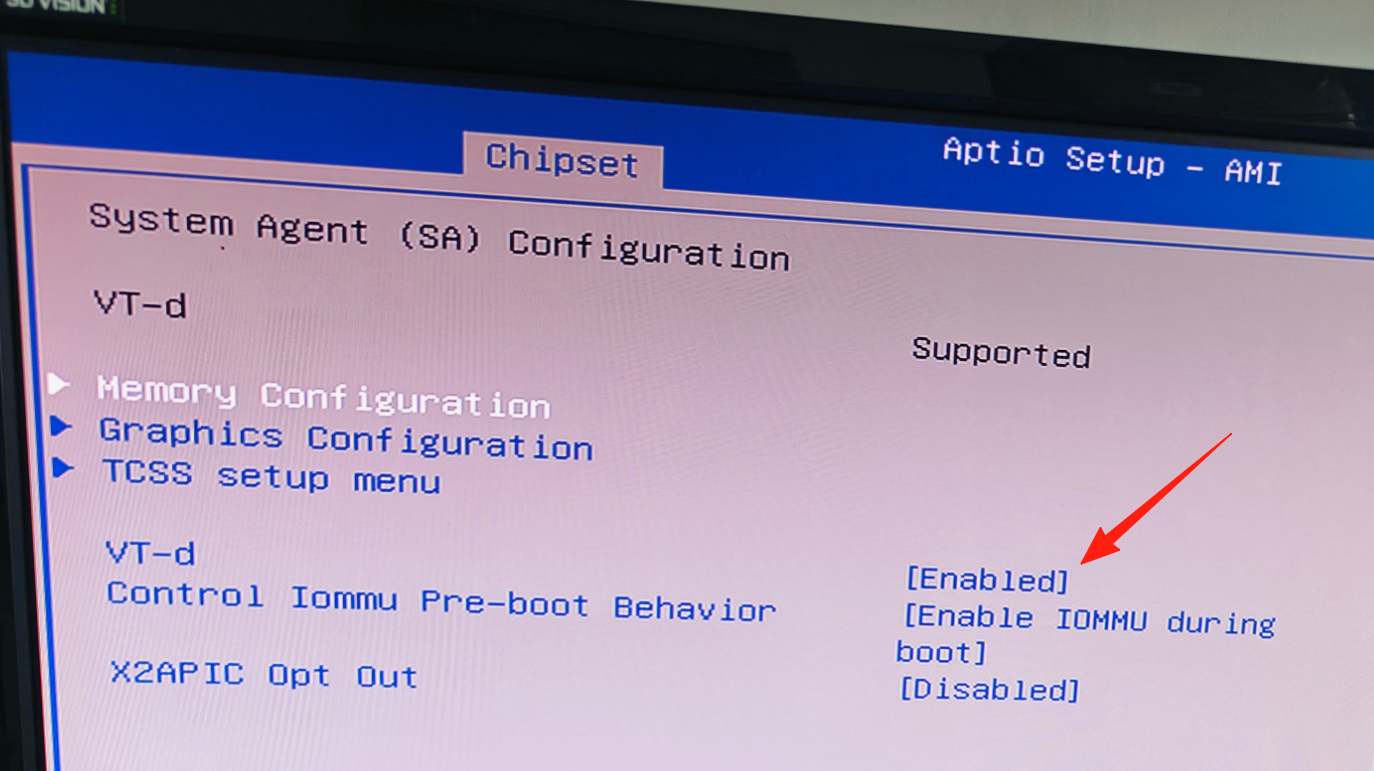
13. VT-D Virtualization
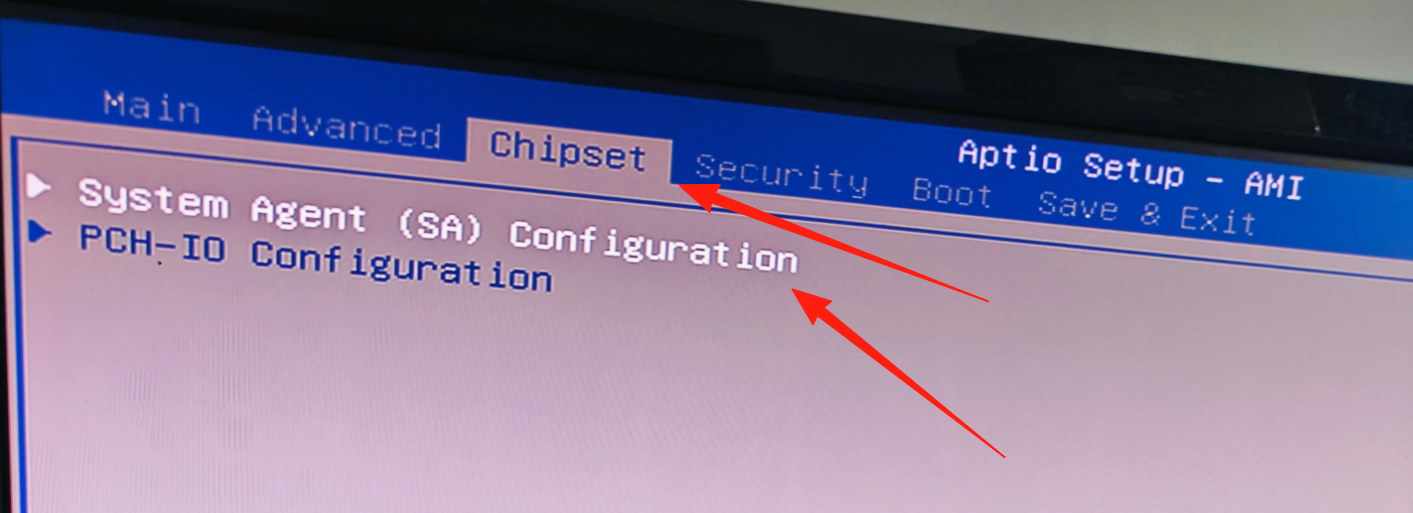
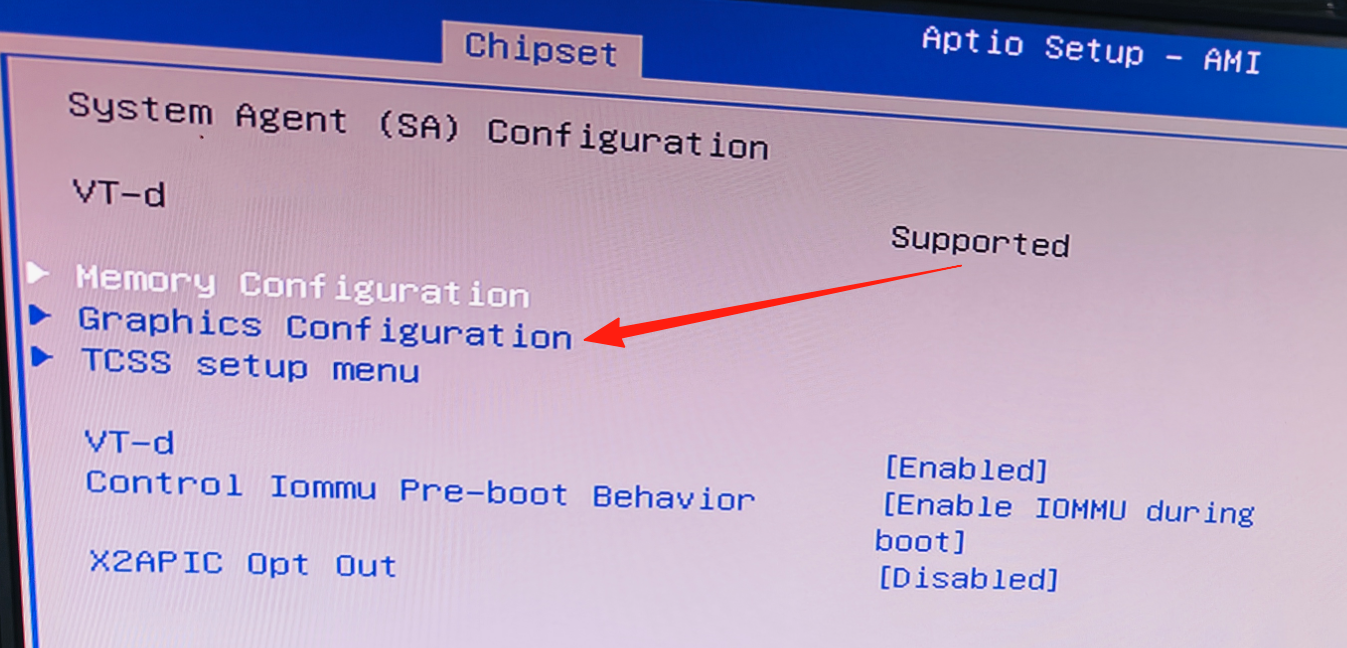
VT-D virtualization setting path: Enter Chipset, select System Agent (SA) Configuration, select VT-D and set it to Enabled to enable or Disabled to disable. Remember to press F4 to save.
14. Video Memory Size
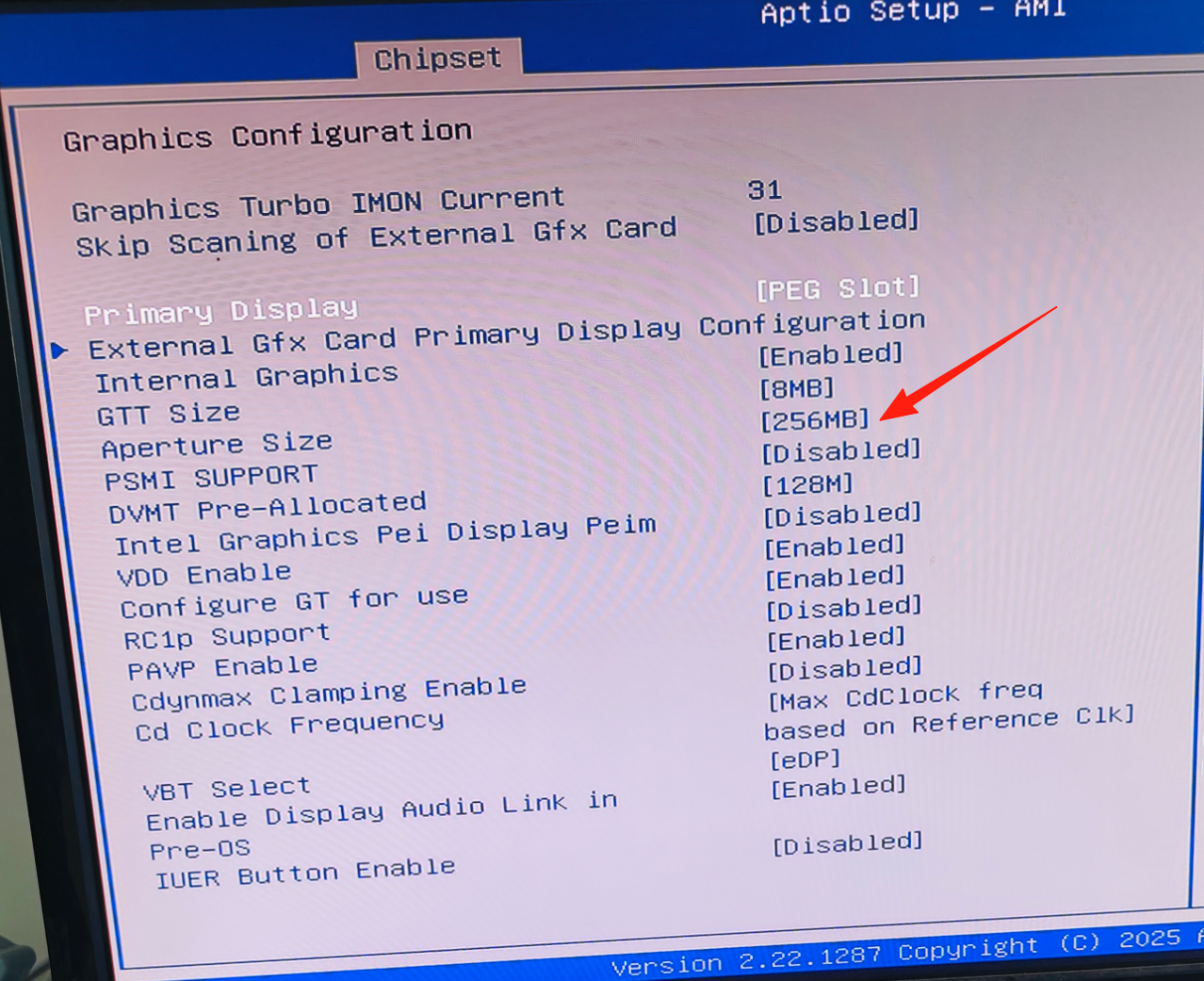
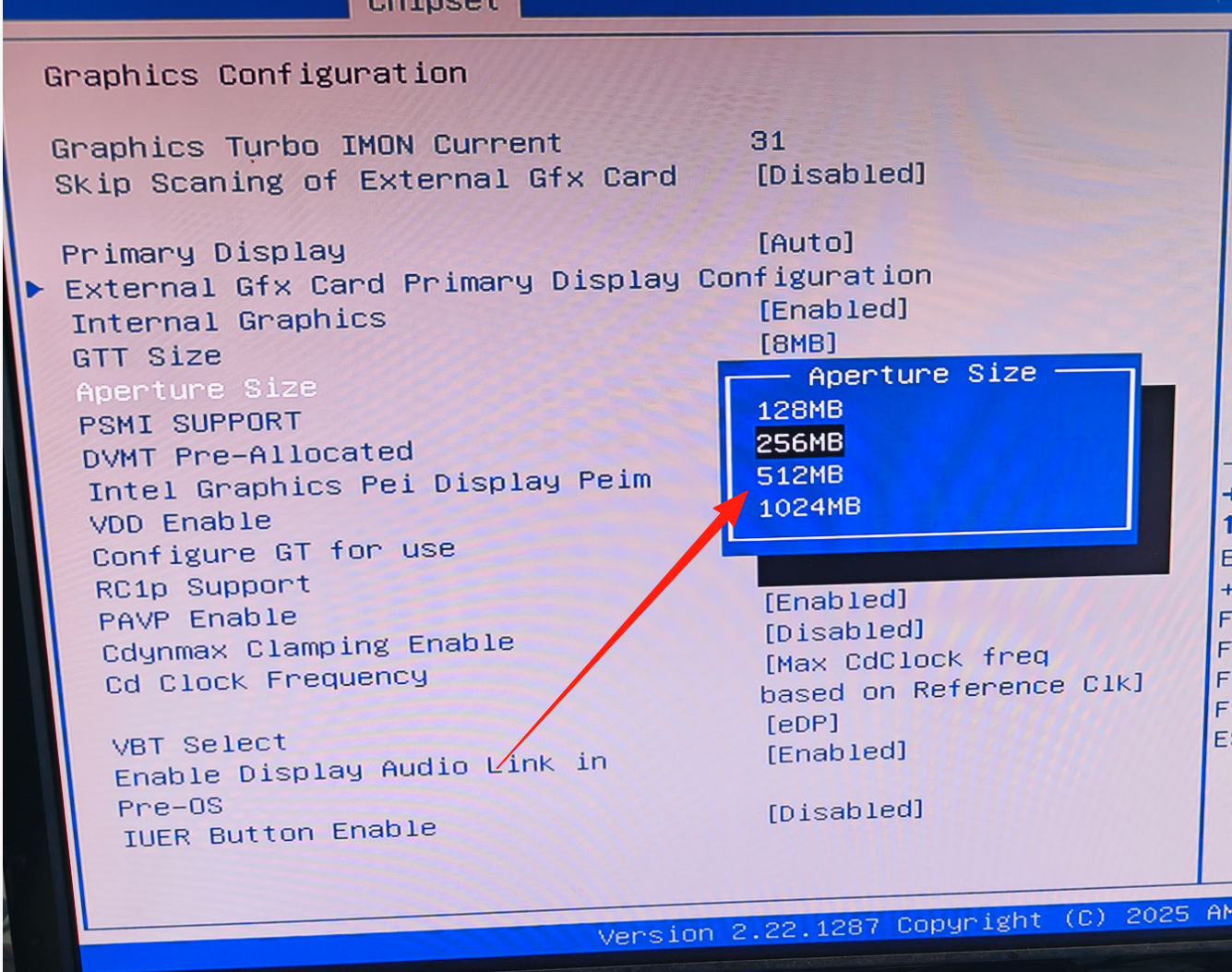
Video memory size setting path: Enter Chipset, select System Agent (SA) Configuration, select Graphics Configuration, select Aperture Size and choose the capacity you need. Remember to press F4 to save. (Beginners are not advised to change this; keep the default setting.)
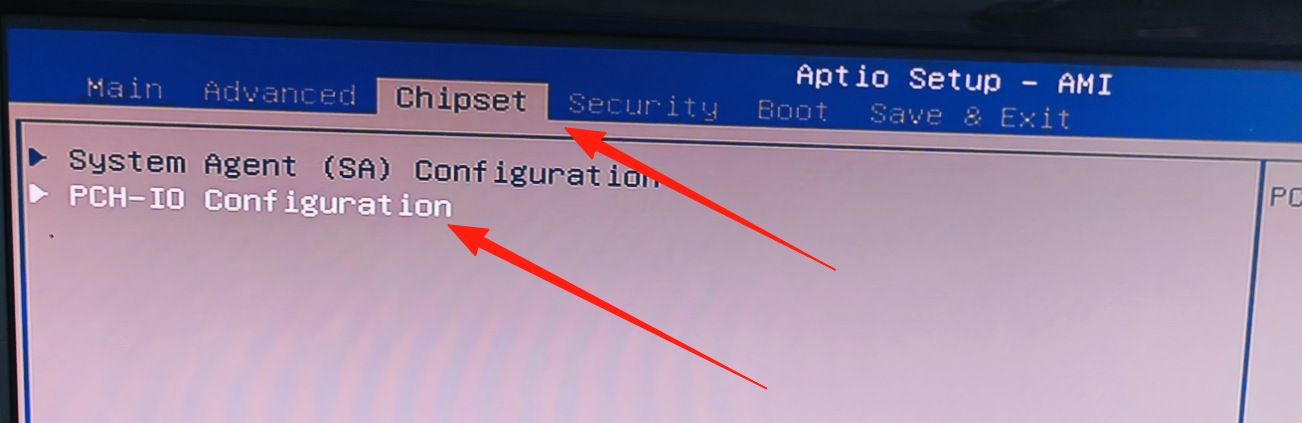
15. Power-On-When-AC-Restored
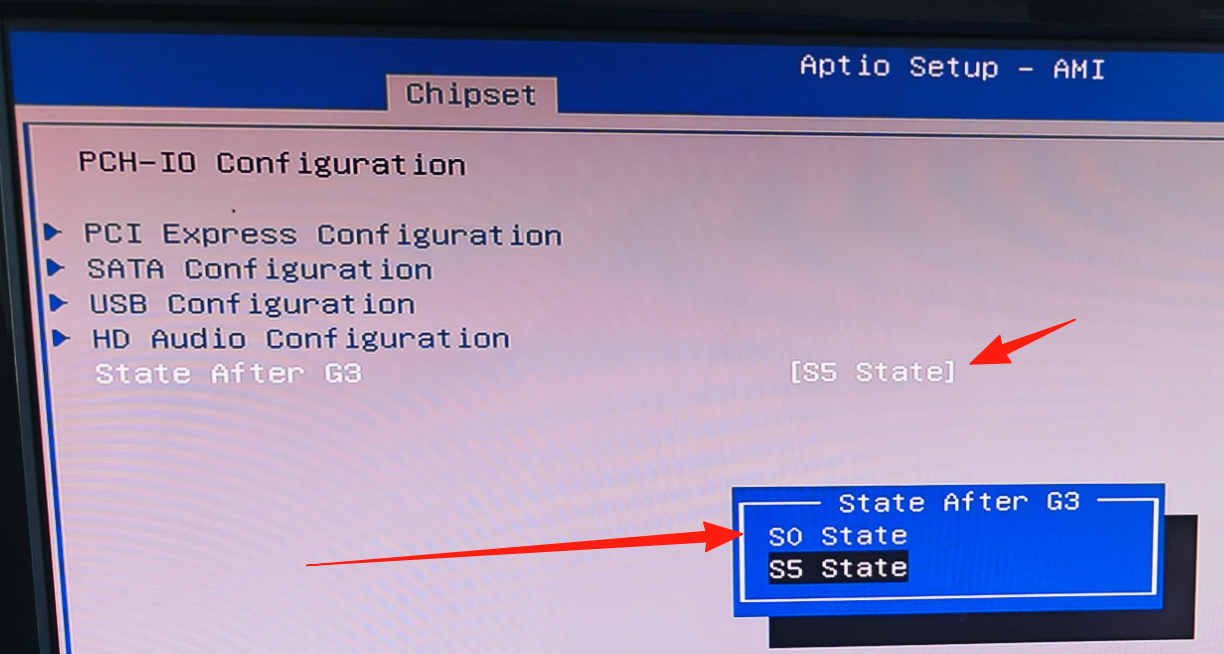
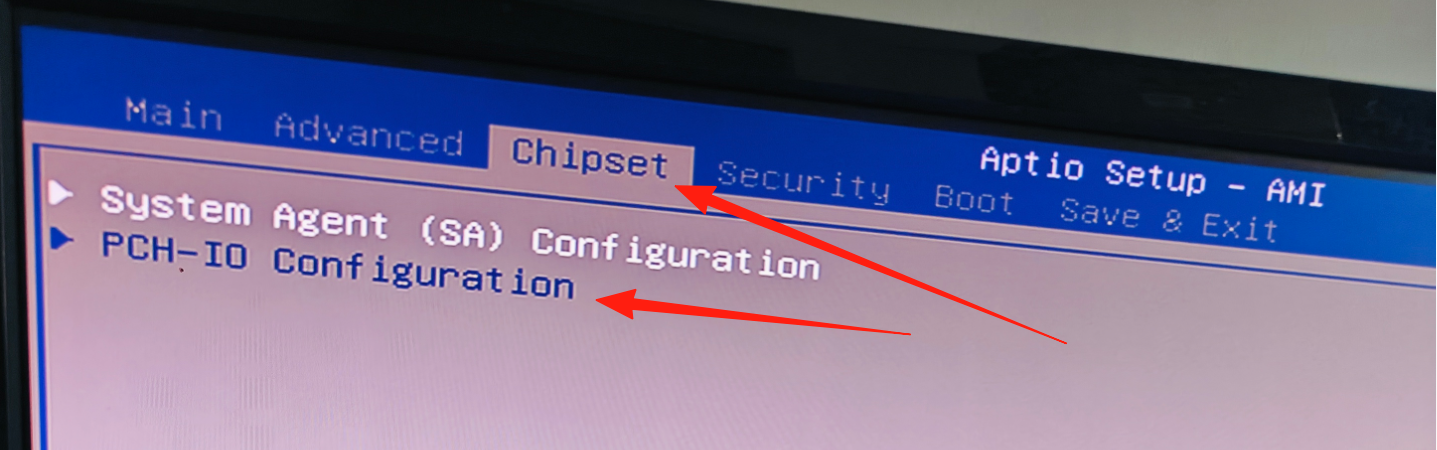
Power-on-when-AC-restored setting path: Enter Chipset, select PCH-IO Configuration, select State After G3 (State A), choose S5 state to disable power-on-when-AC-restored or S0 state to enable it, then also turn on the hardware switch on the motherboard. Remember to press F4 to save after setting the BIOS.
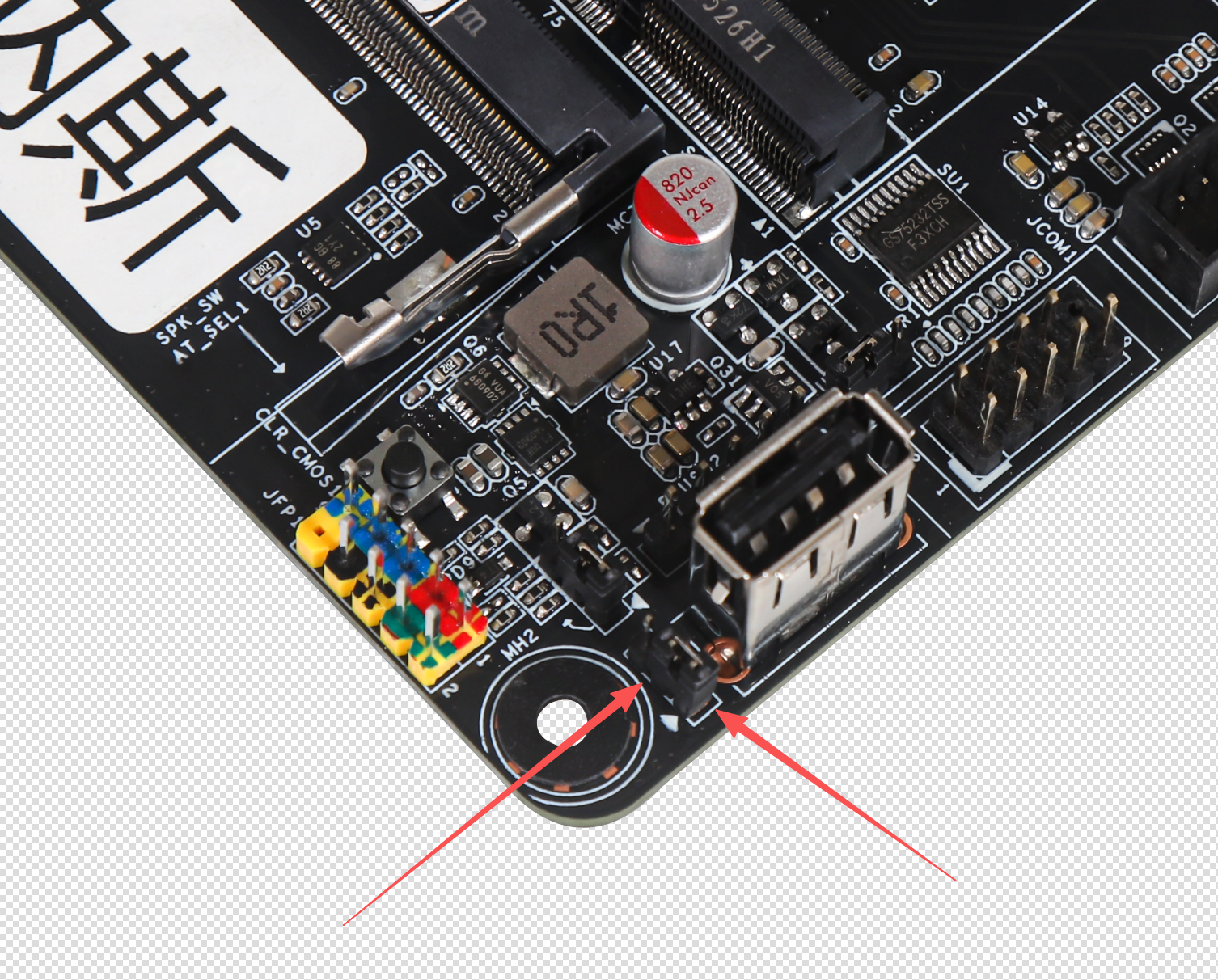
The default cap covering pins 2-3 means off; remove the cap and cover pins 1-2 to enable power-on-when-AC-restored. The power-on setting must be enabled and disabled together with the BIOS.
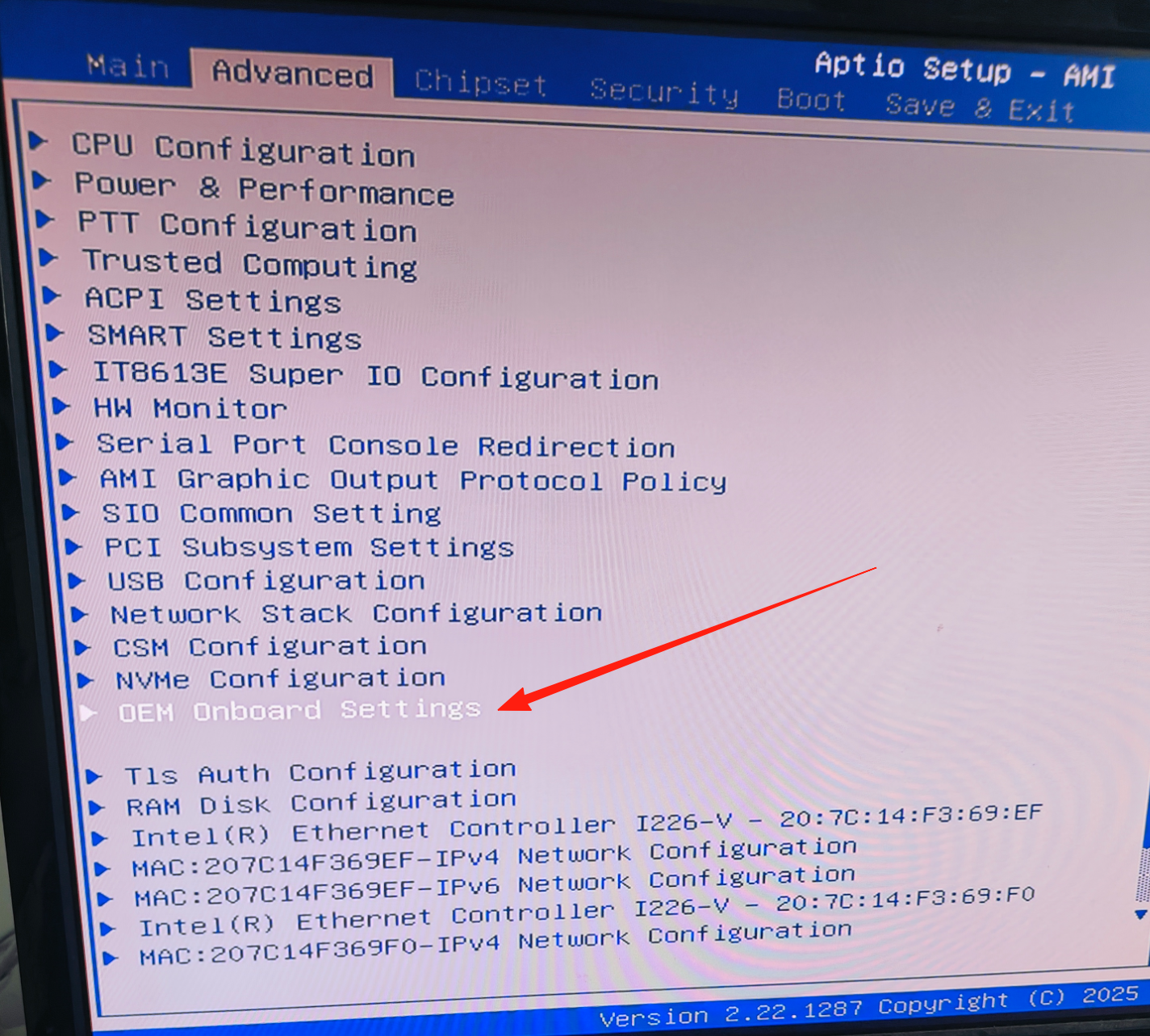
16. Wake on LAN
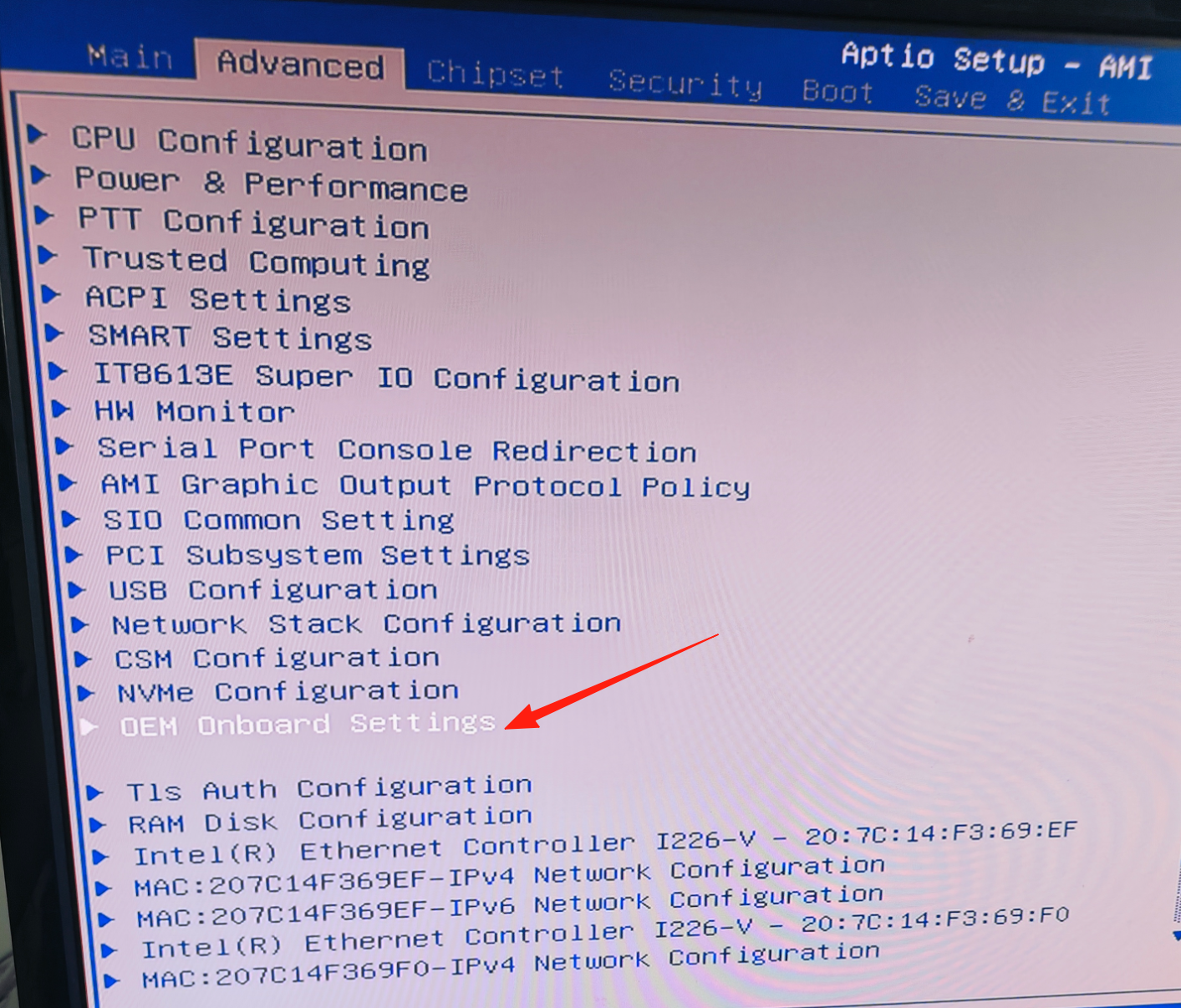
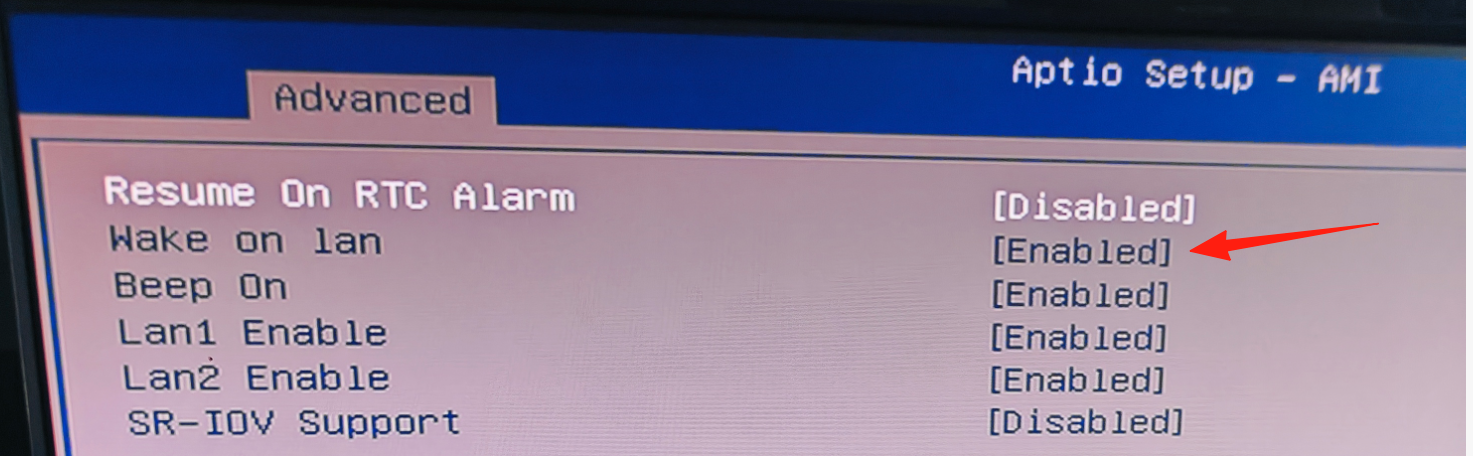
Wake on LAN: Enter Advanced, select 0EH onboard settings, select Wake on LAN, choose Enabled to turn on or Disabled to turn off. Remember to press F4 to save.
17. Hard Disk Hot-Plug
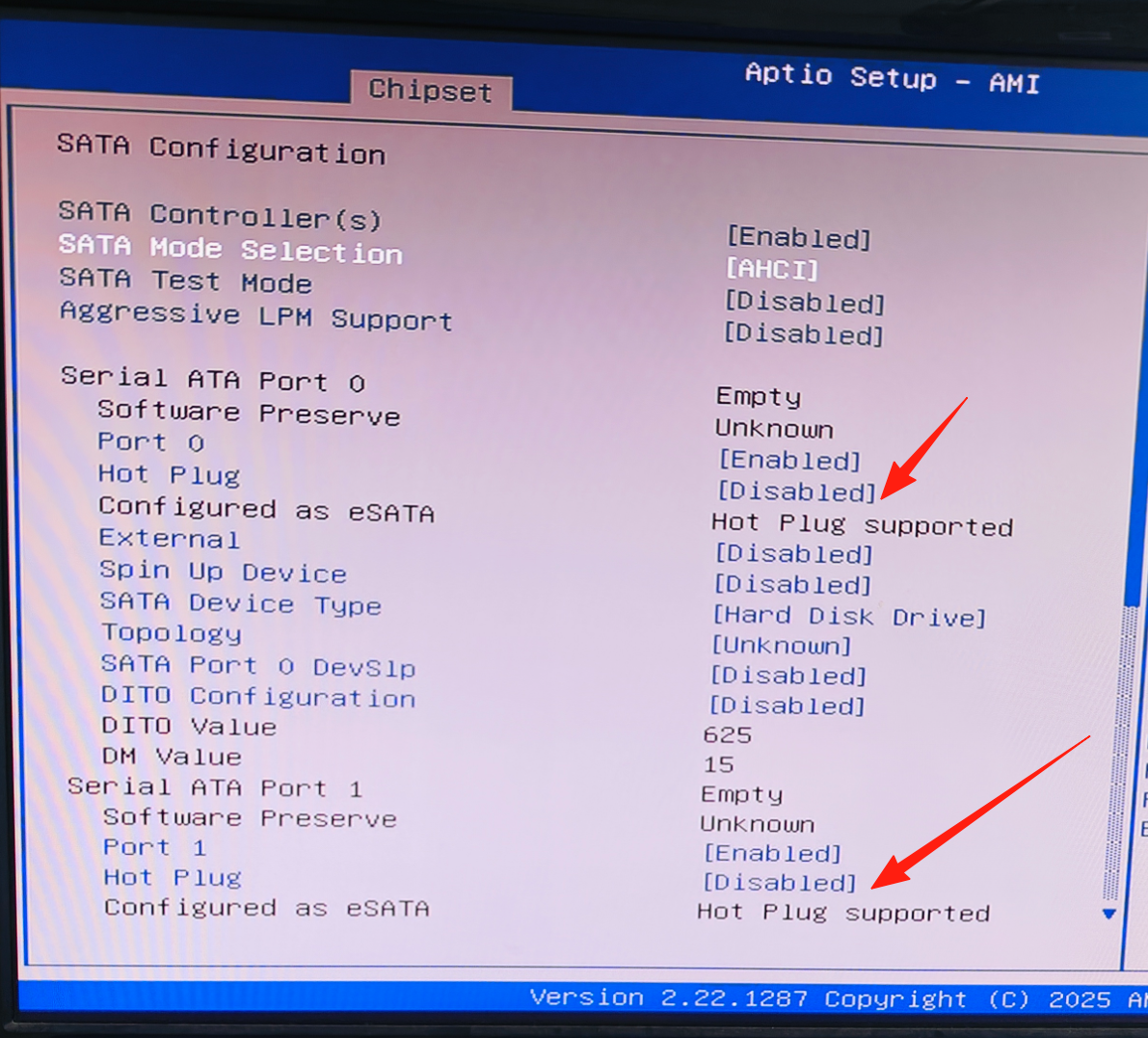
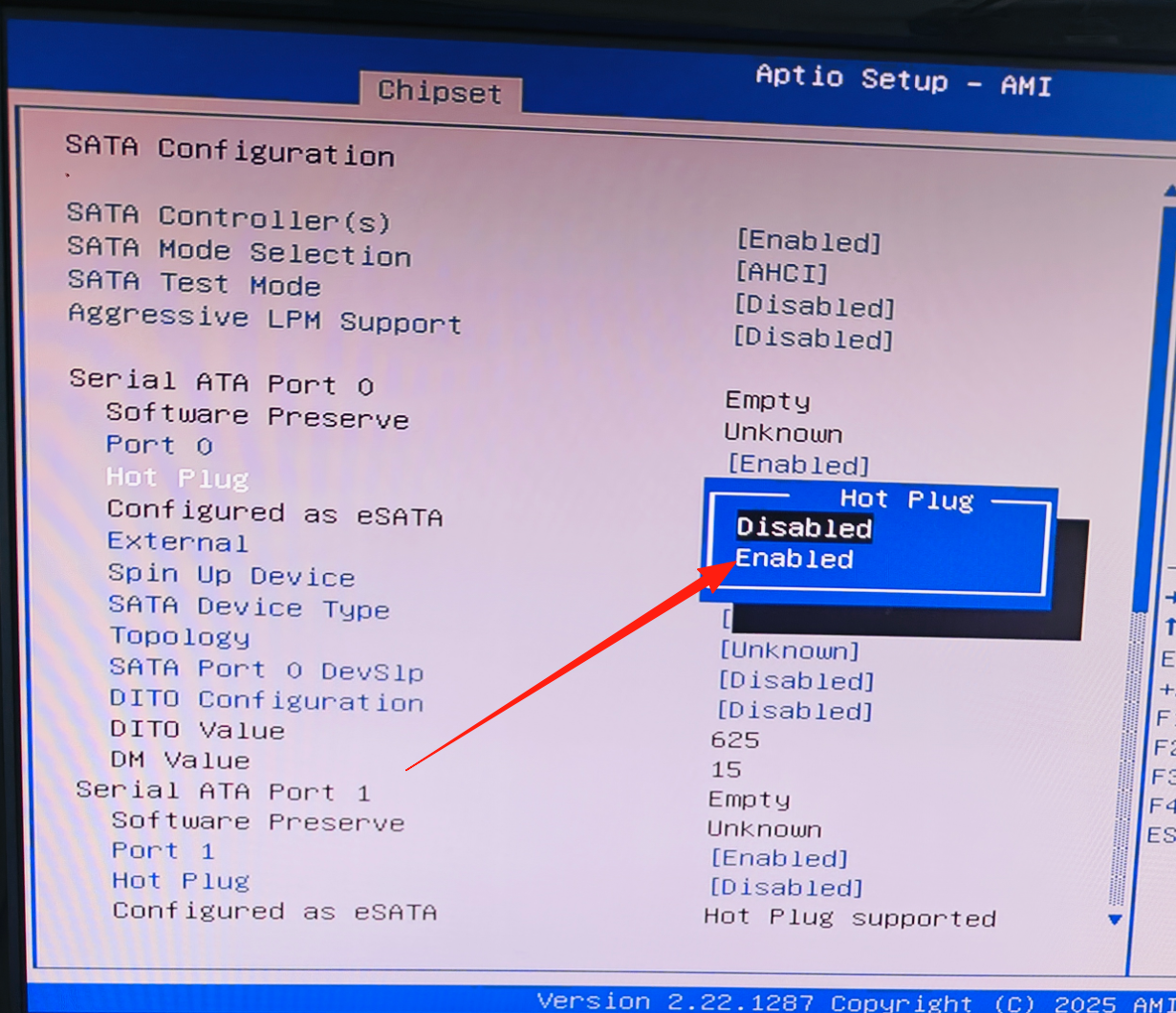
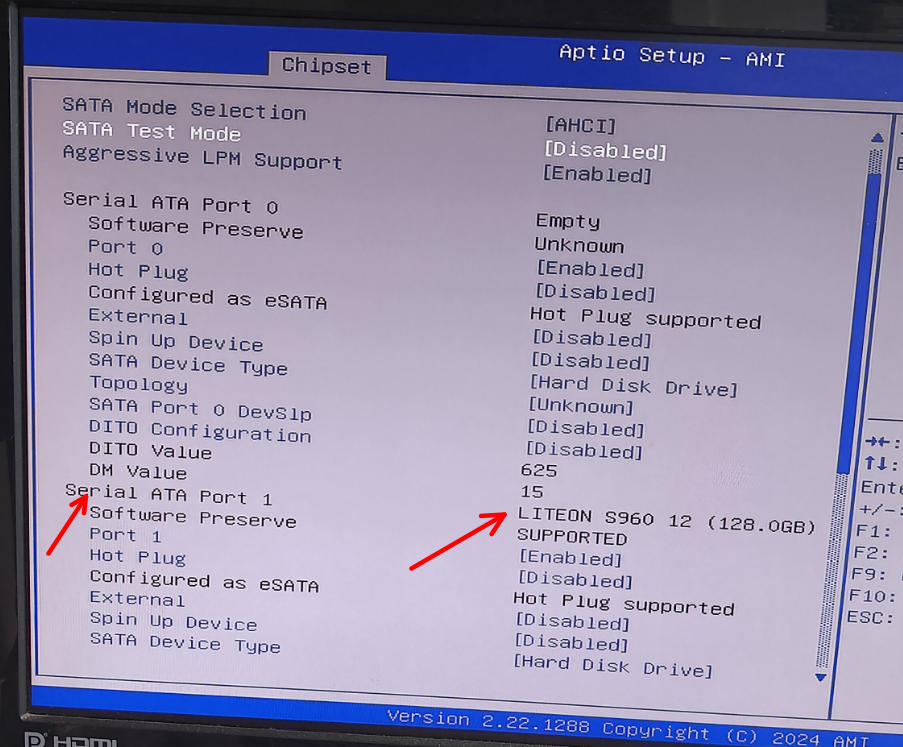
Hard disk hot-plug setting path: Enter Chipset, select PCH-IO Configuration, select SATA Configuration, set all Hot Plug options to Enabled. Remember to press F4 to save. To view the hard disk connection status of the motherboard SATA ports, in SATA Configuration the Serial ATA Port option will show the SATA hard disk connection status.
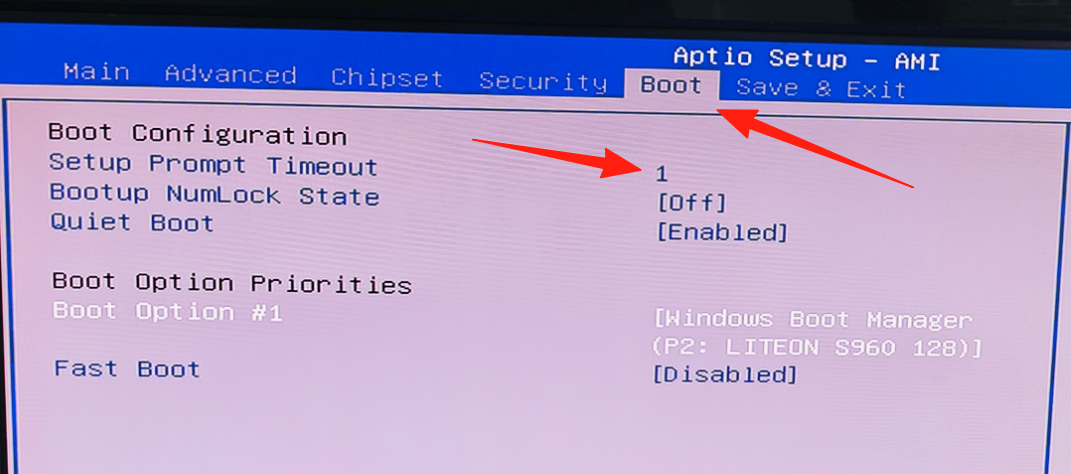
18. Hard Disk Delayed Boot
Hard disk delayed boot setting path: Enter BOOT, select Setup Prompt Timeout and set the boot time; the default is 1 second. Remember to press F4 to save.
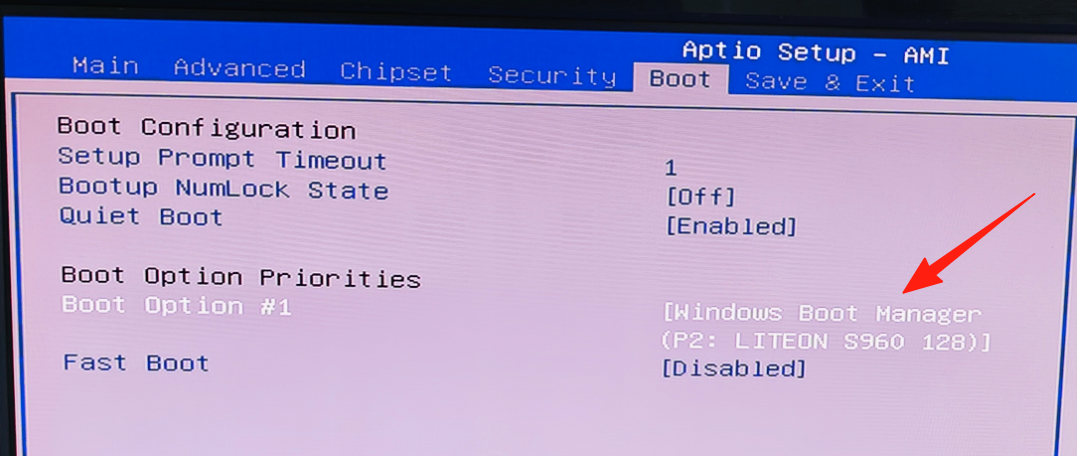
19. System Disk Boot
System disk boot setting path: Enter BOOT and select Boot Option #1, which is the default first boot item. Remember to press F4 to save.
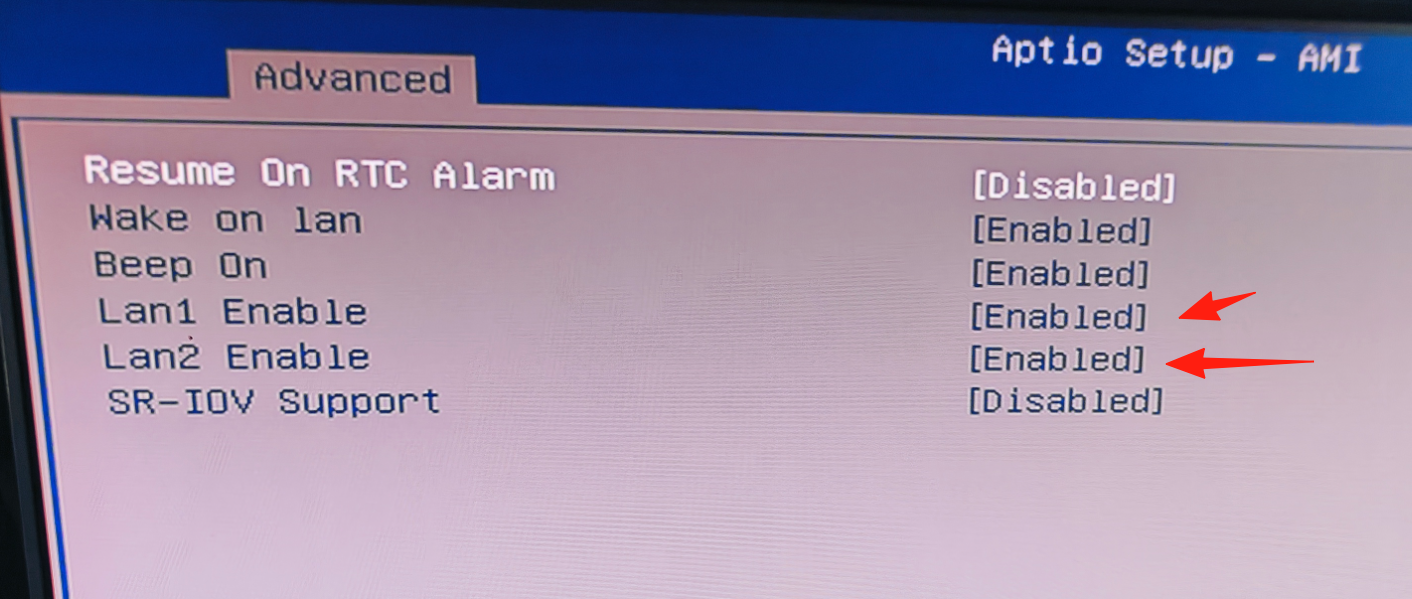
20. Network Port Disable
Network port disable path: Enter Advanced, select 0EH onboard settings, select Lan1 Enable or Lan2 Enable and set it to Disabled, then press F4 to save.
The Motherboard Won’t Power On and the Monitor Shows No Response?
- Check whether the CPU fan is spinning, whether the motherboard self-test LED is green and whether the buzzer beeps once (if the self-test LED is on and the buzzer beeps once, the self-test has passed; then check whether the cables are properly connected). If the CPU fan is not spinning, check whether the power supply cable is properly connected and check the power strip socket.
- Check whether the CPU power cable is plugged in and whether it is plugged in correctly.
- Remove the memory and wipe the gold fingers with a tissue or eraser; if it still doesn’t work, try another memory module.
- If the motherboard power LED is green and the buzzer beeps once, the self-test has passed. Plug in the network cable and check whether the motherboard network port LED and keyboard LED are on; if they are on, it is running normally. In normal operation, check whether the connector cables and monitor cables are properly connected, and try switching the monitor signal source; if there is still no display, replace the connector cable or try another monitor connection.
- If the above methods still don’t work, try another power supply and check whether the power supply wattage is insufficient.
- If it still doesn’t work, try discharging static from the motherboard: remove the motherboard battery and disconnect the motherboard power cable and CPU power cable, then short the power-on header a few times to discharge static, then reinstall the battery and power cables and try to boot.
- If the above methods still don’t work, contact online customer service and mail the motherboard and memory together for inspection.
Product Purchase & Contact
Where to Buy
The M13-N motherboard and compatible accessories are available through the following official channels:
- Official Store: https://www.nasboost.com/shop/
- M13-N Product Page: https://www.nasboost.com/product/nasboost-m13-n-nas-motherboard-itx/
- Download Center (manuals, BIOS, drivers): https://www.nasboost.com/download-center/
Contact Us
If you need technical support, warranty service, or have any questions about this product, please contact us:
- Email: support@nasboost.com
- WhatsApp: +86 18575539686
- Website: https://www.nasboost.com
- Business Hours: Mon-Fri, 9:00 AM – 6:00 PM (HKT)
NasBoost Limited
HK Office: Flat D07, 8/F, Phase 2, Kai Tak Factory Building, 99 King Fuk Street, San Po Kong, Kowloon, Hong Kong 999077
Need more help?
Visit the Download Center for the latest BIOS, drivers and documentation, or contact our support team at support@nasboost.com.